
How to install an extension
Install from the Chrome Web Store in the store window, or load an unpacked extension.
Install the extension in that store's browser window. Don't use the system browser. First add the store: How to add a store. Then click Launch in the desktop app. Launch the store in the desktop app.
The extension stays with this store. Another store needs its own install.
Install from the Chrome Web Store
- In the store window, open the Chrome Web Store in the address bar.
- Search for the extension, open it, and install it.
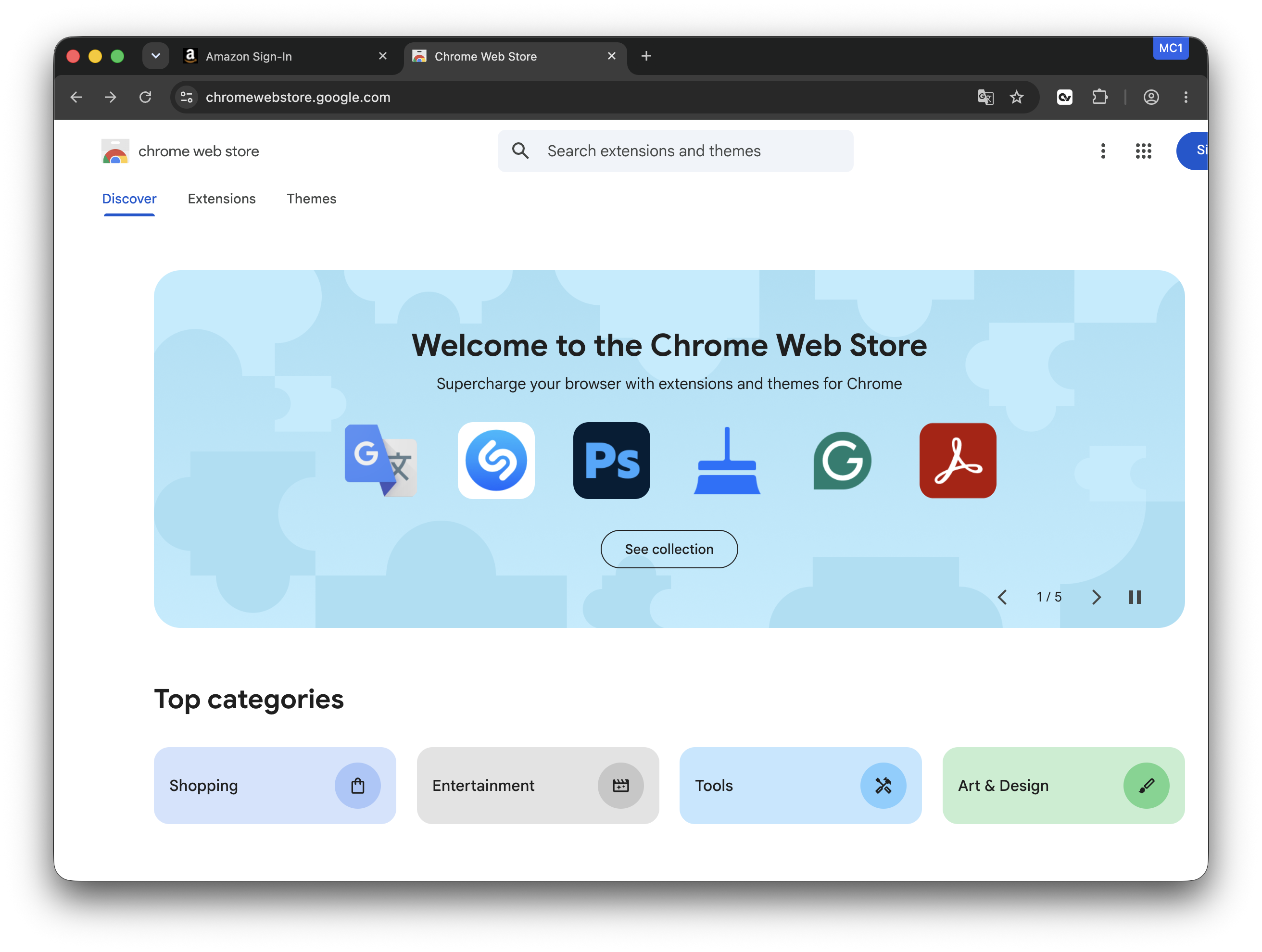
You can also open chrome://extensions, then use the Chrome Web Store link on that page.
Load an unpacked extension
If the extension is a folder rather than something you install from the store, load it in the store window.
- Open
chrome://extensionsin the address bar. - Turn on Developer mode at the top right.
- Click Load unpacked.
- Choose the extension folder.
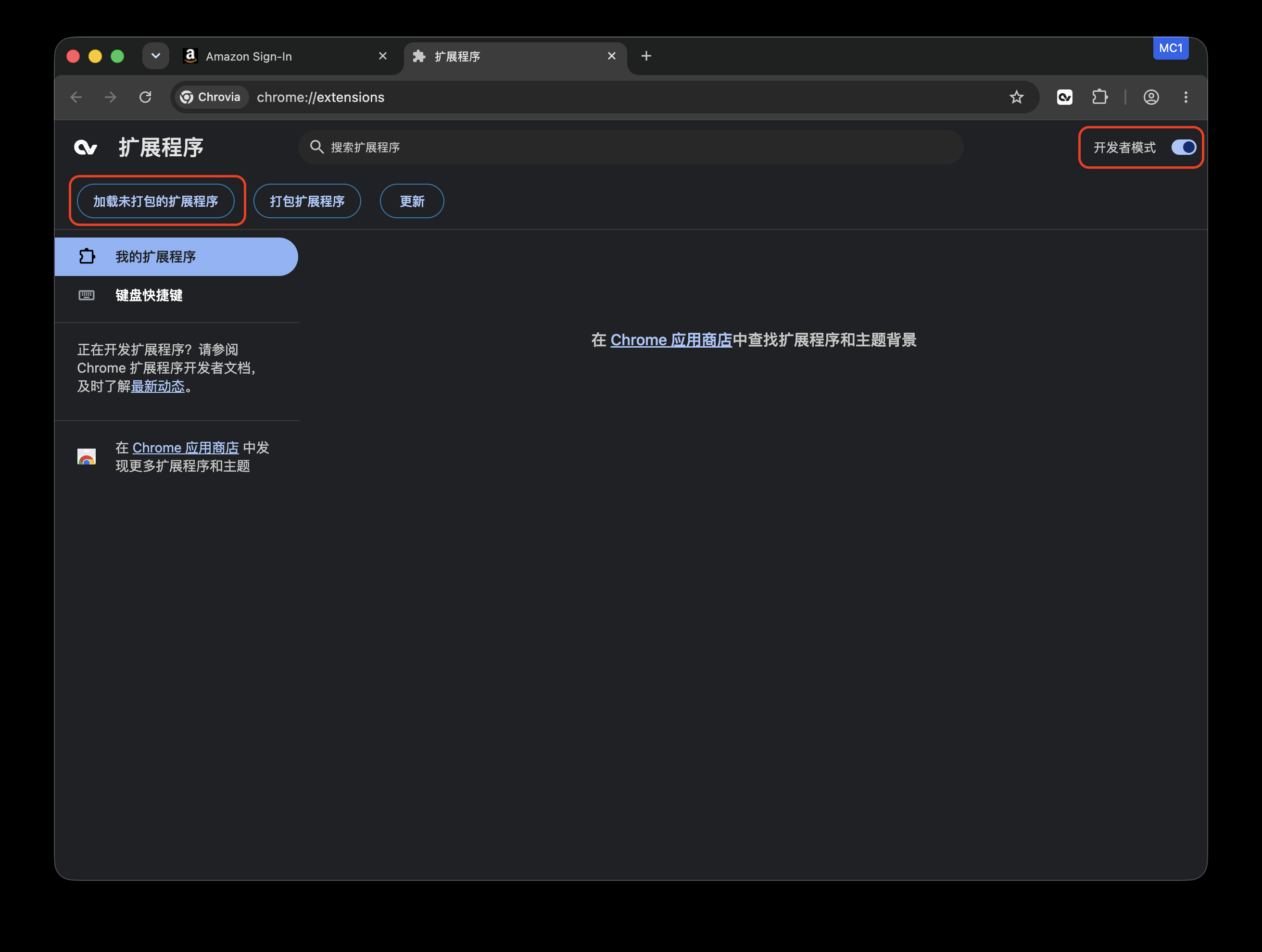
If you downloaded a zip file, unzip it first, then choose the unzipped folder.
It appears under My extensions. The extension stays with this store. It is still there the next time you click Launch.