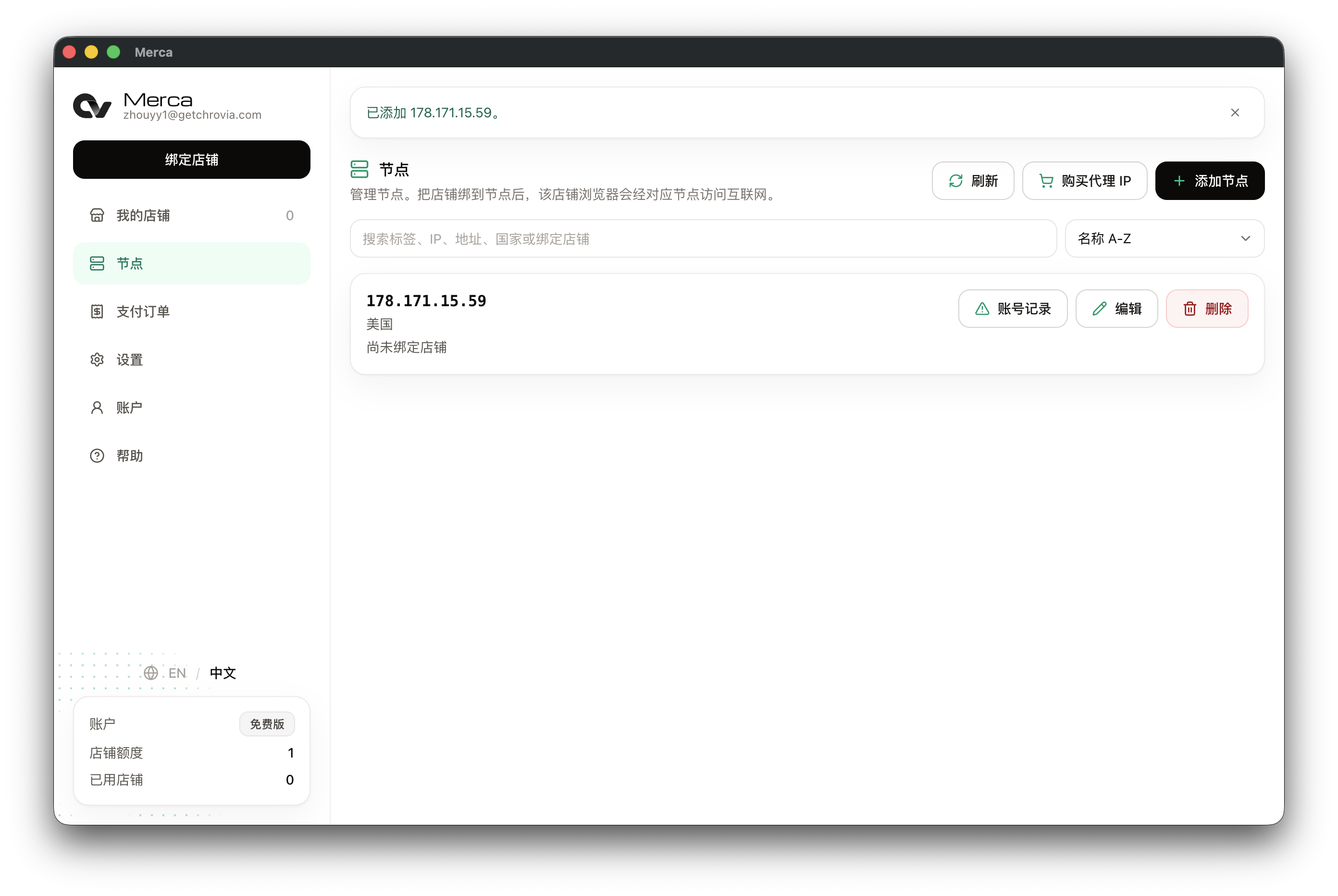
Add a node
Turn on System proxy, buy a node, and add it in Merca.
Merca doesn't sell network access. You buy the IP, then add it as a node. Check the node in the desktop app. Only the owner or an admin can add nodes.
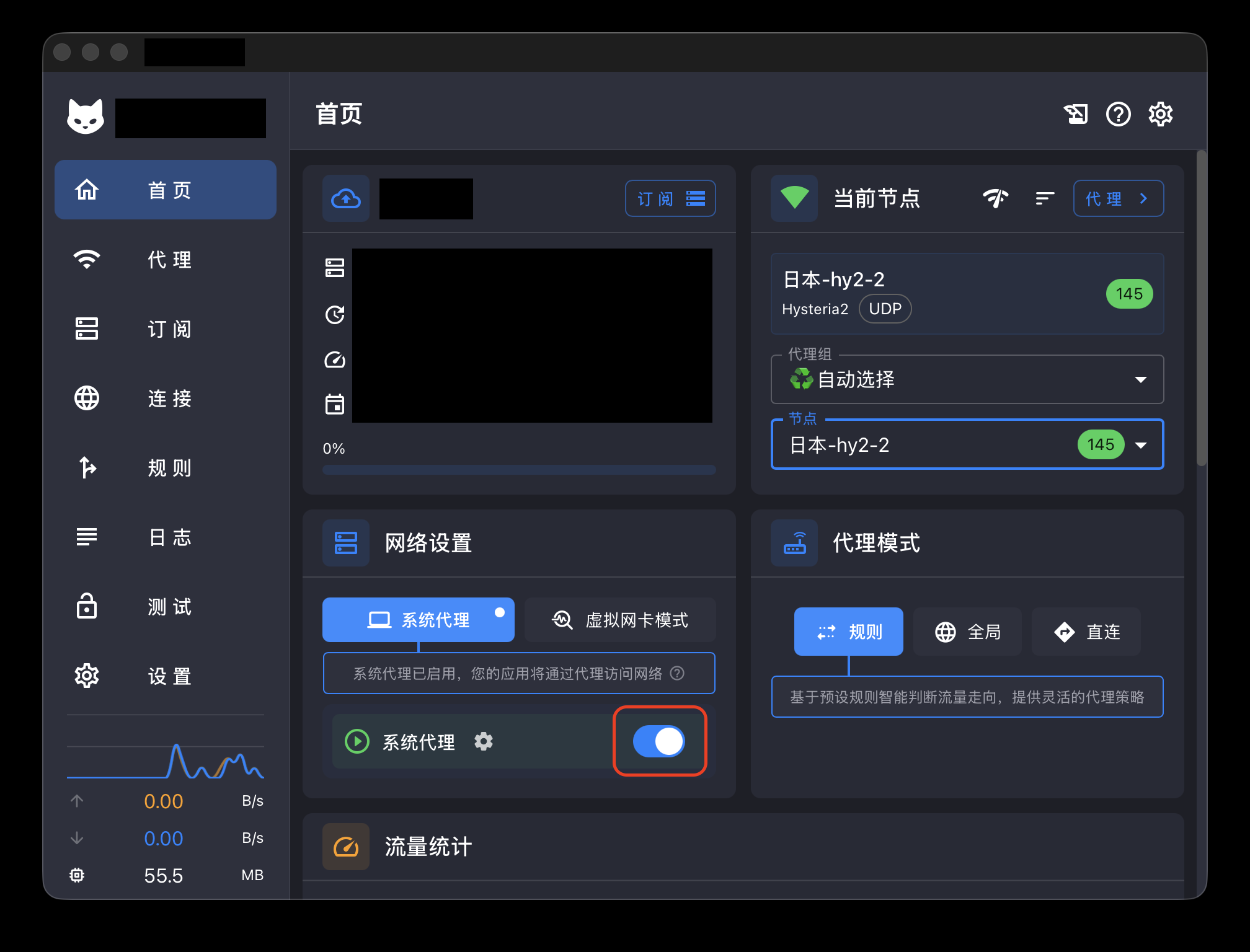
Turn on System proxy
Turn on System proxy in the third-party software. The purchase page and node check both use this computer's system proxy. Listening on a local port is not enough.
Buy a node
Which type and which country: How to tell node types apart and Which country should I buy a node in. Whether an IP is clean: What is node contamination.
- Open the Merca desktop app, sign in, and go to Nodes.
- Click Buy a node at the top right.
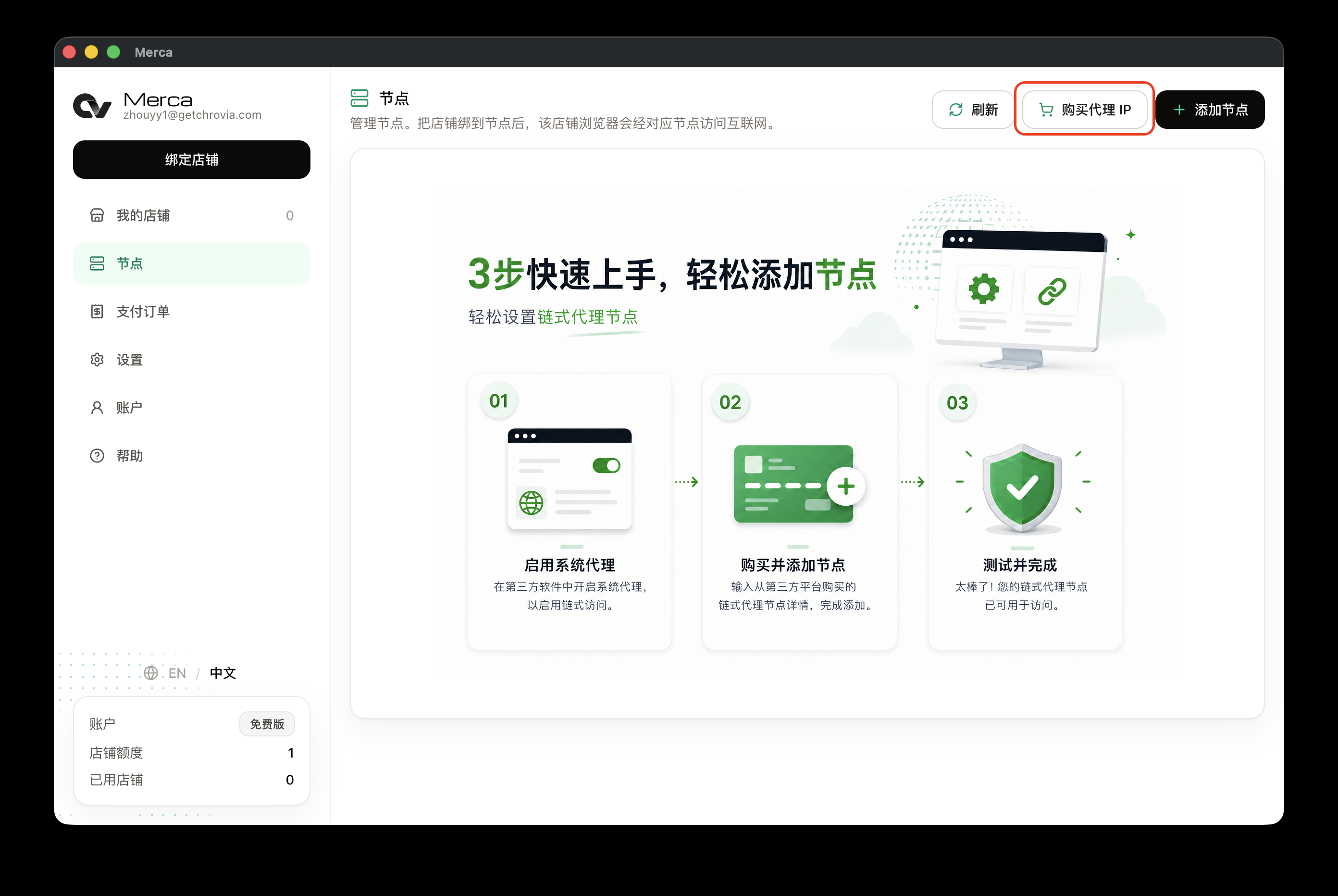
The Network providers page opens in your system browser.
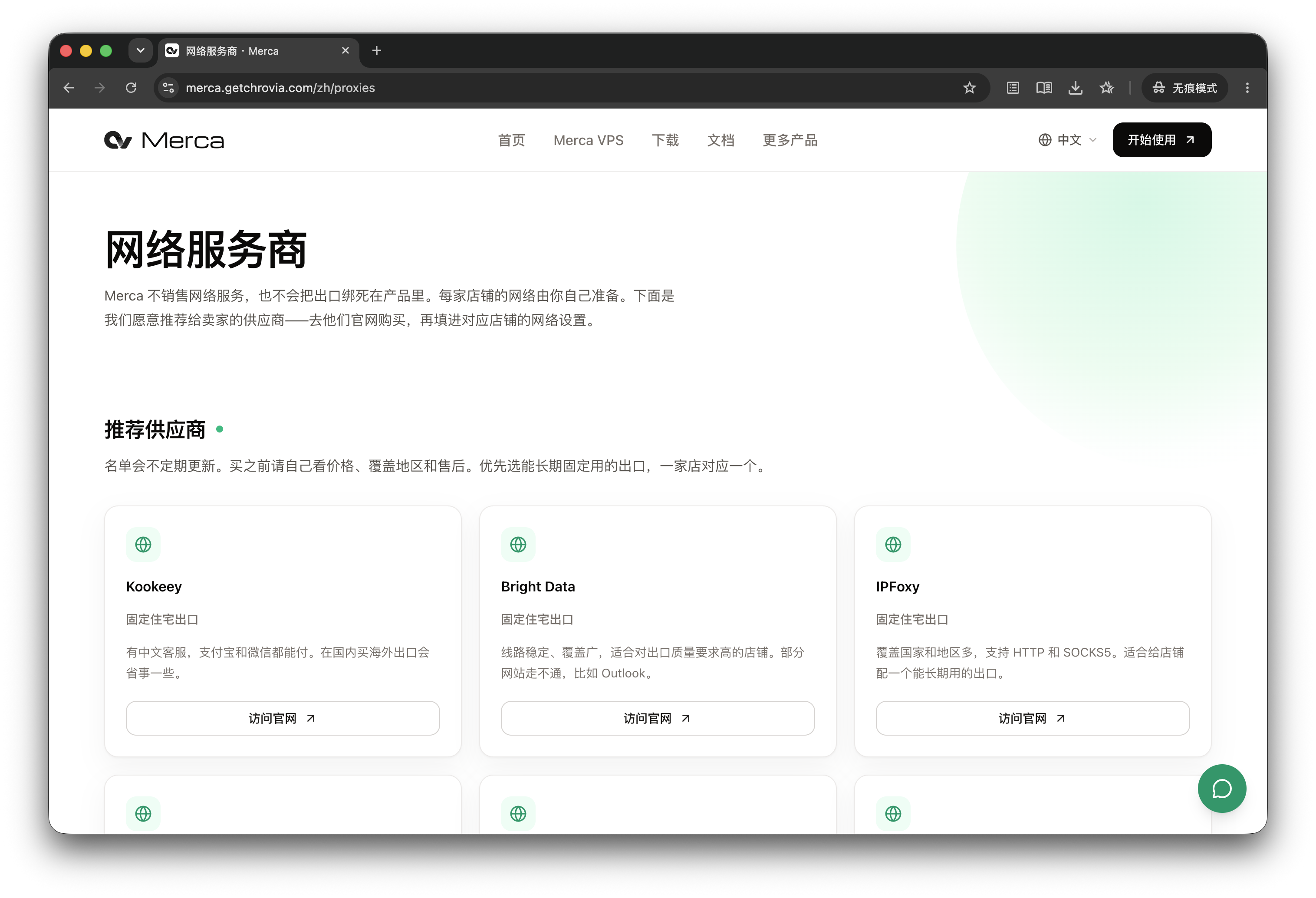
Buy an IP from Bright Data
This example uses Bright Data. Other providers work the same way: buy, then paste the connection details into a node.
Choose a static residential IP. Keep one lasting IP per store.
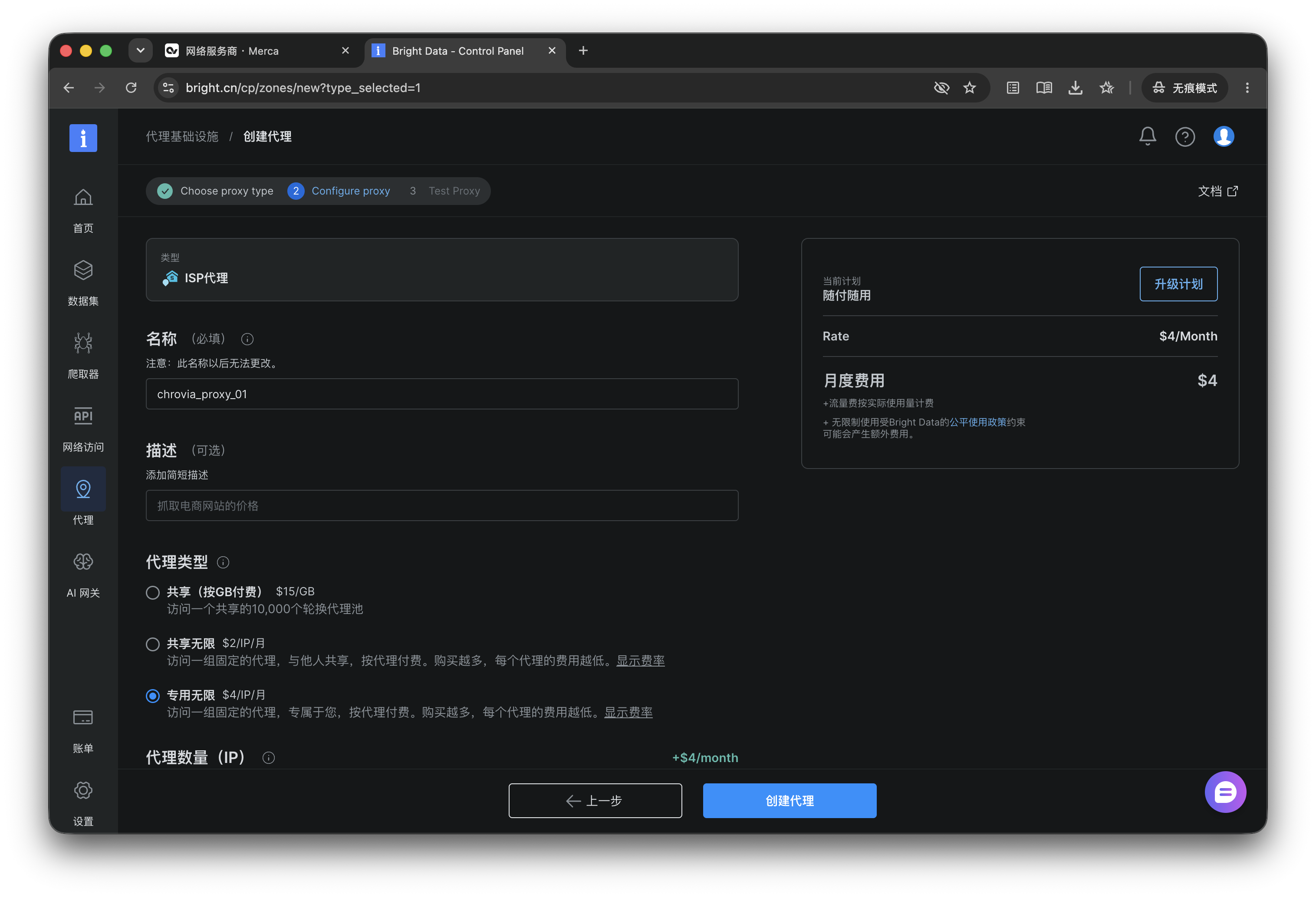
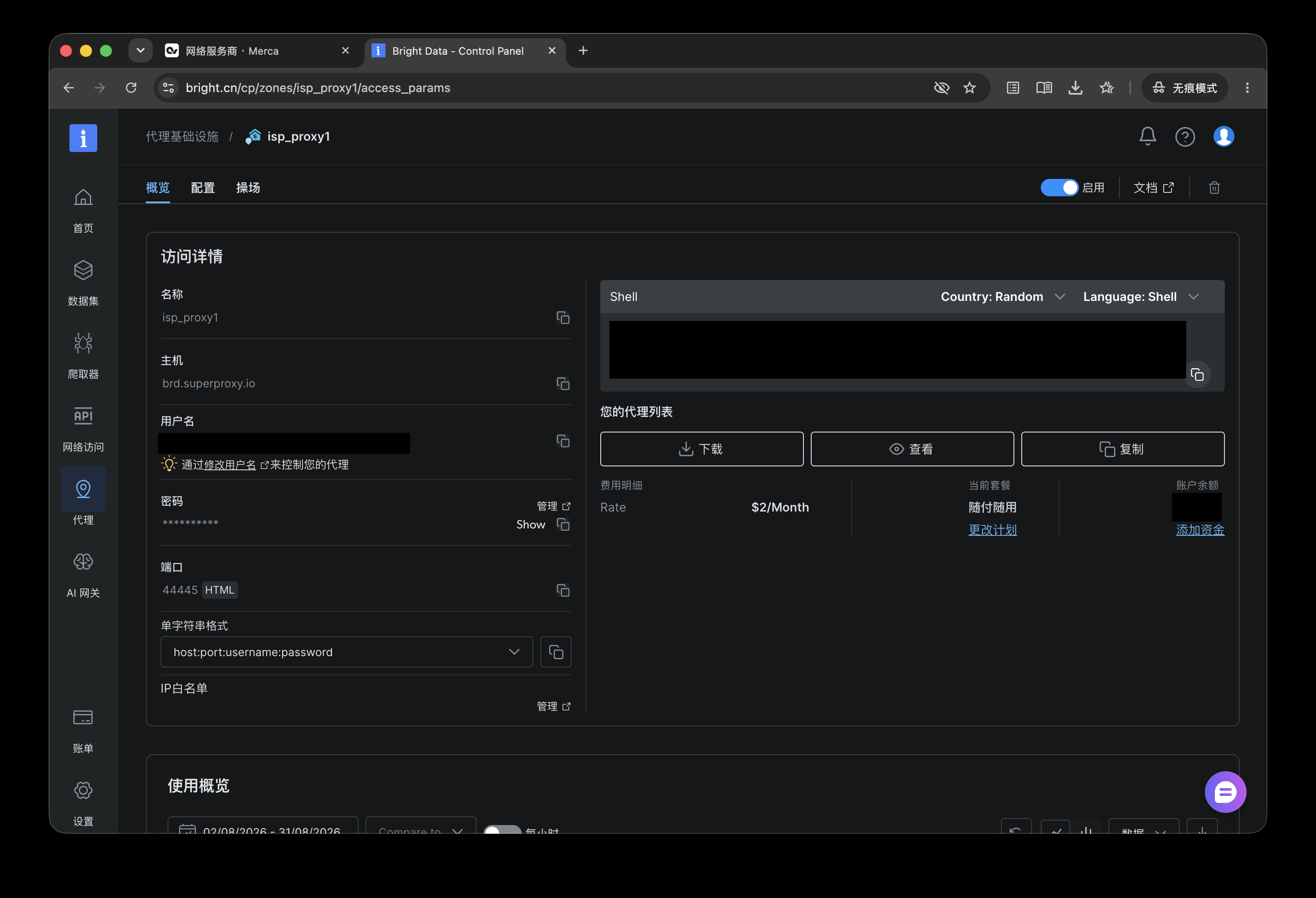
After checkout, copy the host, port, username, and password. The protocol is usually HTTP or SOCKS5.
Add the node
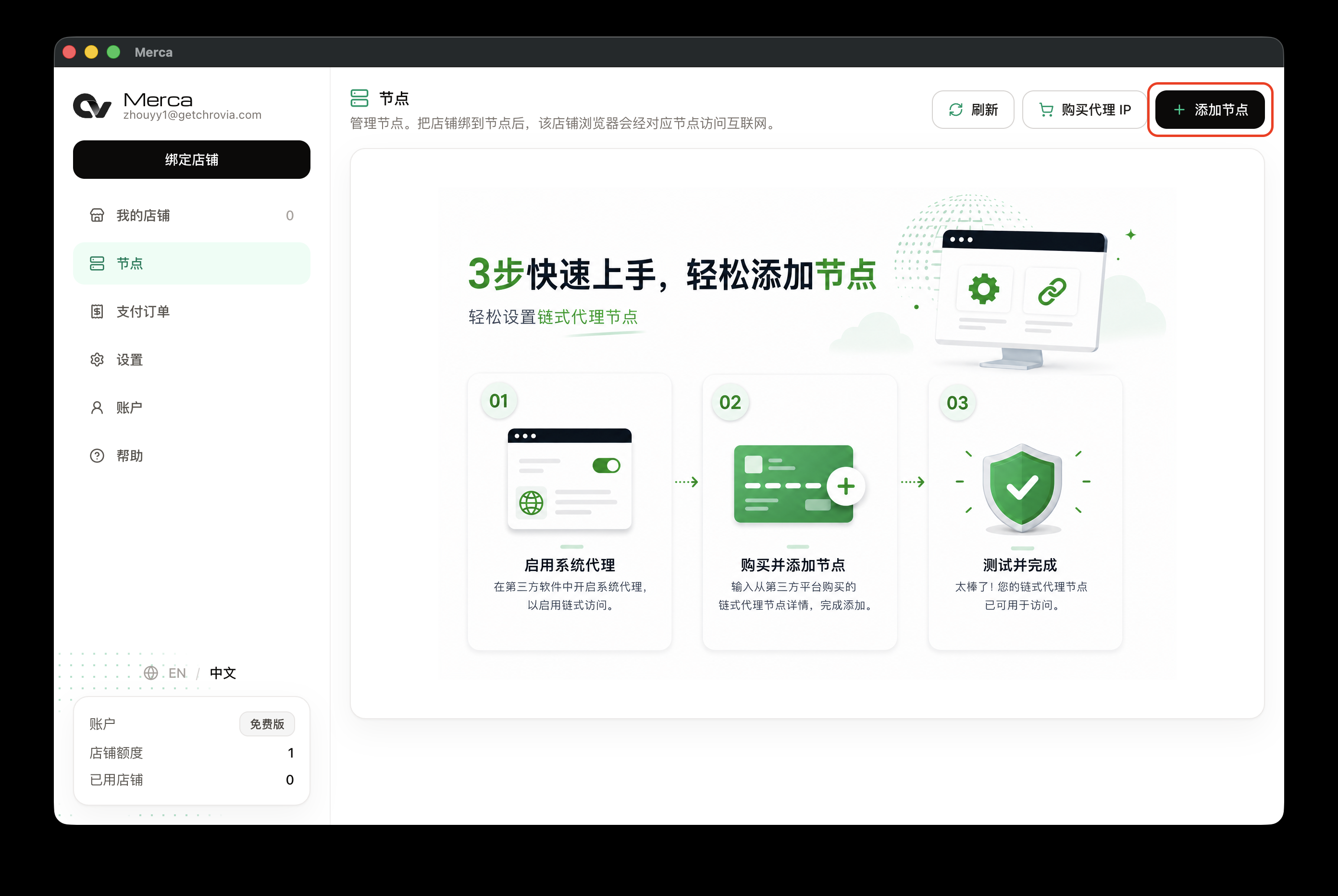
Back in Merca, stay on Nodes.
Click Add node at the top right.
Enter Protocol, Address, Port, Username, and Password. If the provider gave a curl command, paste it into Paste details and click Fill in.
Label is optional.
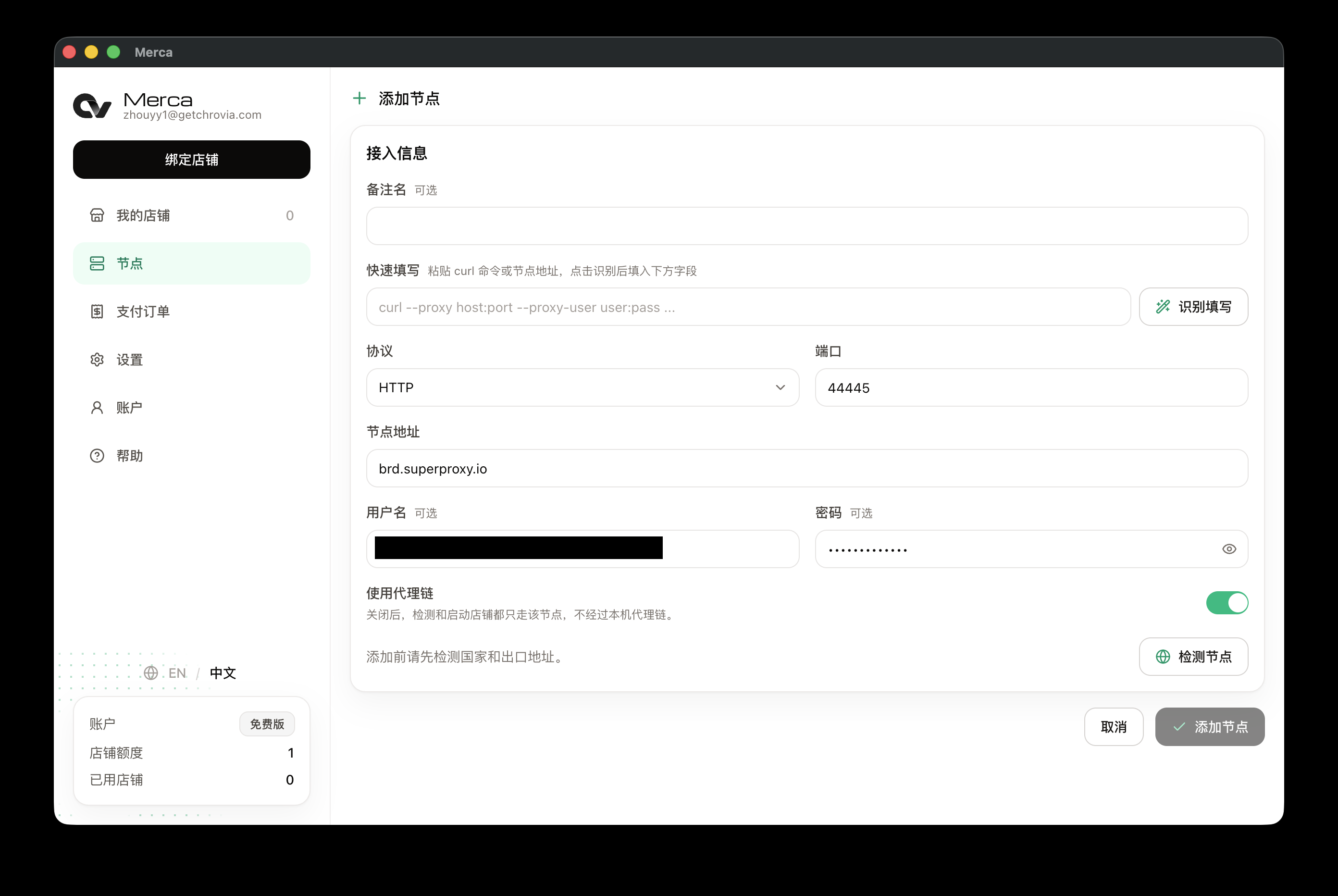
Check the node
Click Check node. When it succeeds, you'll see the country/region and IP.
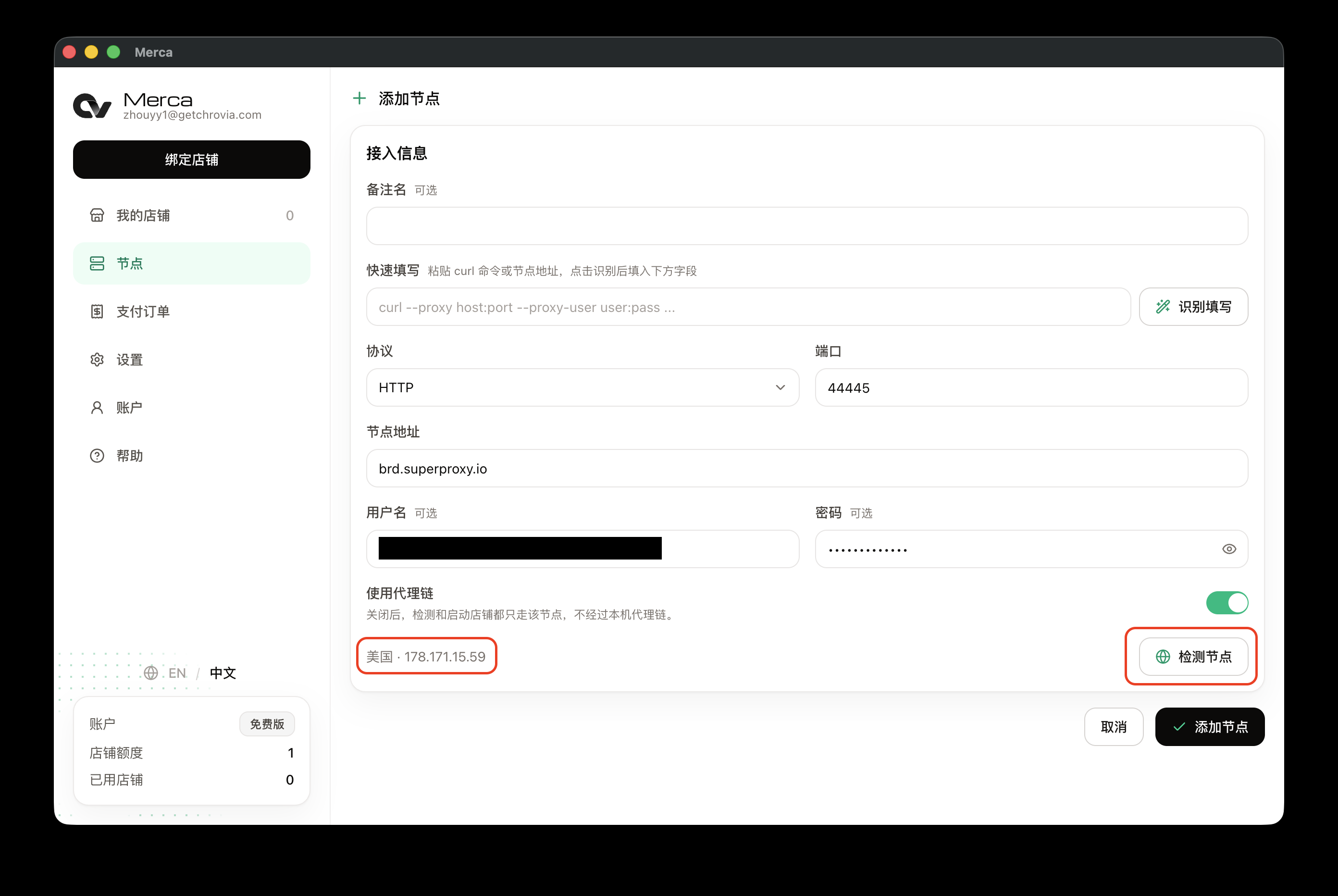
If the check fails, make sure System proxy is still on in the third-party software, then recheck the host, port, and credentials.
Done
After a successful check, click Add node. The node appears in the list. You can then assign stores to it. For how the store window uses System proxy as the local proxy, see How the proxy chain works.