
Set up Amazon two-step verification with Merca VPS
Scan the seller-hub QR, generate codes in Merca VPS, and paste them back into Amazon.
Install and open the browser first: Install Merca VPS. In Merca VPS, open Amazon Seller Central two-step verification settings. Do not do this step in another browser.
Open two-step verification settings
Open the two-step verification setup page. A QR code appears on the page.
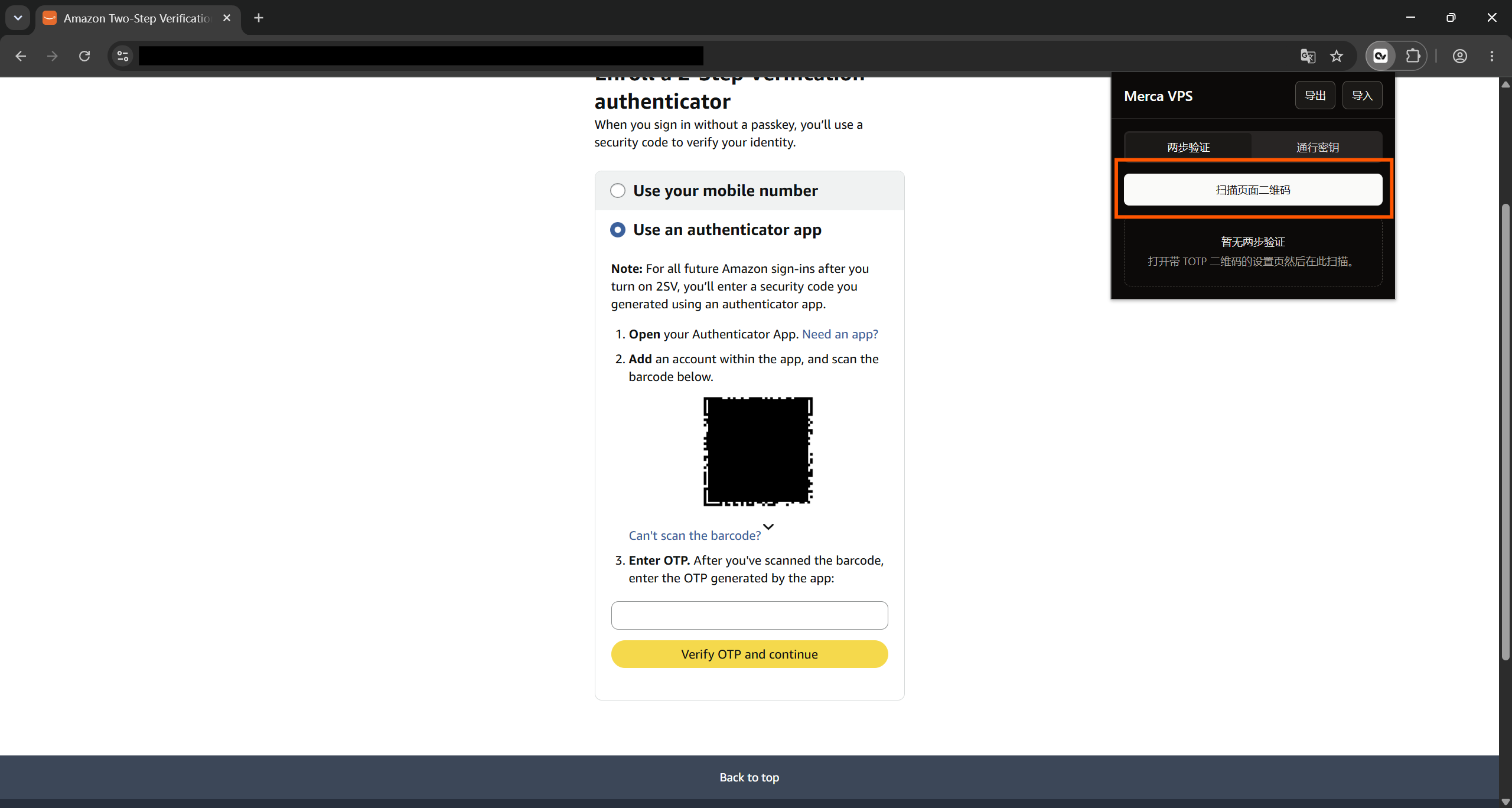
Scan the page QR
Click the extension icon at the top right, then click Scan page QR.
When the scan succeeds, a 6-digit code appears in the extension.
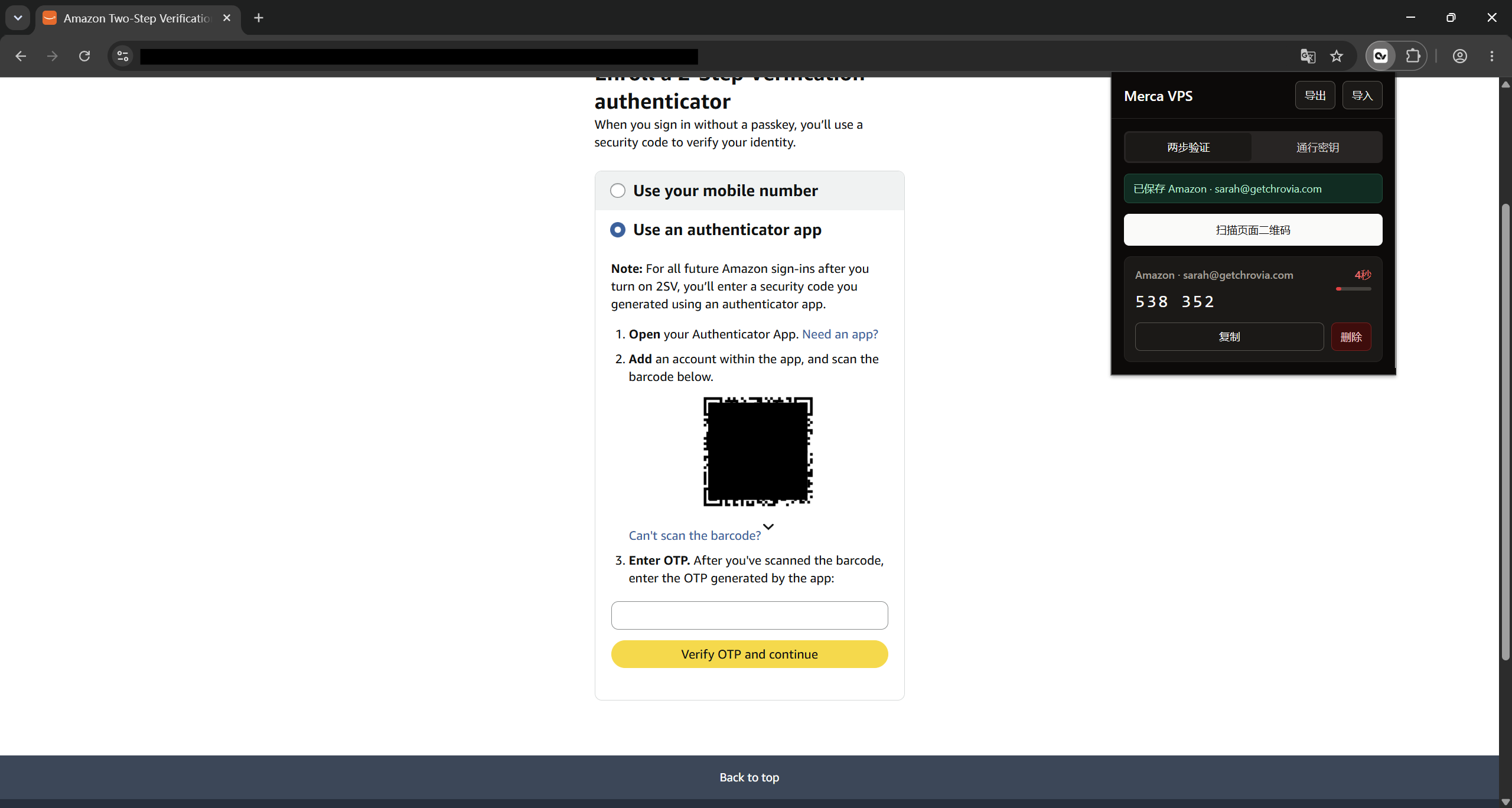
Paste it back into Amazon
Click Copy, paste the code into step 3 on the page, then click the yellow button.
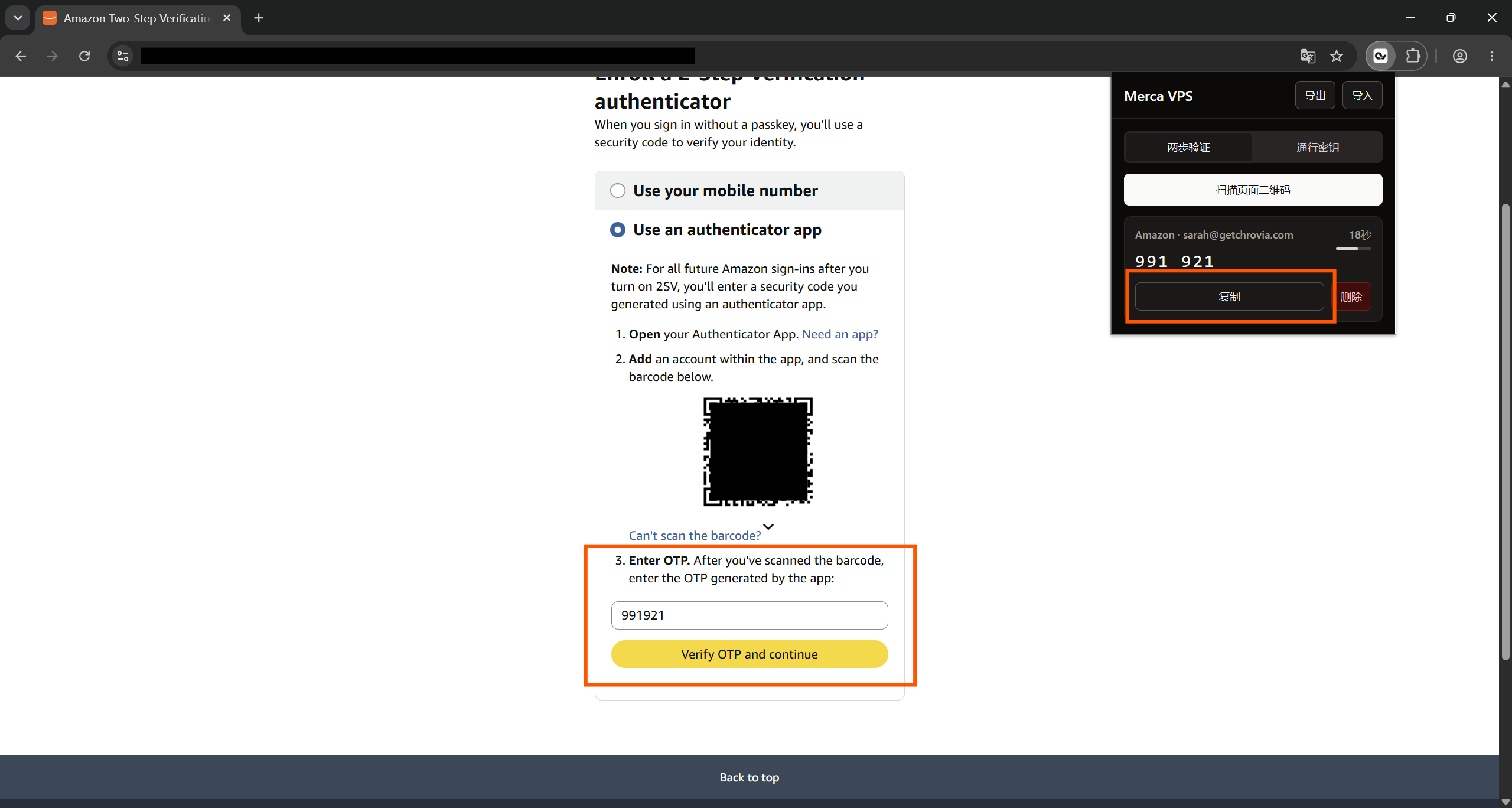
Export
In the extension, click Export and save the backup file. Use it if you move to another VPS or need a backup. Keep the exported file private. Anyone who has it can use the two-step codes in it.
Later sign-ins
When Amazon asks for a two-step code, click the extension icon at the top right, click Copy in Authenticator, and paste it on the sign-in page. You do not scan the QR again.