
Install Merca on Windows
Download the Windows installer, allow the security prompt, and open Merca.
Requirements
- Windows 10 or later, 64-bit
- A computer (not a phone browser)
Download
- Open Downloads.
- Under Merca, choose Windows.
- Save the
.exeinstaller.
Do not download Merca VPS unless you are installing the VPS browser. That is a different product. See Install Merca VPS.
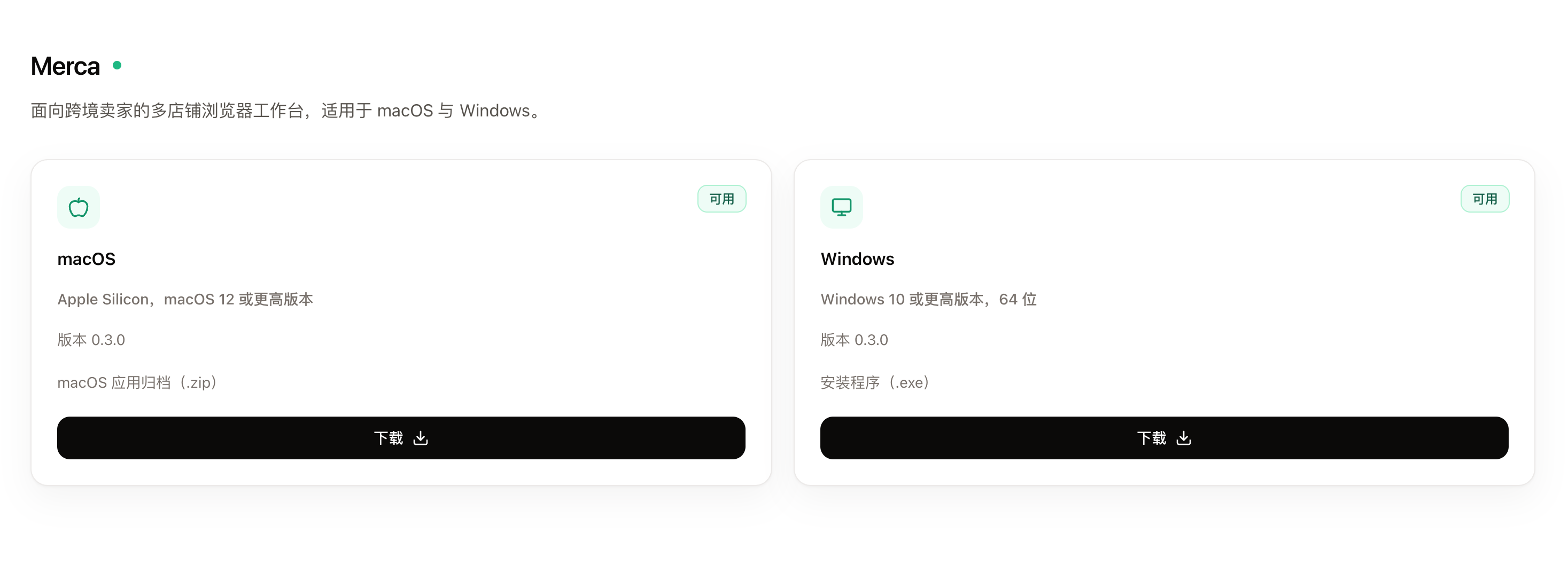
Allow the Windows security prompt
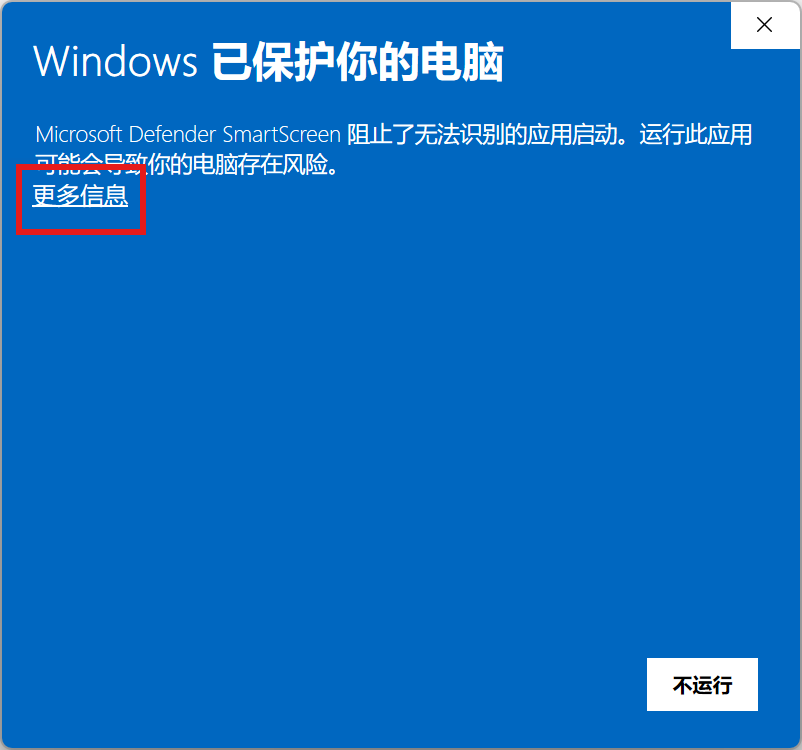
Double-click the installer. Windows may show Windows protected your PC (Microsoft Defender SmartScreen).
- Choose More info.
- Choose Run anyway.
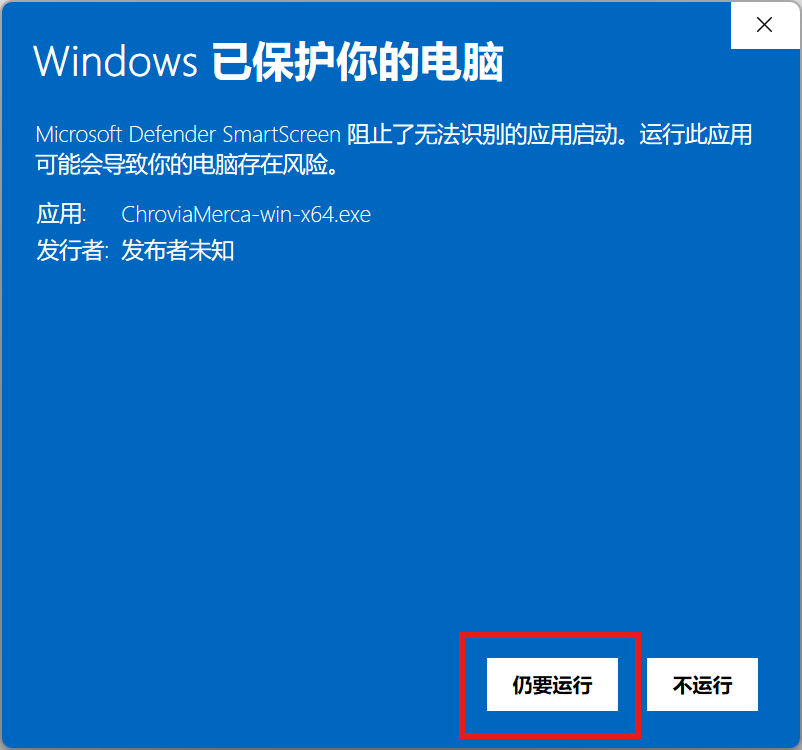
If Windows then asks Do you want to allow this app to make changes to your device?, choose Yes.
If the .exe is blocked before it starts, right-click the file → Properties → tick Unblock if it is there → OK, then open the installer again.
Install
The installer is a normal setup wizard. You can keep the default folder or choose another directory. Finish the wizard.
Open Merca
Open Merca from the Start menu or the desktop shortcut.
- Sign in or create an account.
- Wait until the bundled browser engine is ready. Launching a store needs that engine.

If you use the website in a normal browser, launching a store or checking a node still needs this desktop app with the same account.
Updates
On Windows, open Help in the app and choose Check for updates. When a build is ready, restart to install it.
Need macOS instead? See Install Merca on macOS.