
Install Merca on macOS
Download the Mac app, allow it in Privacy & Security, and open Merca.
Requirements
- Apple Silicon
- macOS 12 or later
Intel Macs are not supported.
Download
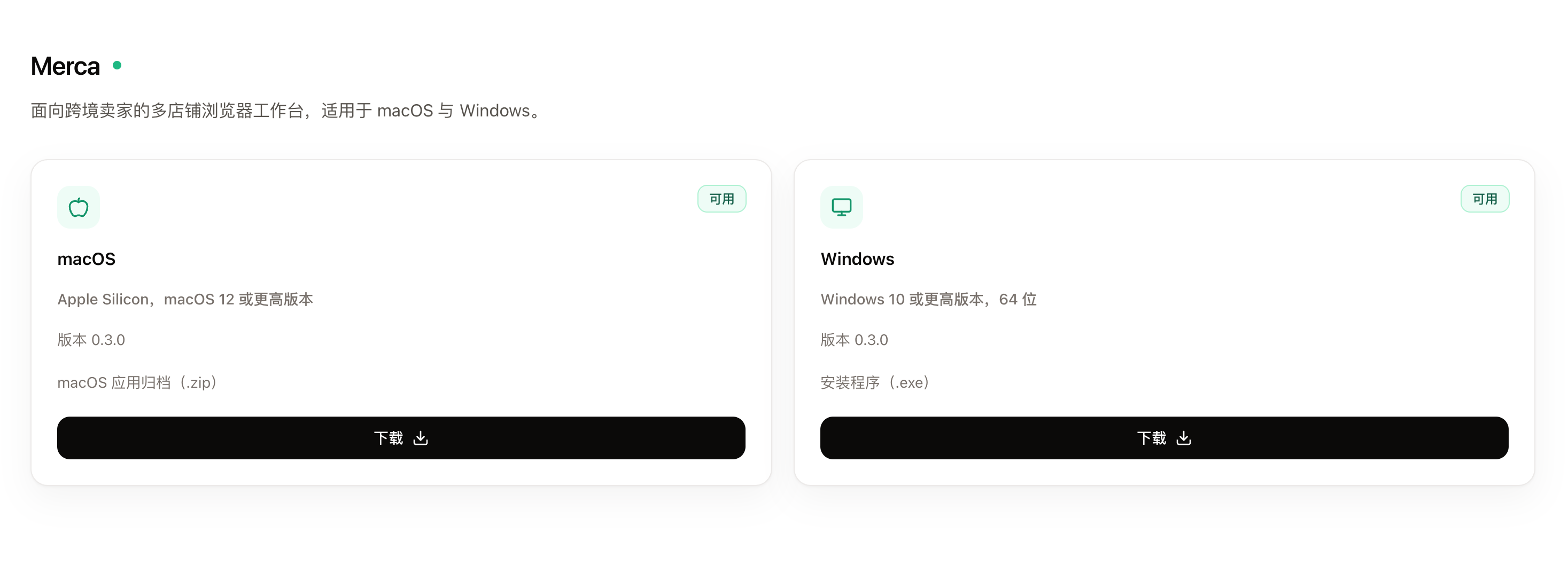
- Open Downloads.
- Under Merca, choose macOS.
- Save the
.zipapp archive.
Unpack and move to Applications
- Double-click the
.zipto unpack it. You should get Merca.app. - Drag Merca.app into Applications.
Double-click to open
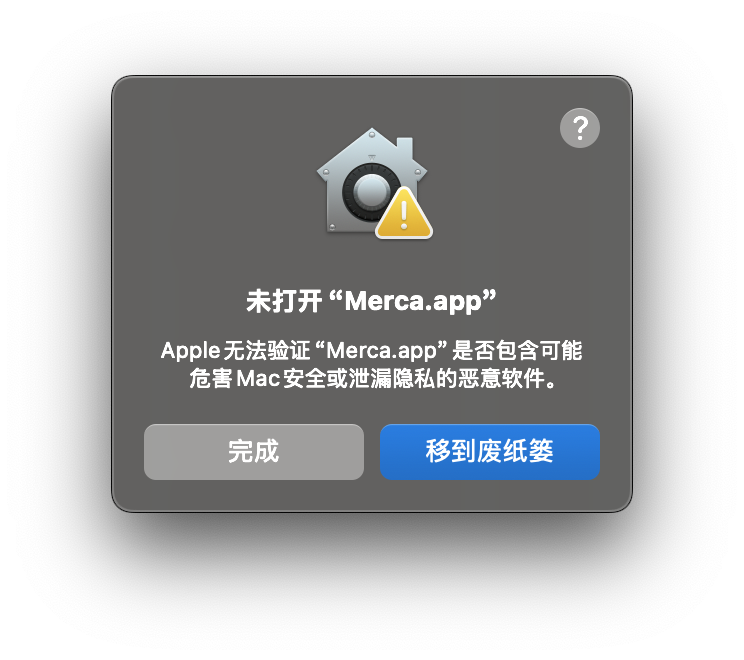
In Applications, double-click Merca. macOS shows a dialog. Choose OK or Done to close it.
Allow Merca in Privacy & Security
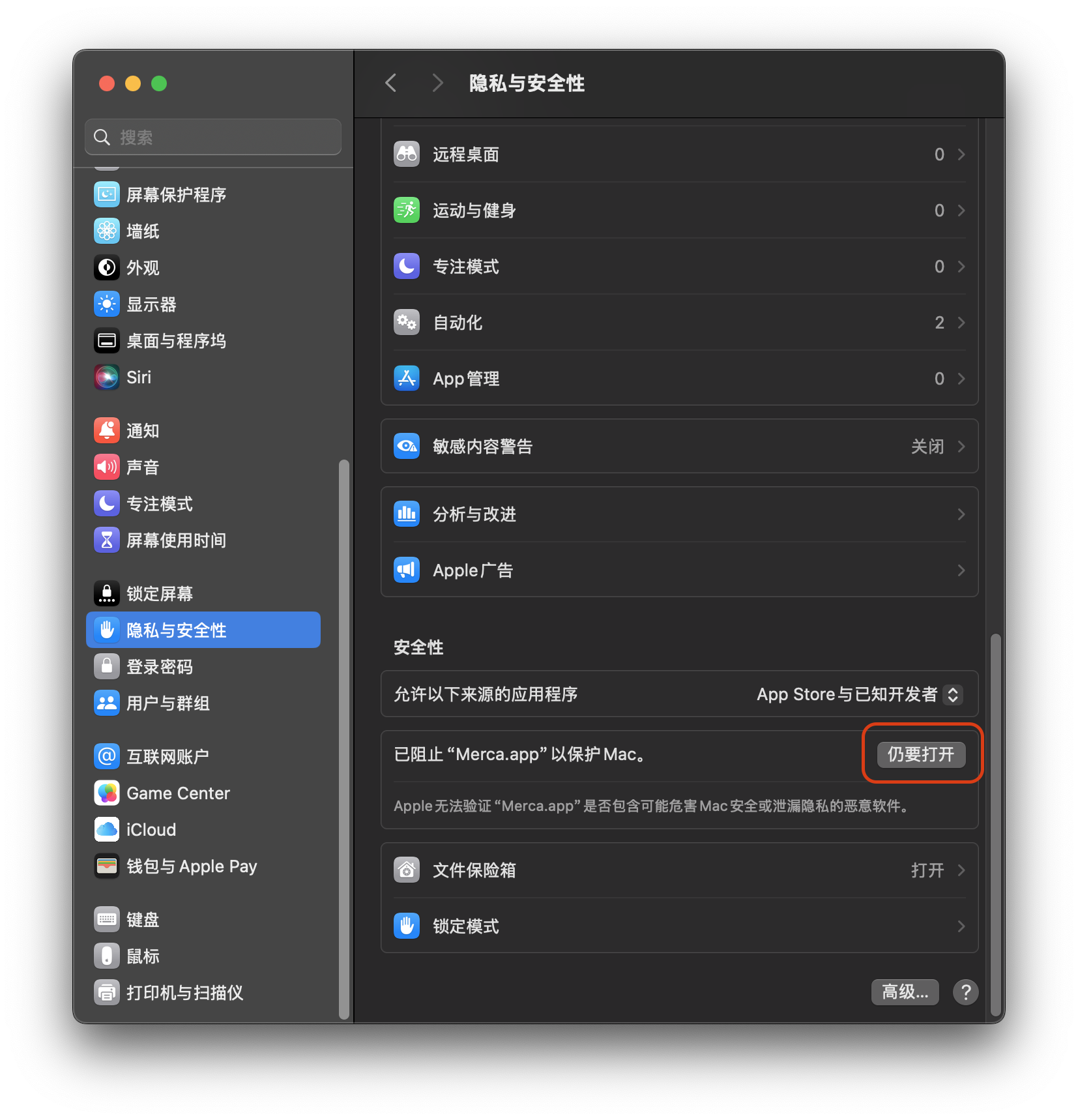
After you close that dialog, allow the app in System Settings:
- Open System Settings.
- Open Privacy & Security.
- Scroll to the message that Merca was blocked.
- Choose Open Anyway.
- Confirm with your password or Touch ID.
Confirm opening
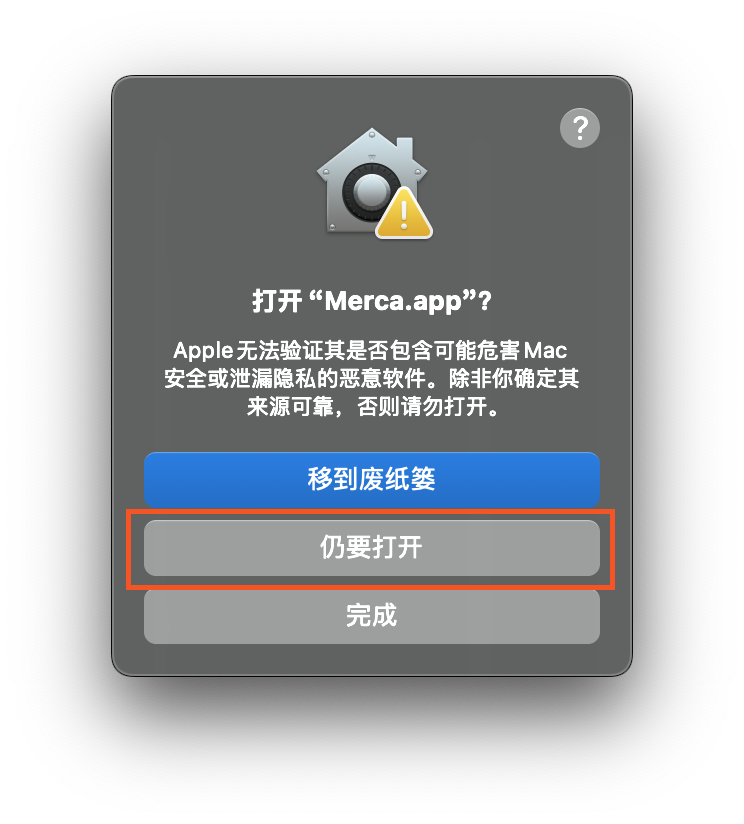
macOS then asks Open “Merca.app”? Choose Open Anyway. Do not choose Move to Trash or Done.
Sign in
- Sign in or create an account.
- Wait until the bundled browser engine is ready. Launching a store needs that engine.

If you use the website in a normal browser, launching a store or checking a node still needs this desktop app with the same account.
Updates
In-app update is not available on macOS yet. In Help, choose Download from website, or return to Downloads and replace Merca.app.
Need Windows instead? See Install Merca on Windows.