
How to assign stores to a member
Give a member access to a store and choose Read-only or Full access.
Assigning stores requires Pro, and only the owner or an admin can do it. Admins don't need per-store access because they can see every store. Members only see stores you've assigned.
Before you start, add the member and add the store. This example assigns the Sarah store to Bob.
Open Assign access
- Sign in to the Merca desktop app as the owner or an admin, then open My stores.
- Find the store you want to assign and click Assign access.
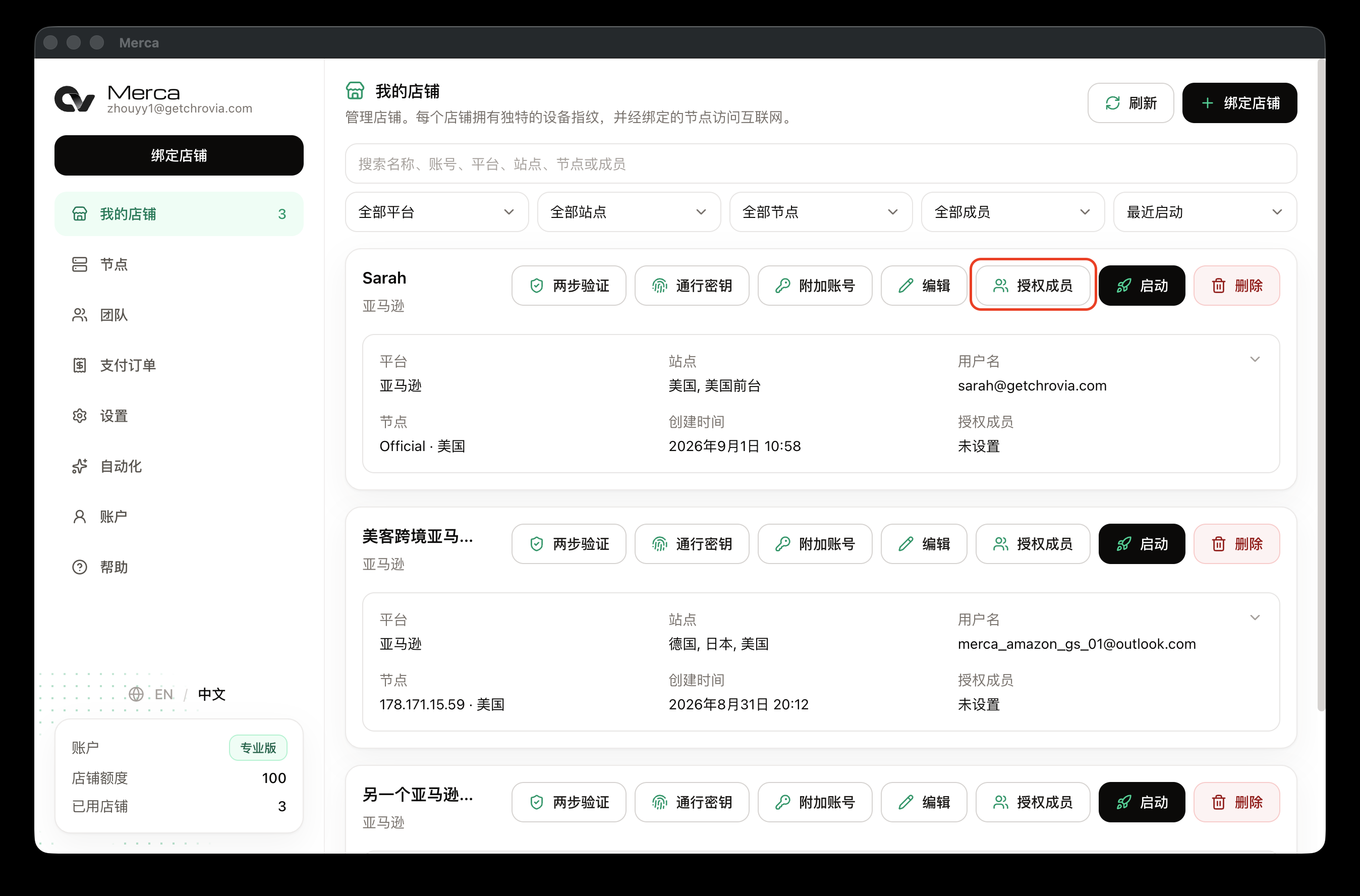
Find the member and choose access
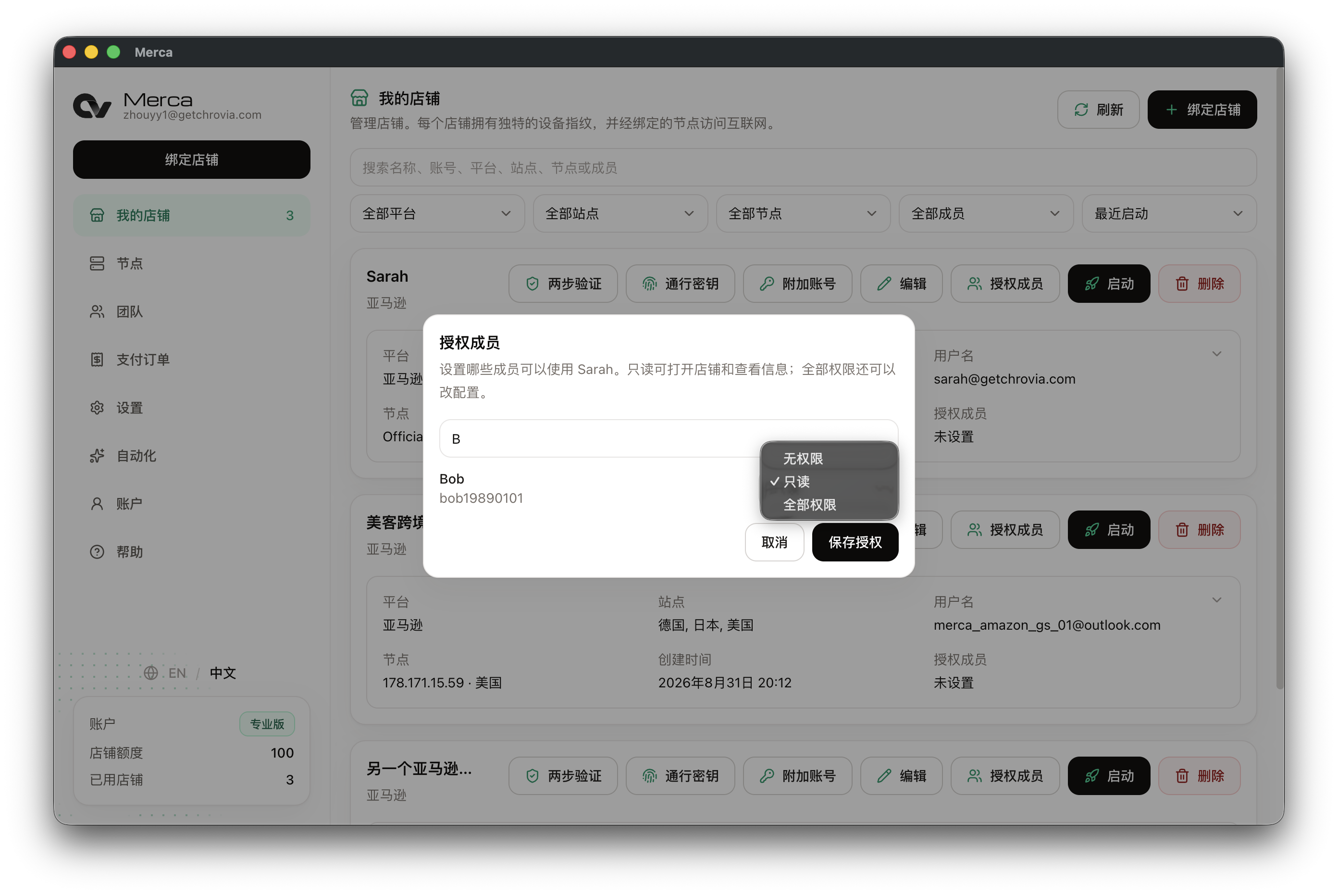
In Assign access, search by nickname or login account. After you find the member, choose their access level on the right:
- Read-only: they can launch the store, view its details, and view Authenticator, Passkeys, and Additional accounts.
- Full access: they can also change this store's settings, and change Additional accounts, Authenticator, and Passkeys. They can't delete the store or grant access to someone else.
- No access: removes this store from the member.
Click Save access.
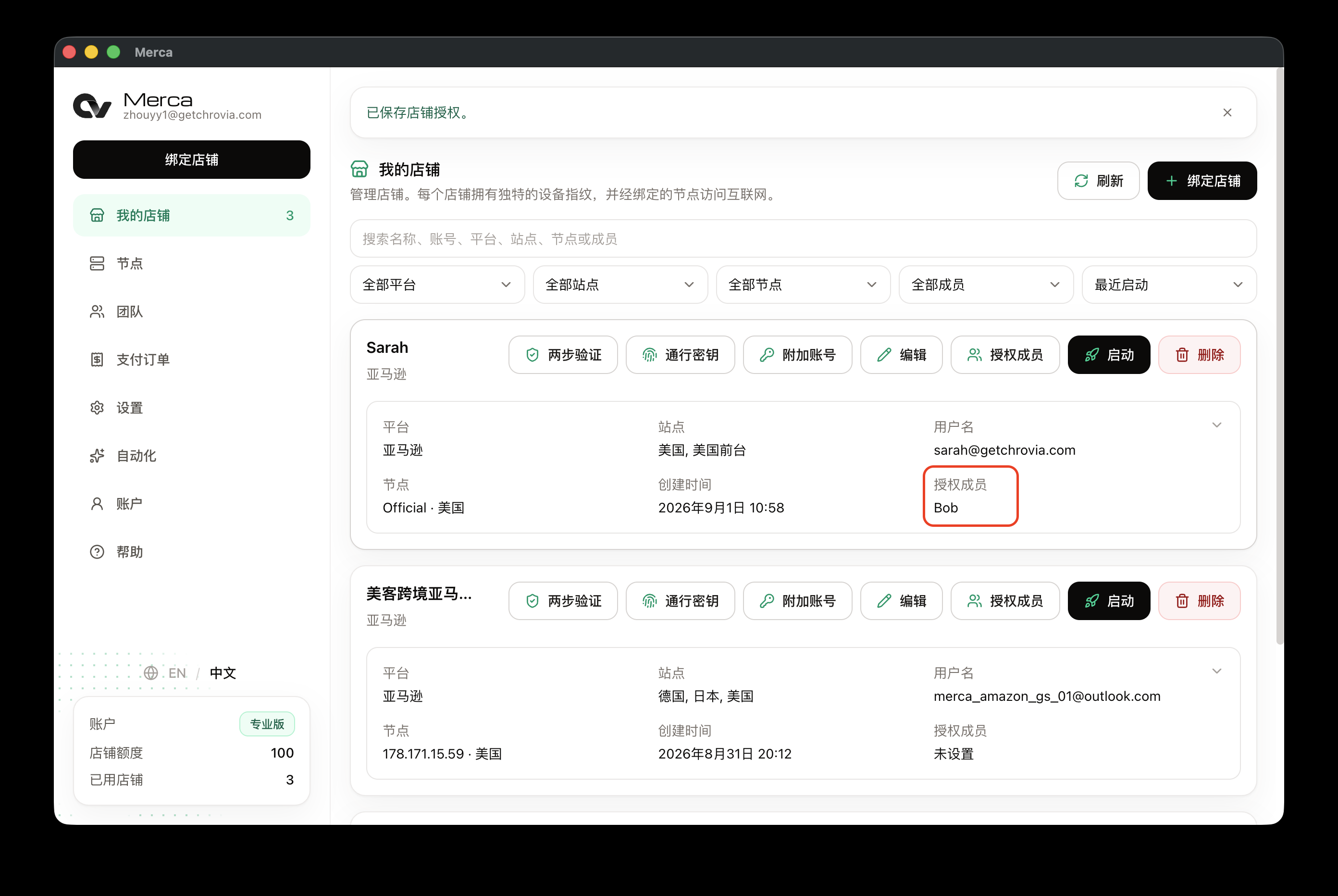
Confirm the assignment
After saving, the store card shows Assigned members. If the member's nickname appears there, the store has been assigned.
What the member sees
After the member signs in with their team account, My stores only shows stores assigned to them. Unassigned stores don't appear in the list.
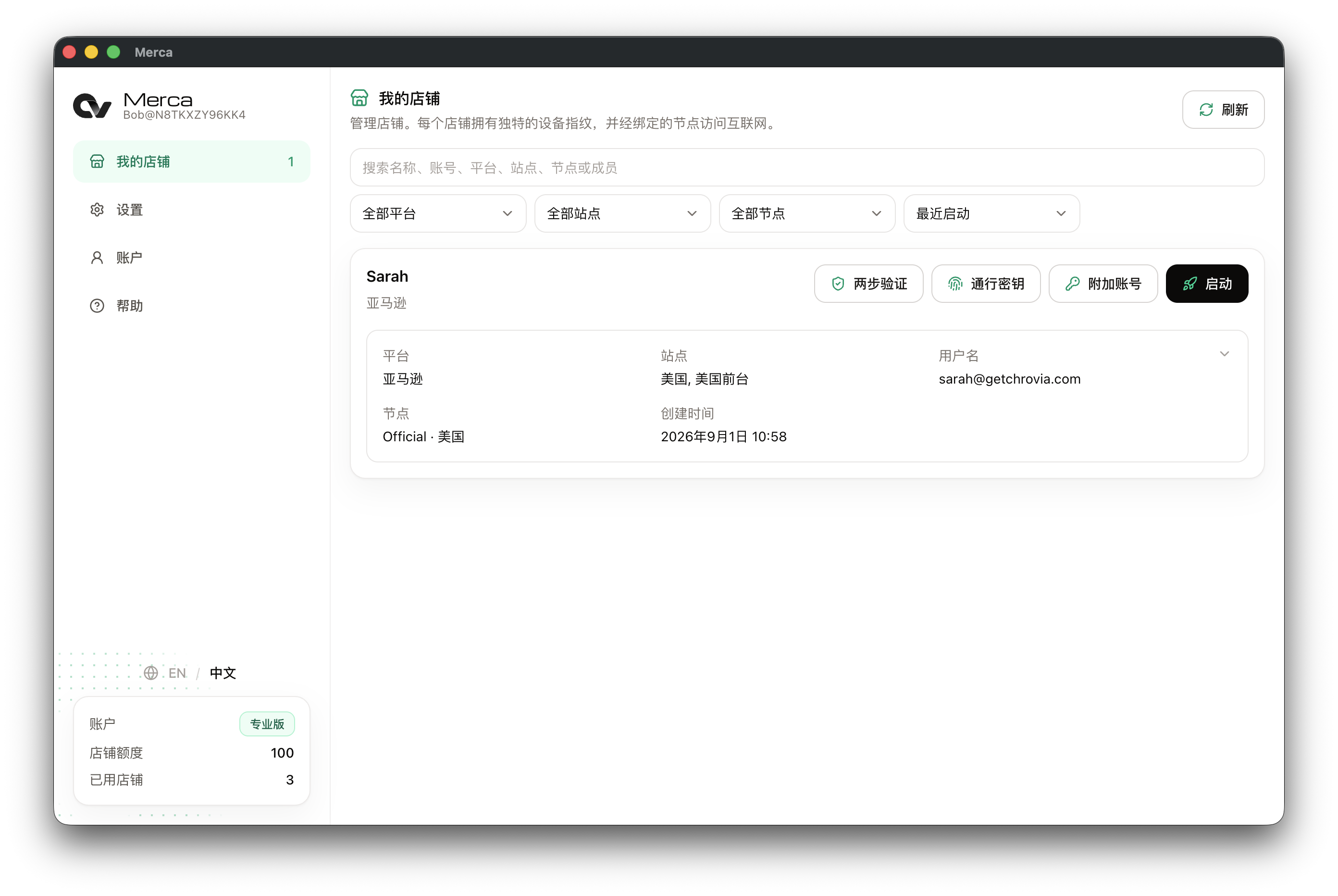
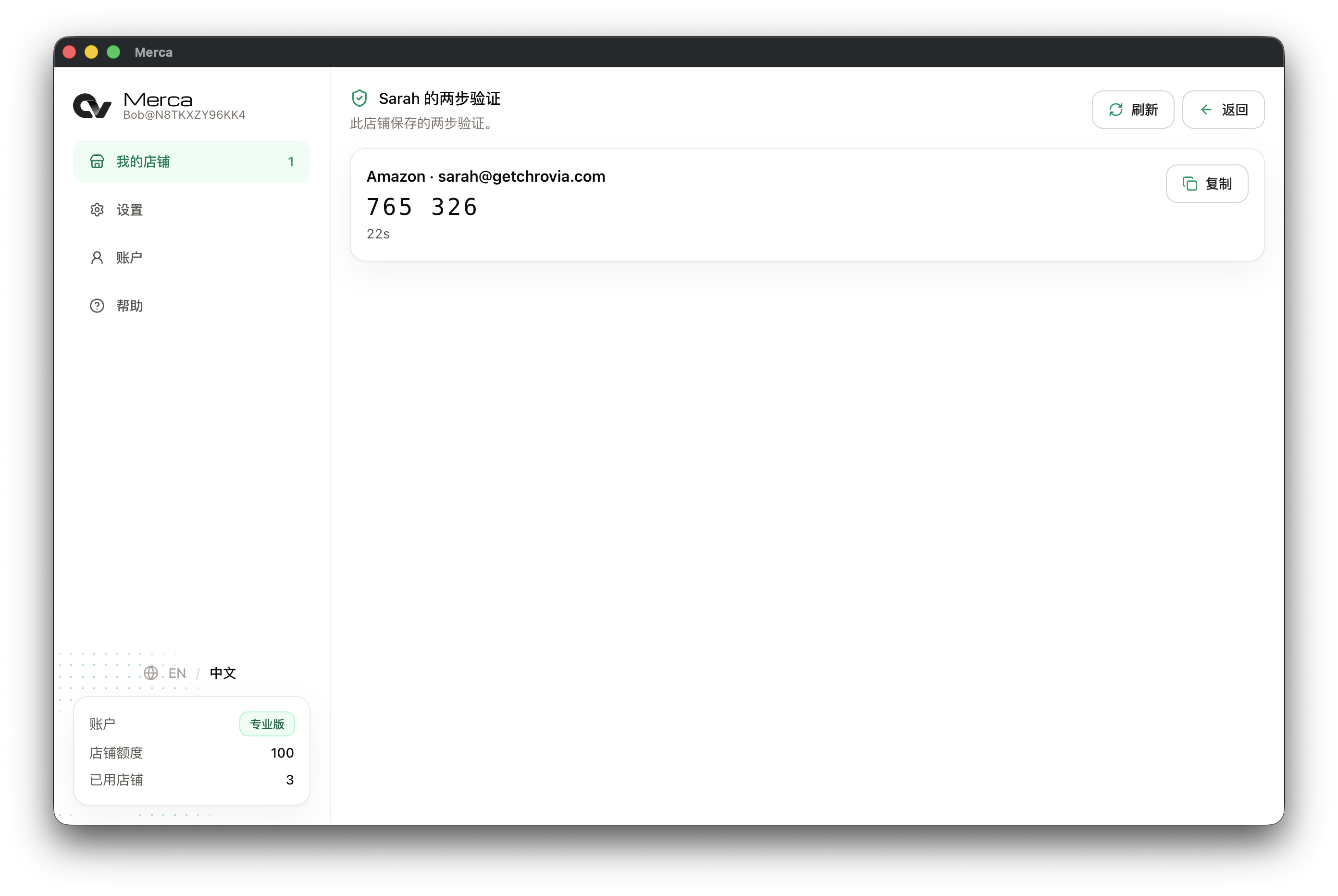
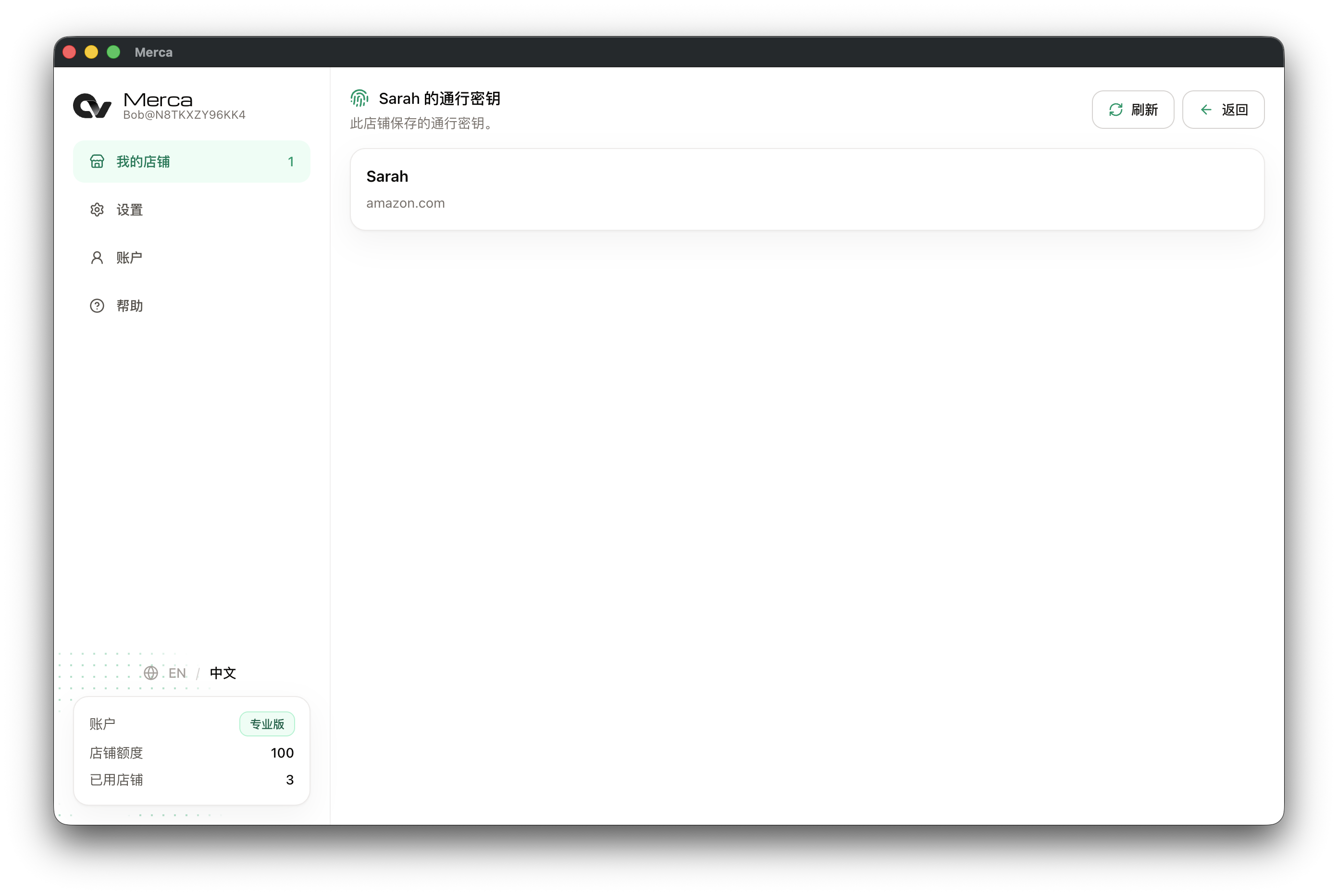
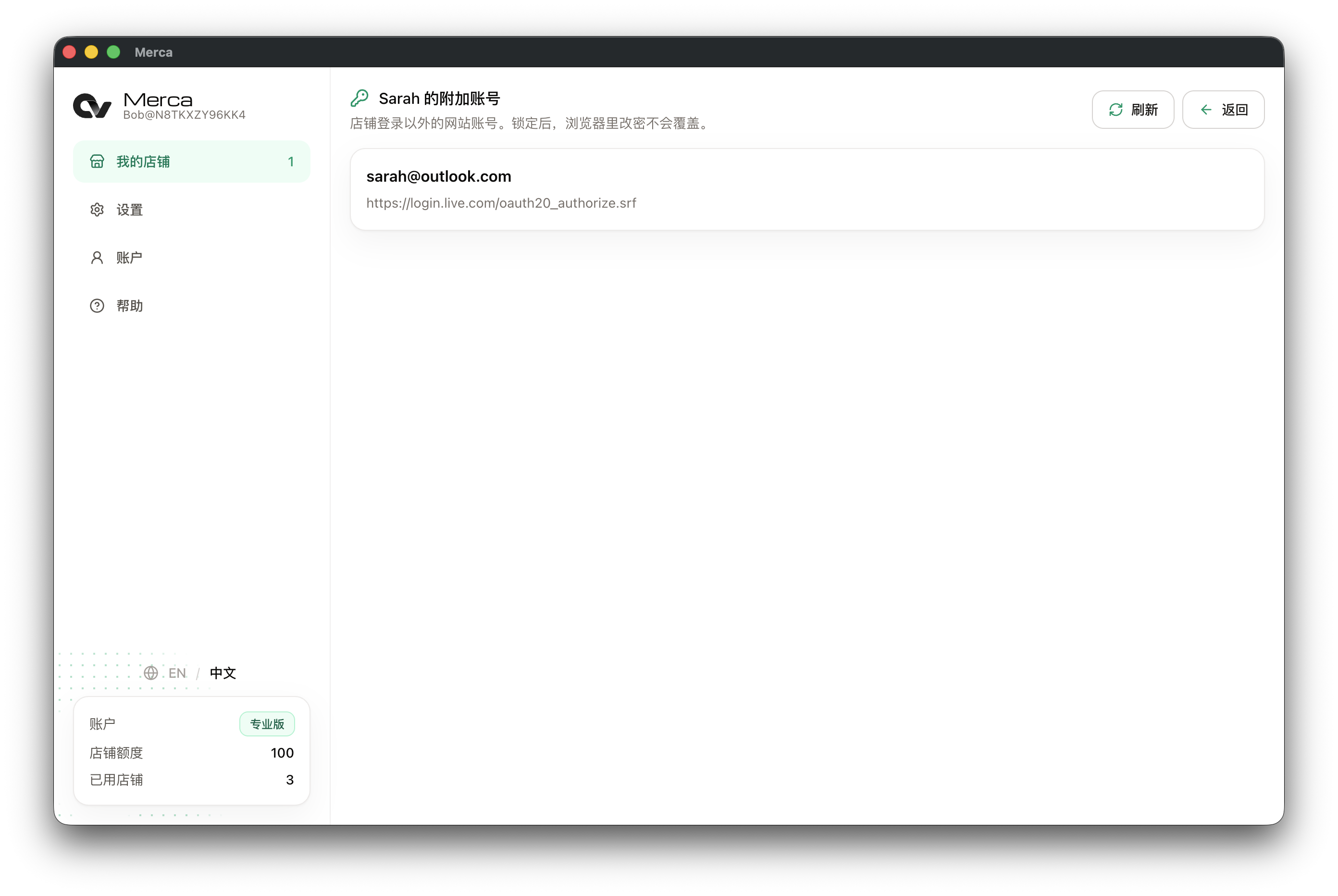
The member can click Launch to open the store browser. With Read-only access, they can also open Authenticator, Passkeys, and Additional accounts to view saved items.
Change or remove access
To update access later, sign in as the owner or an admin, go back to My stores, and click Assign access on the same store:
- Change Read-only to Full access to let the member edit that store's settings.
- Change Full access to Read-only to keep launch and view access but remove edit access.
- Change the member to No access and save to hide the store from them.
To take the whole account back right away, disable or delete it. See How to give a service provider a temporary account.