
How to set up an Amazon Passkey
Register a passkey for the Amazon account in the store window. It stays with that store.
First add the Amazon store: How to add a store. Then click Launch in the desktop app. Set up the passkey in that store's browser window. Don't use the system browser or another store window. Launch the store in the desktop app.
Open Login & Security
After you sign in to Amazon, open Login & Security. On the Passkey row, click Set up.
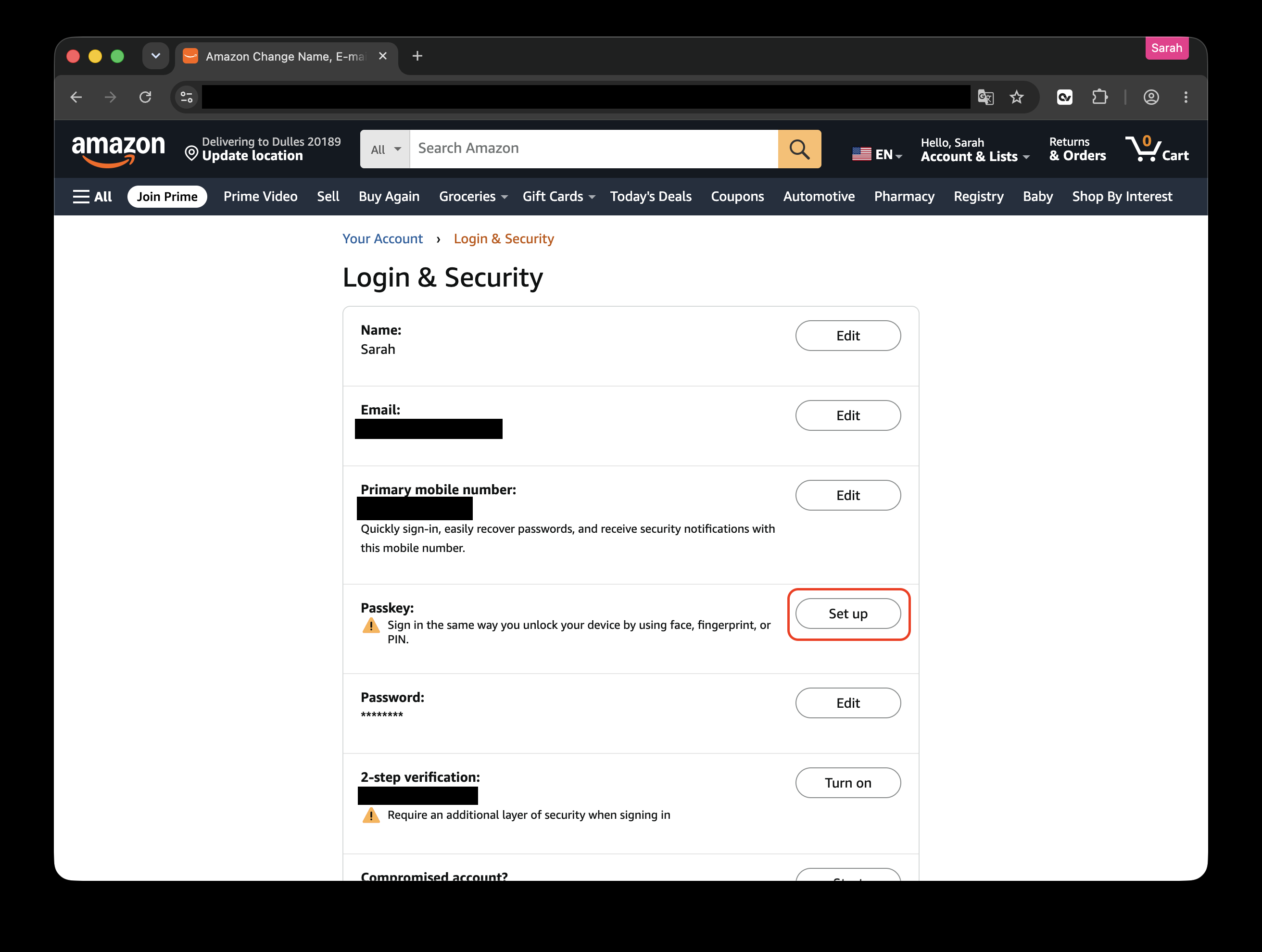
Start setup
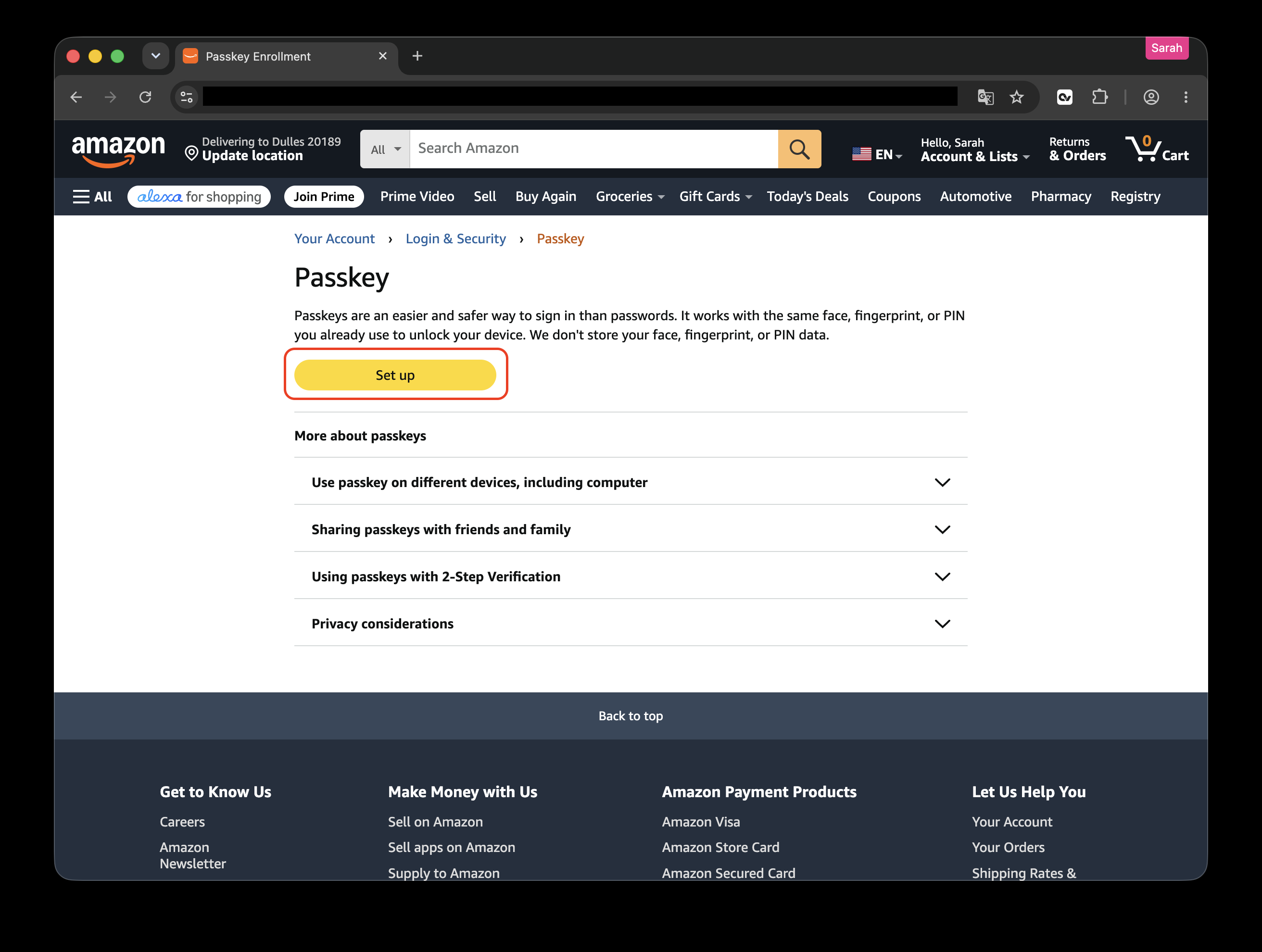
On the Passkey page, click the yellow Set up button.
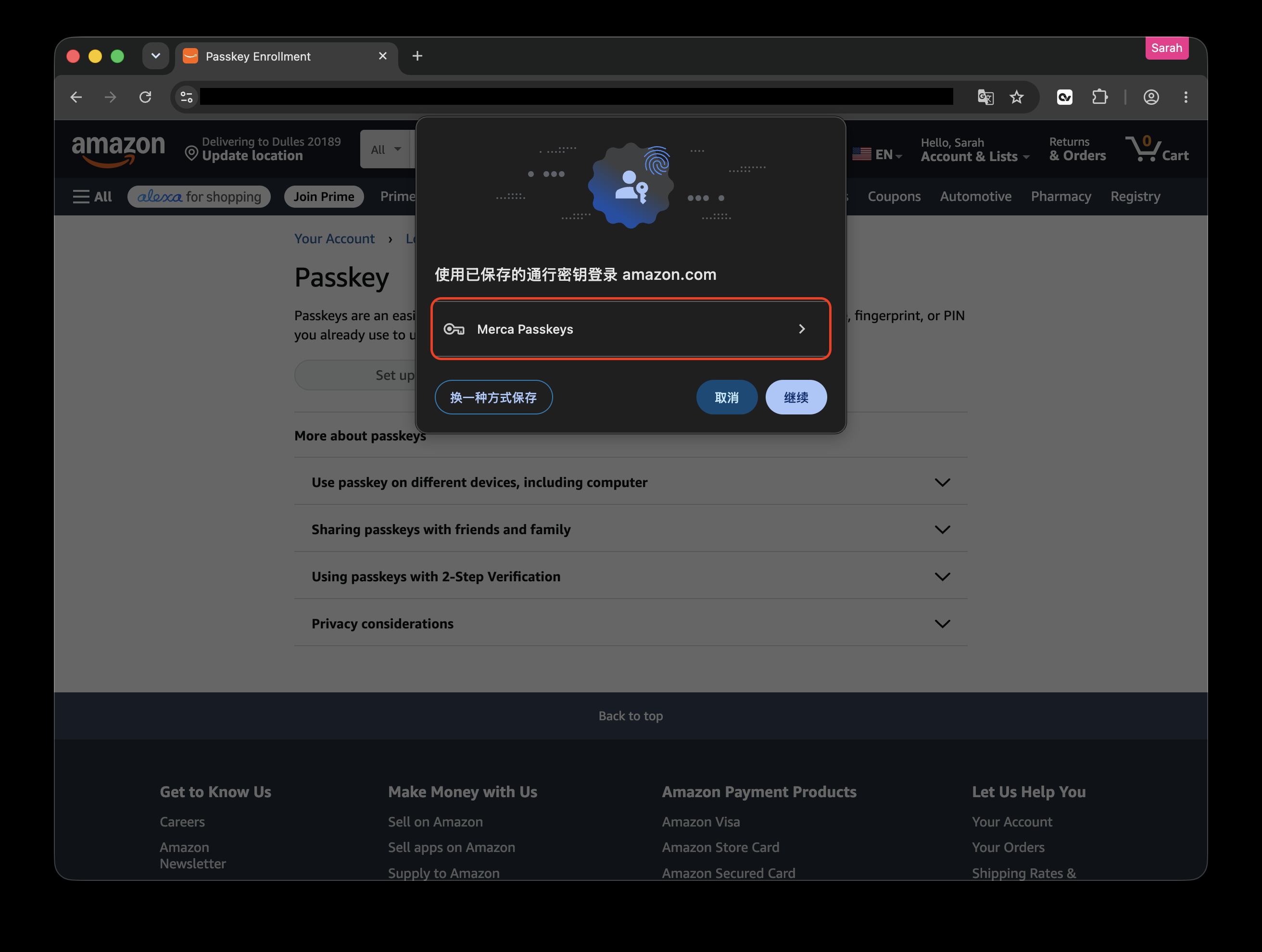
Choose Merca Passkeys
In the dialog, click Merca Passkeys. Don't pick another way to save it. If it goes to the phone, iCloud, or another password manager, this store won't have it.
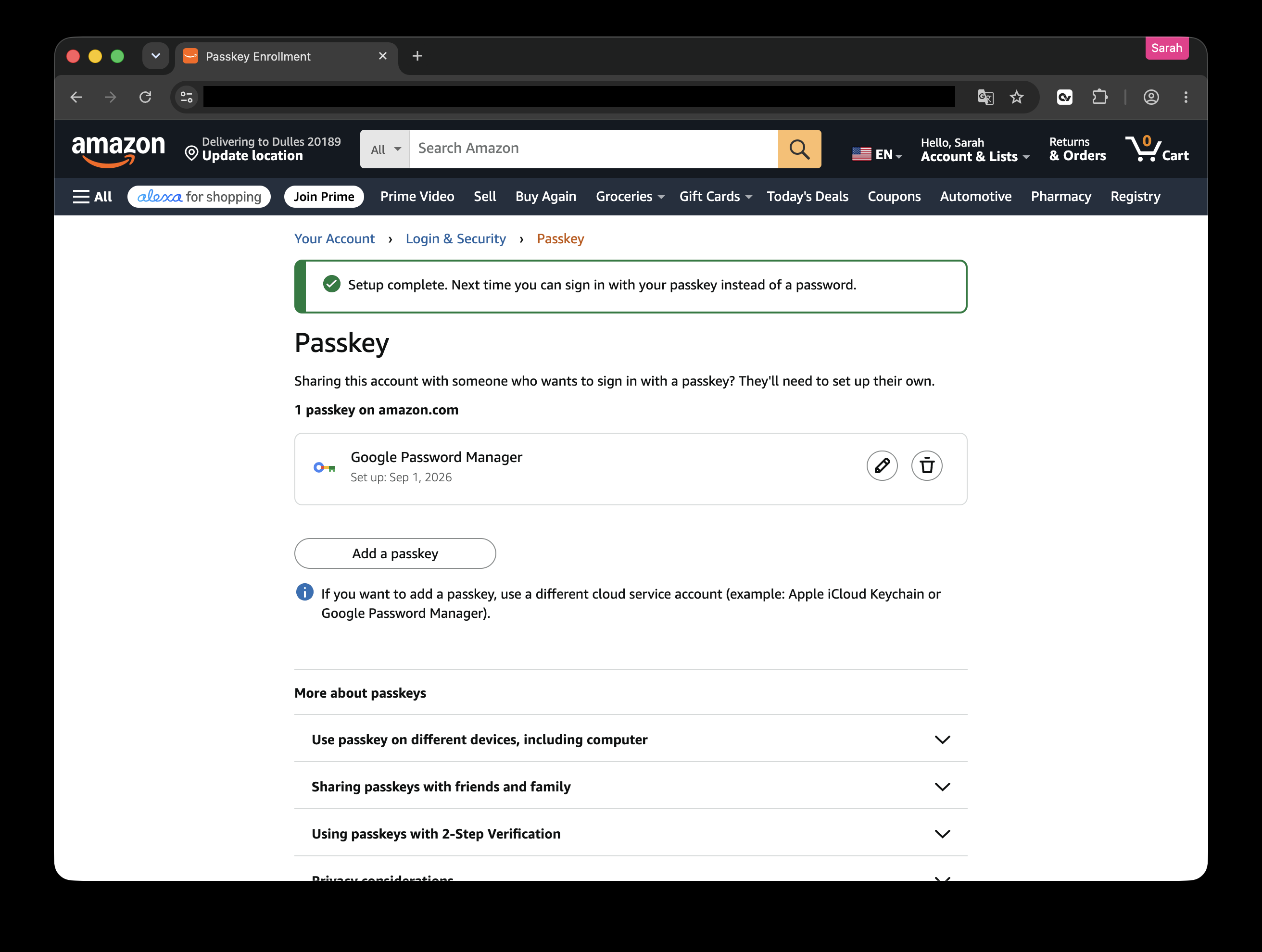
Confirm it is set up
Amazon shows Setup complete. The list may show Google Password Manager. That is the passkey you just created.
Check the store
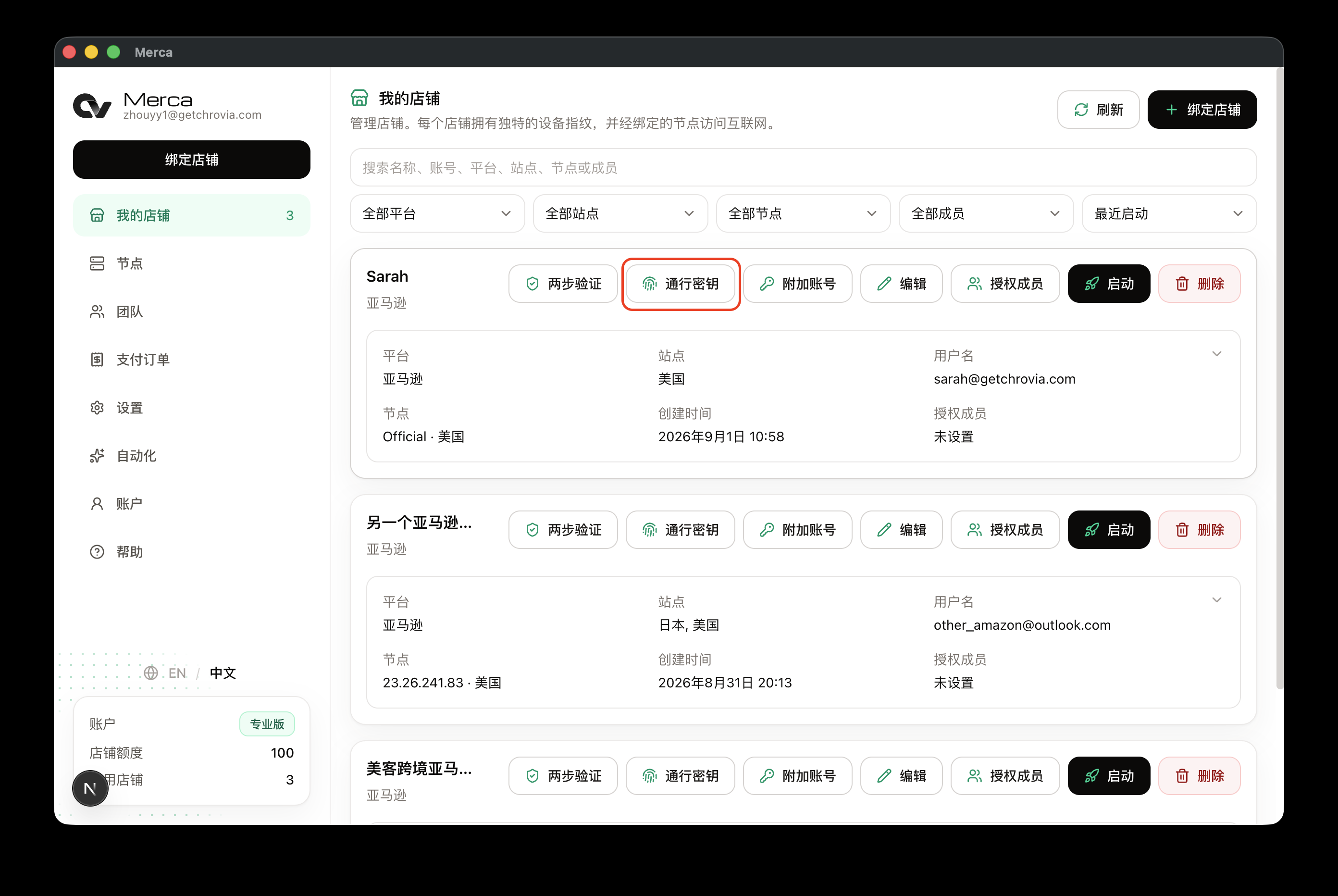
Go back to the desktop app, open My stores, and click Passkeys on that store.
The passkey appears in the list, with the site amazon.com. If the list is empty, click Refresh.
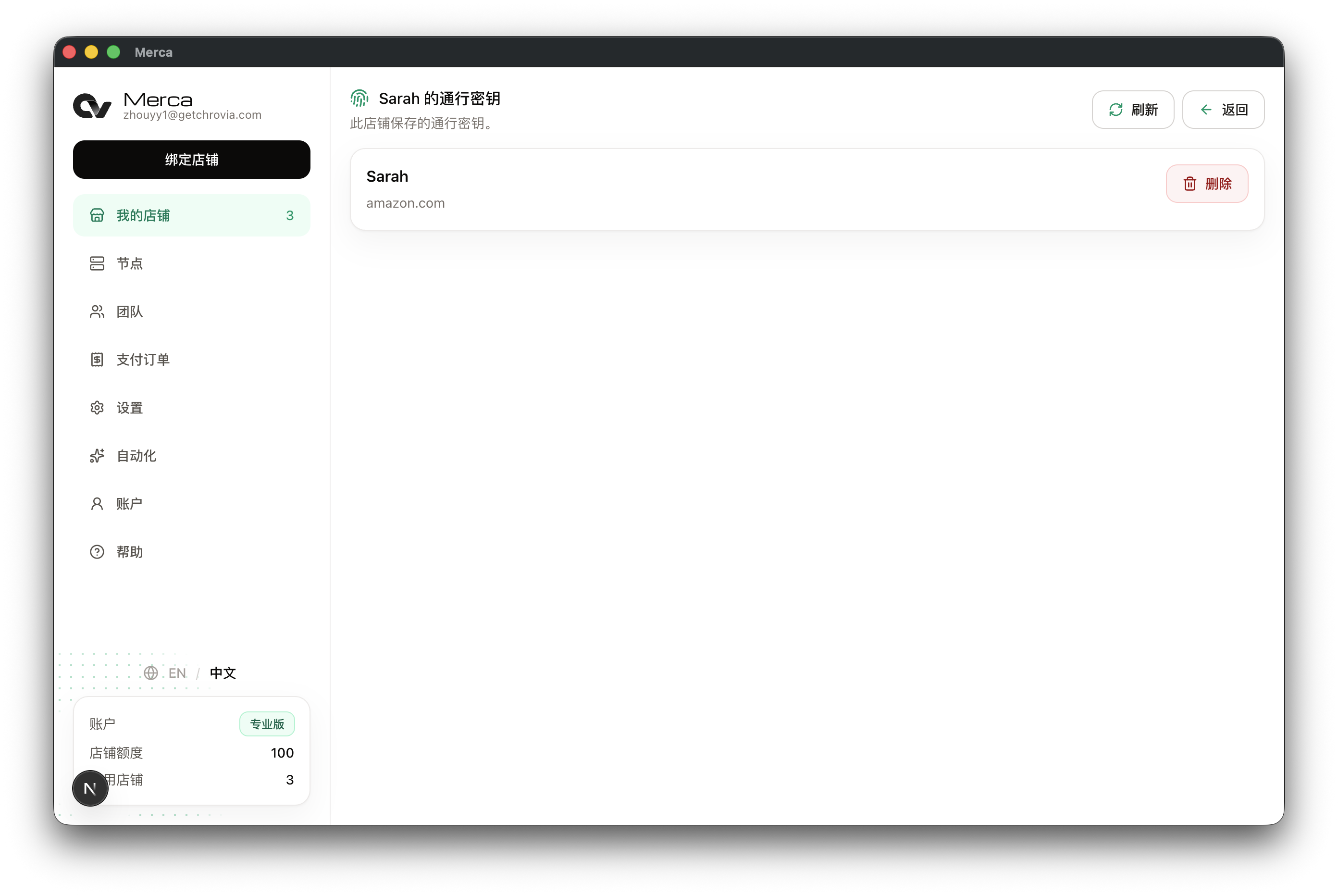
The passkey stays with this store. Later, sign in to Amazon in this store's window to use it. Another store or another browser will not have this passkey. See Are two-step verification and passkeys private.