
How to cancel a subscription
Open the billing portal as the owner, cancel the subscription, and confirm Pro stays available until the end of the current period.
Only the Owner can cancel a subscription. Admins and members can't open Transactions or change billing. Canceling does not stop Pro immediately. Access continues until the end of the current billing period.
To start a subscription, see How to subscribe to Pro.
Open the billing portal
- Open the Merca desktop app and sign in as the owner.
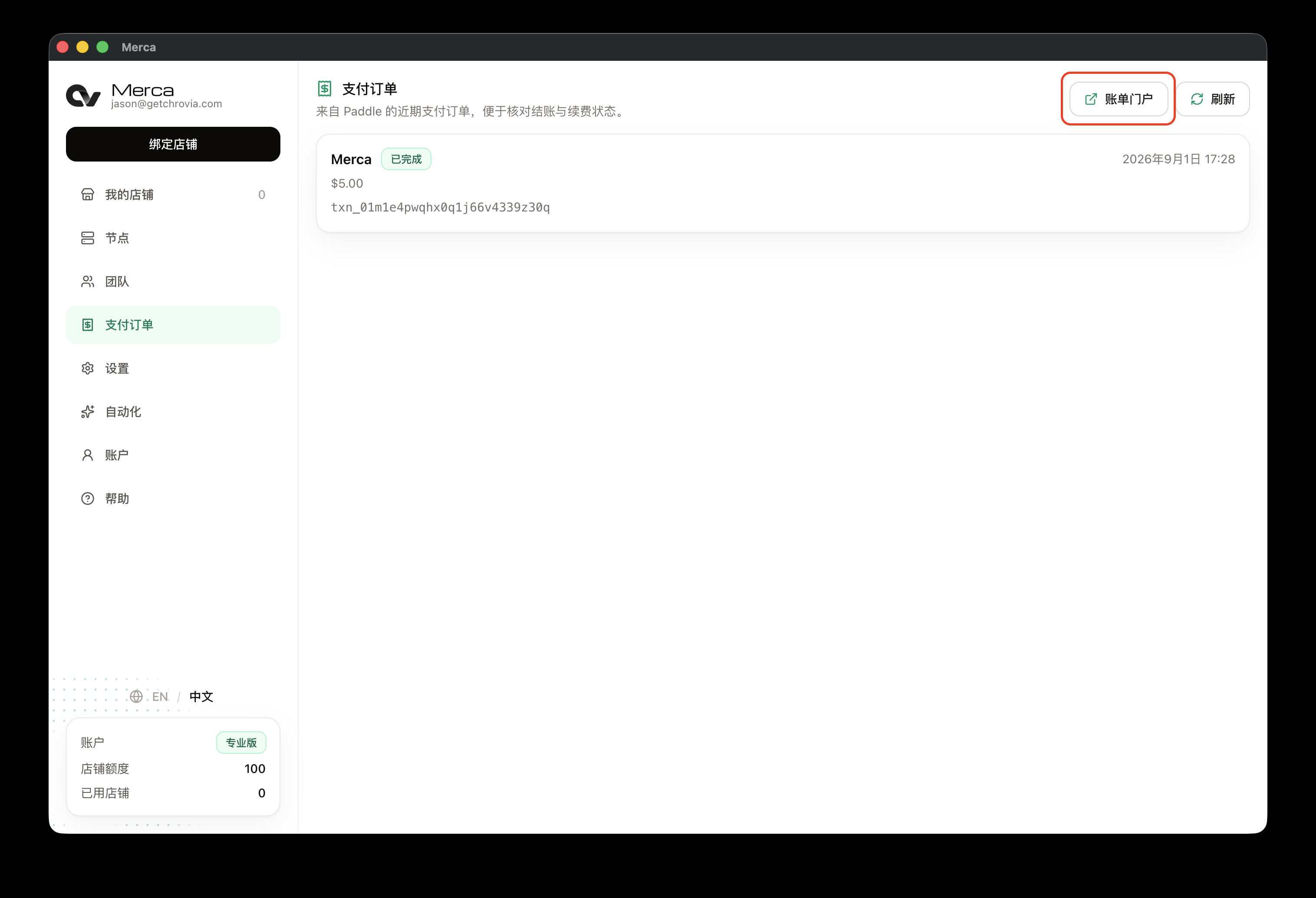
- Open Transactions from the sidebar.
- Click Billing portal at the top right.
The billing portal opens in your system browser.
Cancel the subscription
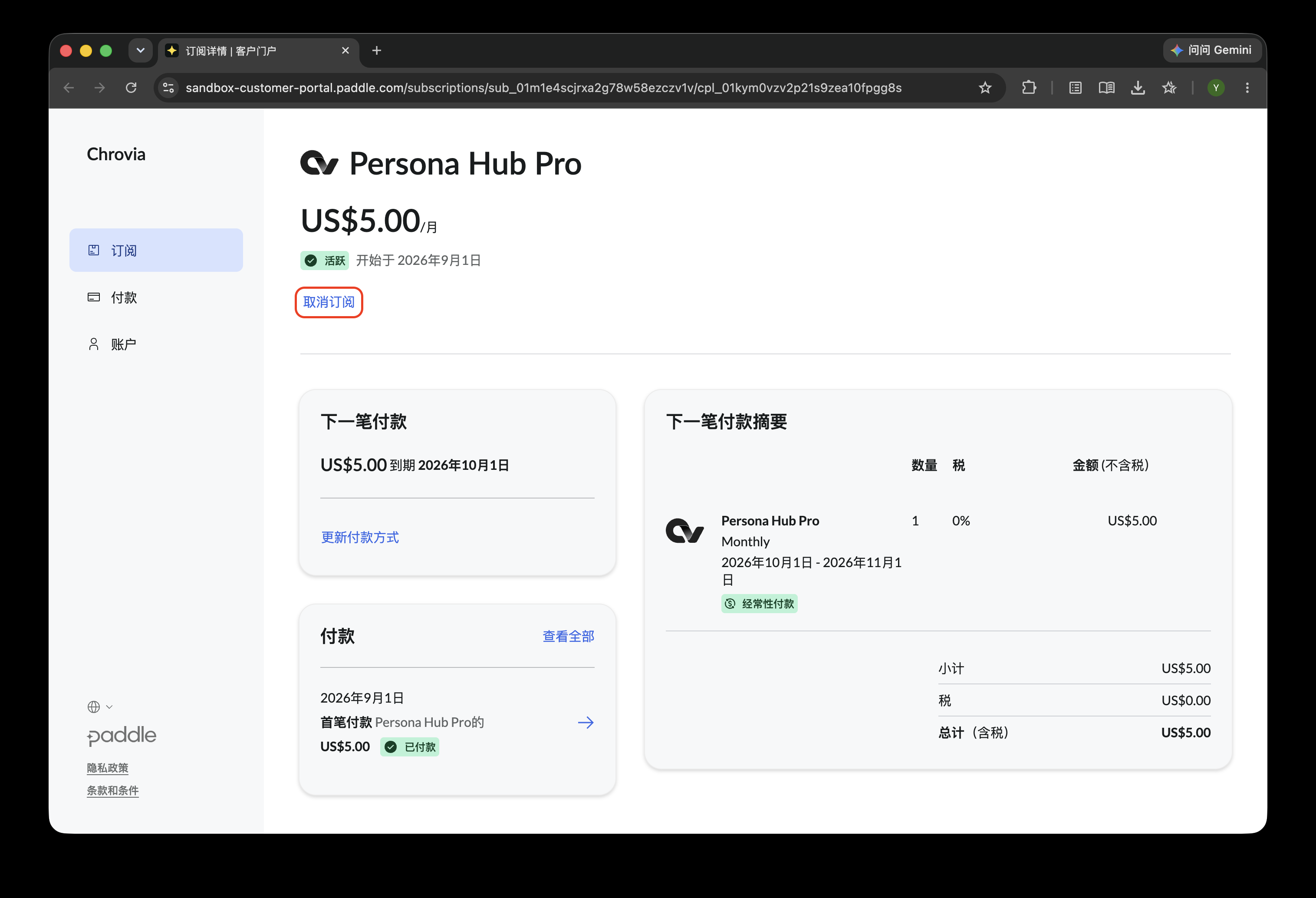
On the subscription page, click Cancel subscription, then follow the prompts to finish.
The product name, price, and dates in the portal are the ones that apply.
Confirm on the Account page
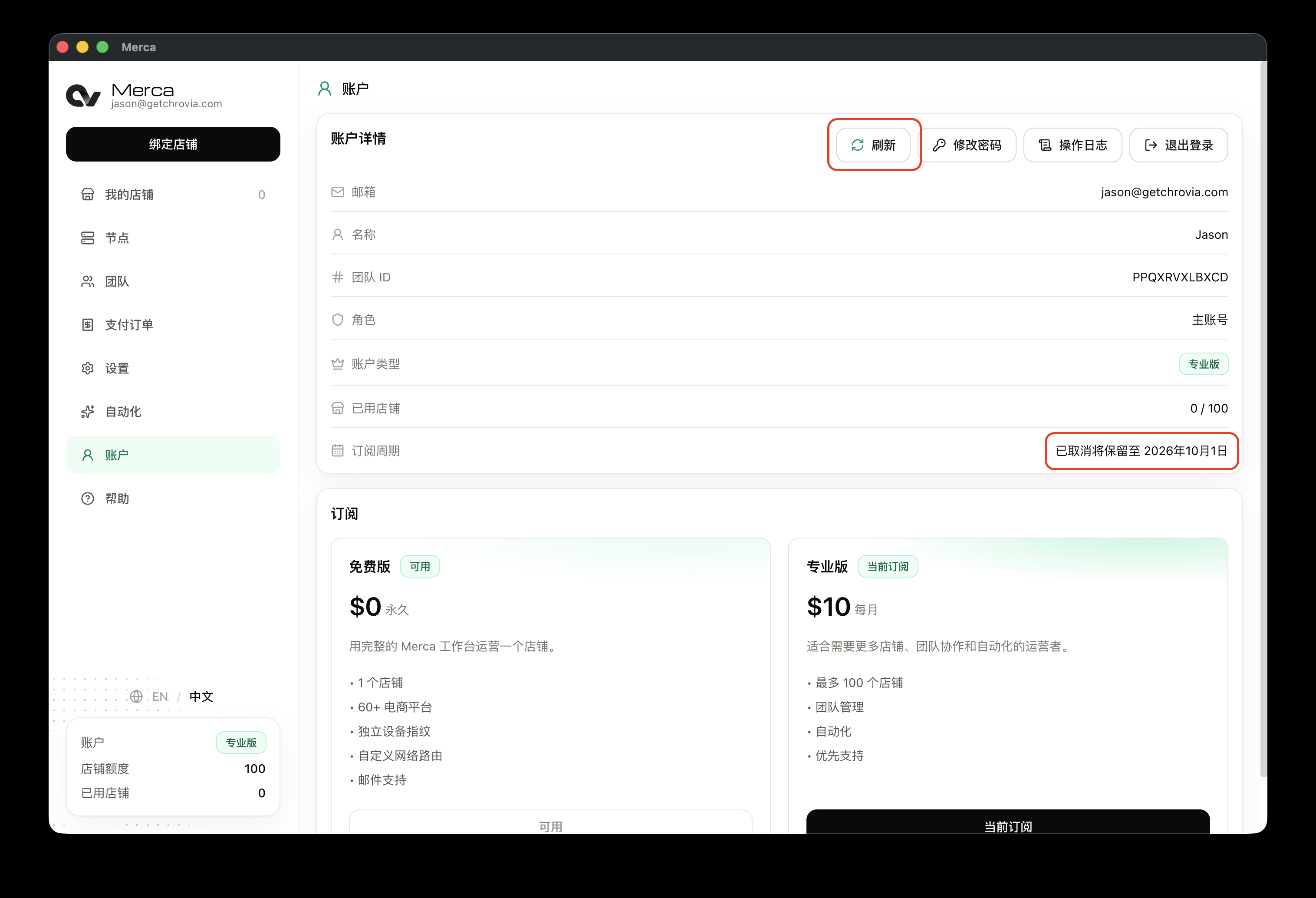
- Return to Merca and open Account from the sidebar.
- Click Refresh at the top right.
Billing period changes from auto-renewal to Canceled · access until the end of the current period. Until that date:
- Account type stays Pro.
- The Pro card stays marked Current subscription.
- Store quota, organization, and automation still work.
- After that date, the account returns to Free and is not charged again.
If the Account page has not updated
Click Refresh at the top right of the Account page, then wait a few minutes. If it still shows auto-renewal, contact support from Help.