
How to add an additional (email) account
Save an Outlook login in the store window. Lock it so in-browser password changes don't overwrite it.
An additional account is a login for a site other than the store login. This example uses the Outlook mailbox for an Amazon store. First add the store: How to add a store. Then click Launch in the desktop app. Save the password in that store's browser window. Don't use the system browser. Launch the store in the desktop app.
Save Outlook in the store window
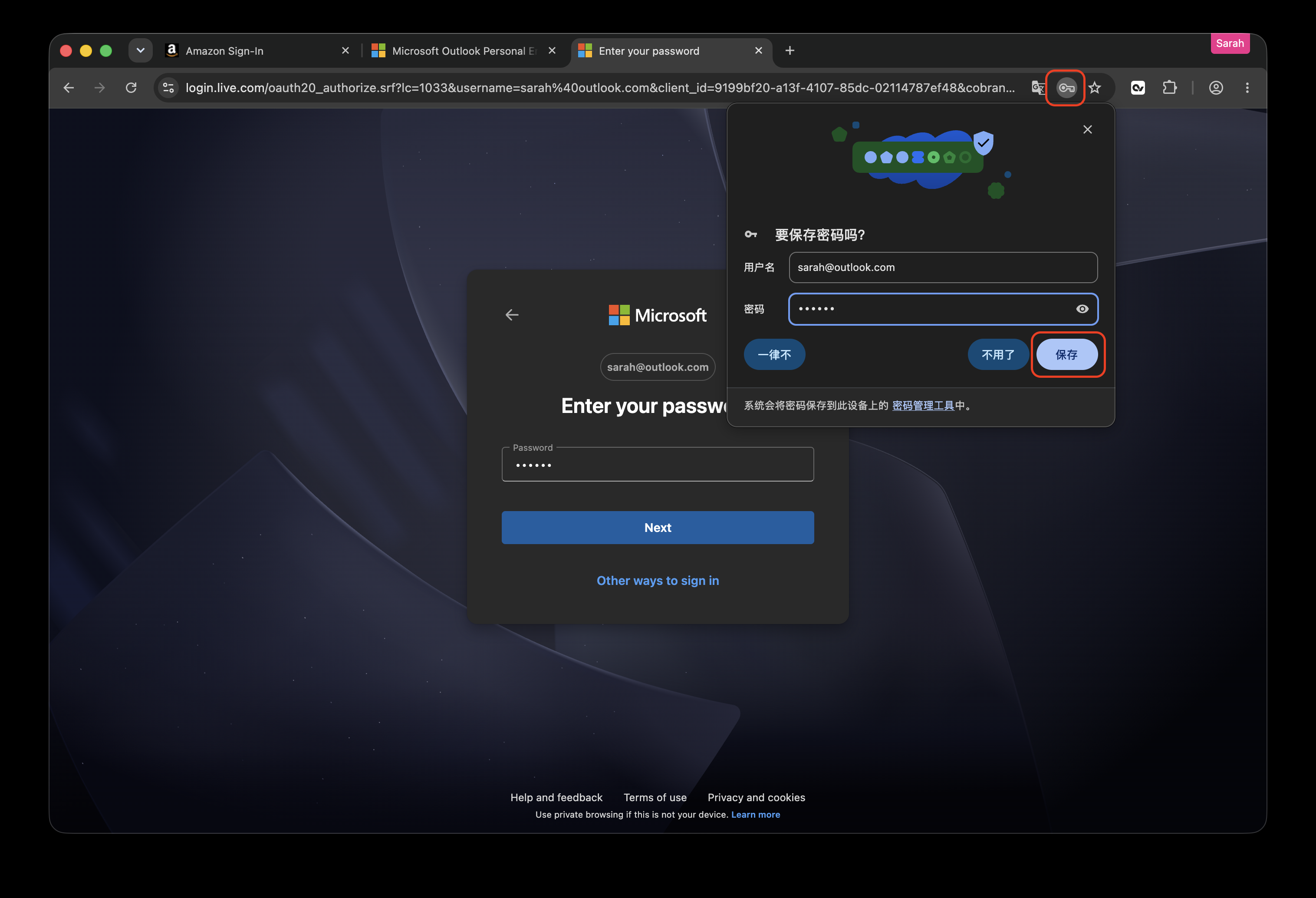
In that store's window, open the Outlook sign-in page and enter the email and password. When Save password? appears, click Save. Don't click Never.
If the prompt doesn't appear, click the key icon in the toolbar, then click Save.
Check the store
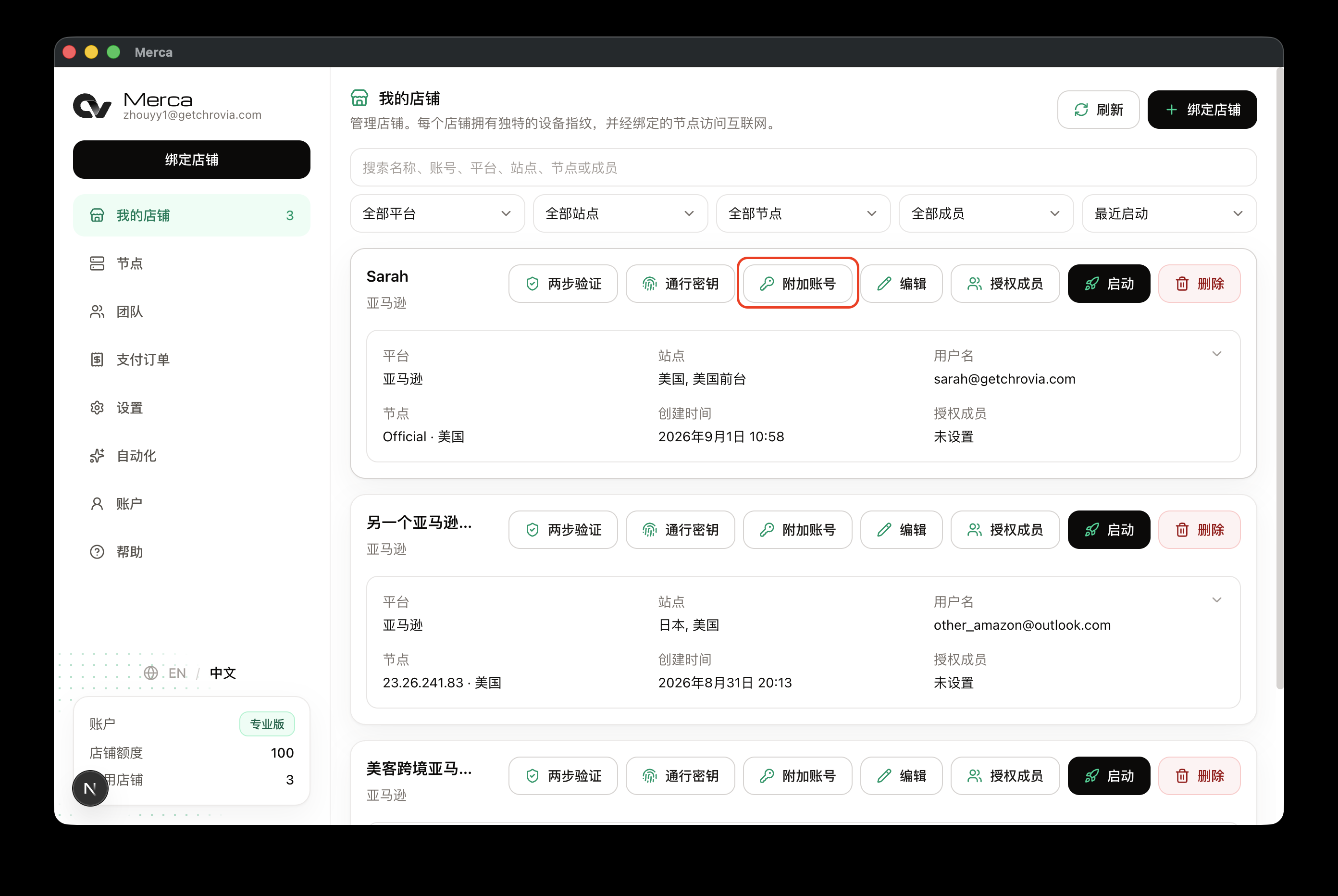
Go back to the desktop app, open My stores, and click Additional accounts on that store.
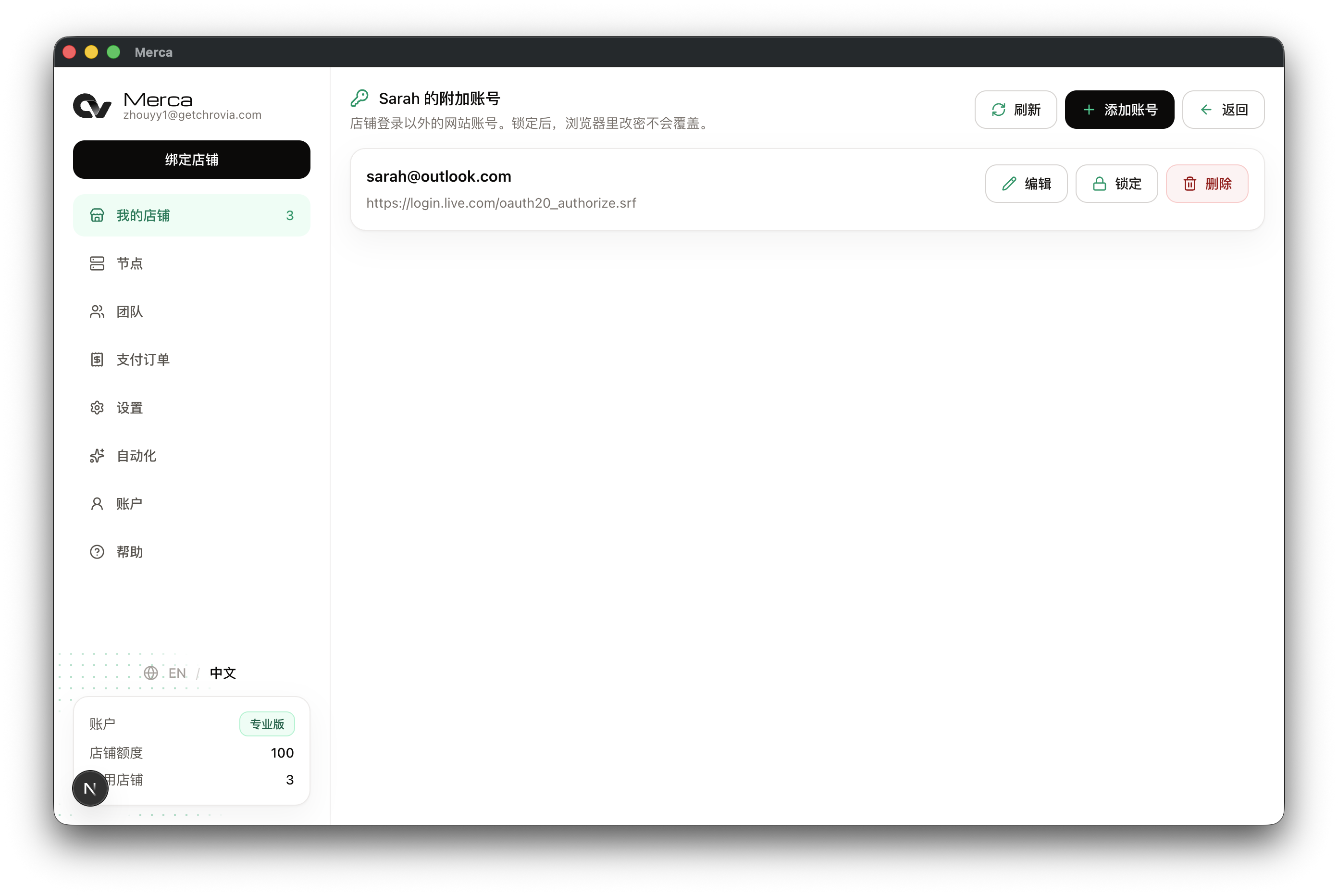
The Outlook account appears in the list. If the list is empty, click Refresh.
Lock it so staff can't overwrite the password
On that account, click Lock. The account shows Locked.
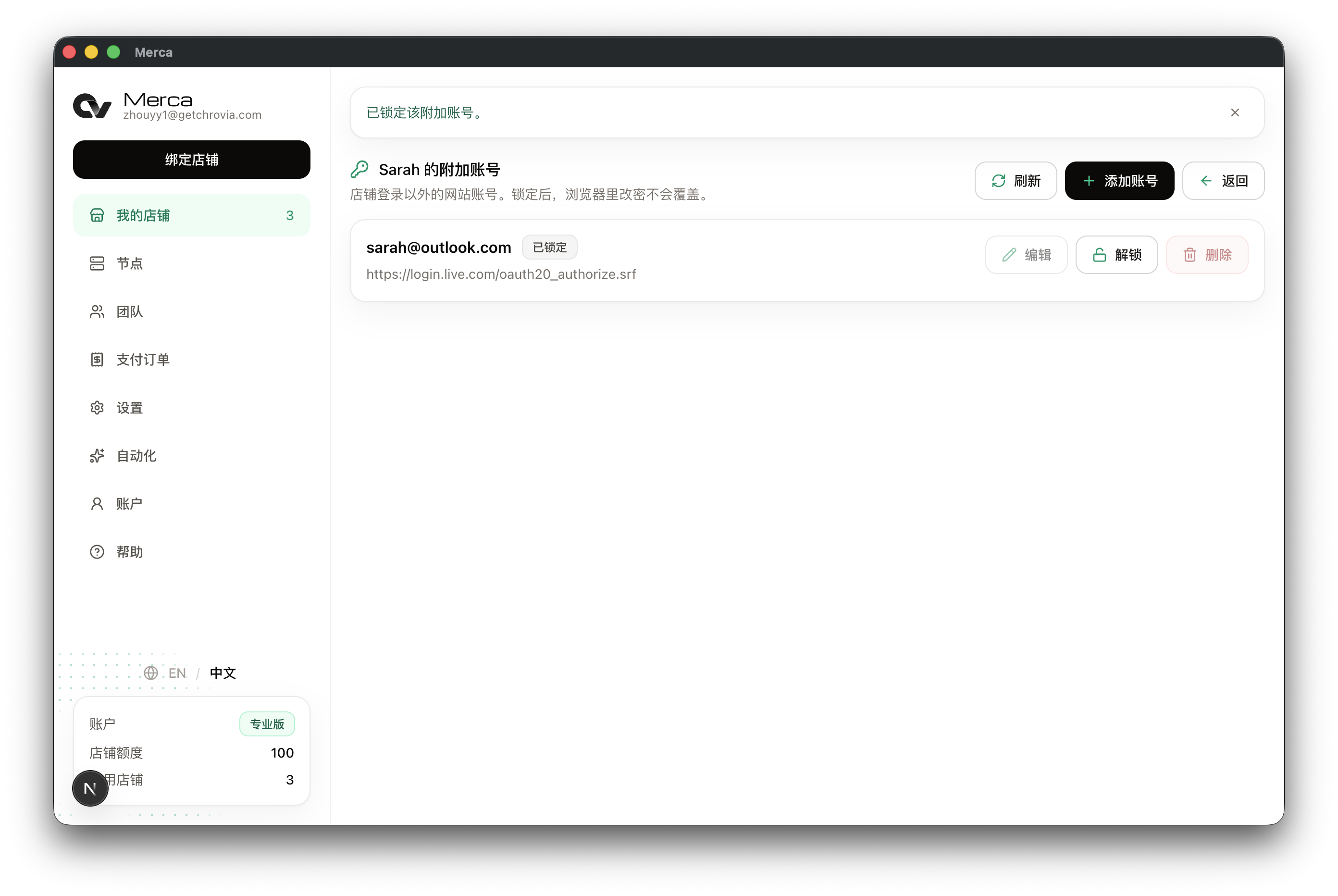
After it's locked, a password change in the store window won't overwrite the copy saved for this store. Edit and Delete are also unavailable until you Unlock. Unlock first when you need to change it.
The additional account stays with this store. Later, Outlook in this store's window fills in the saved email and password. Another store or another browser will not have this account.
Sign in to this store's mailbox in the store window. Don't open platform mail in the browser you use every day or on your phone. See Should I sign in to email in Merca?.