
How to set up Amazon two-step verification
Scan the Amazon QR in the store window and keep the codes with that store.
First add the Amazon store: How to add a store. Then click Launch in the desktop app. Set up two-step verification in that store's browser window. Don't scan this QR with a phone app or another browser. Launch the store in the desktop app.
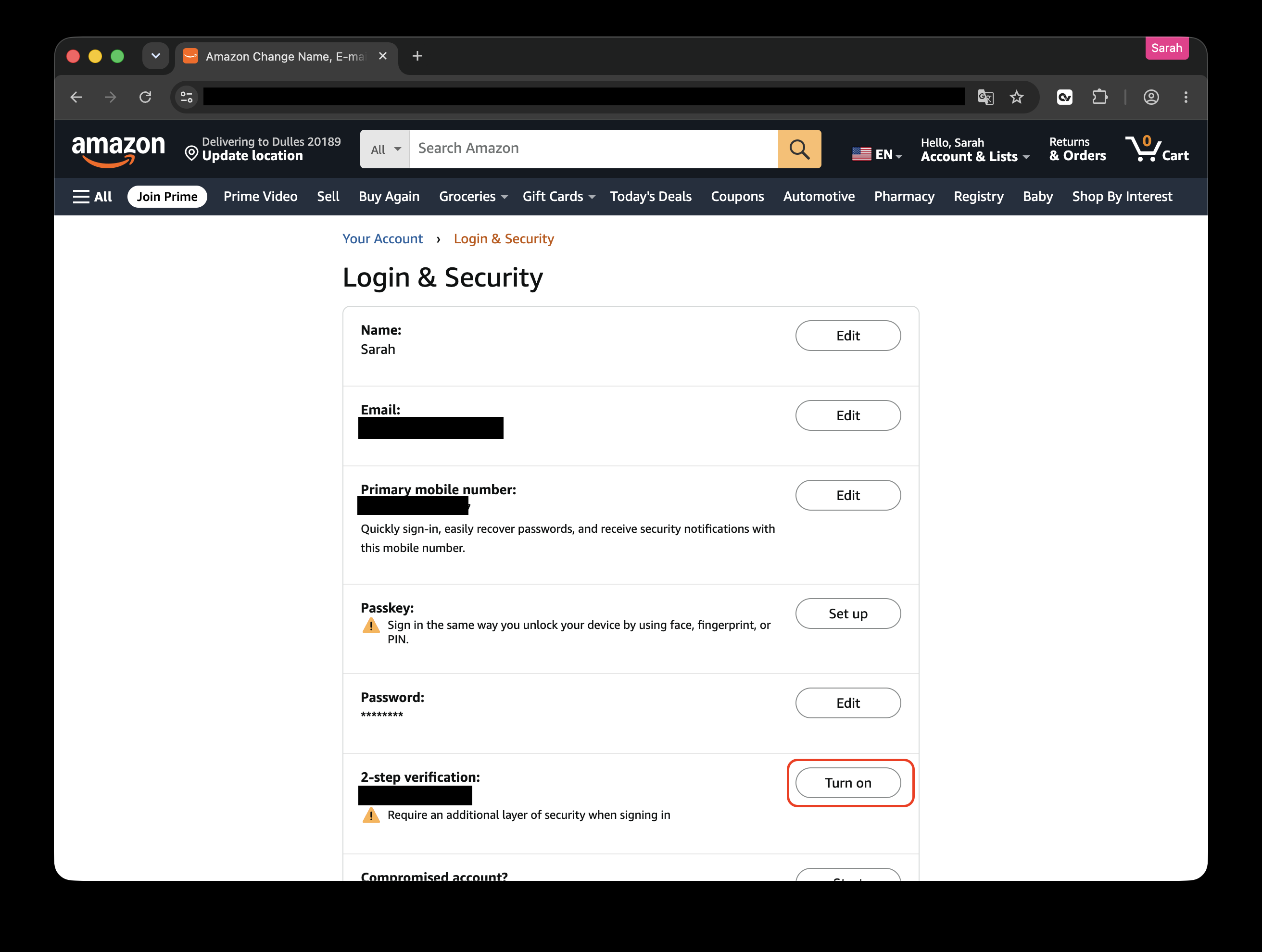
Open Login & Security
After you sign in to Amazon, open Login & Security. On the 2-step verification row, click Turn on.
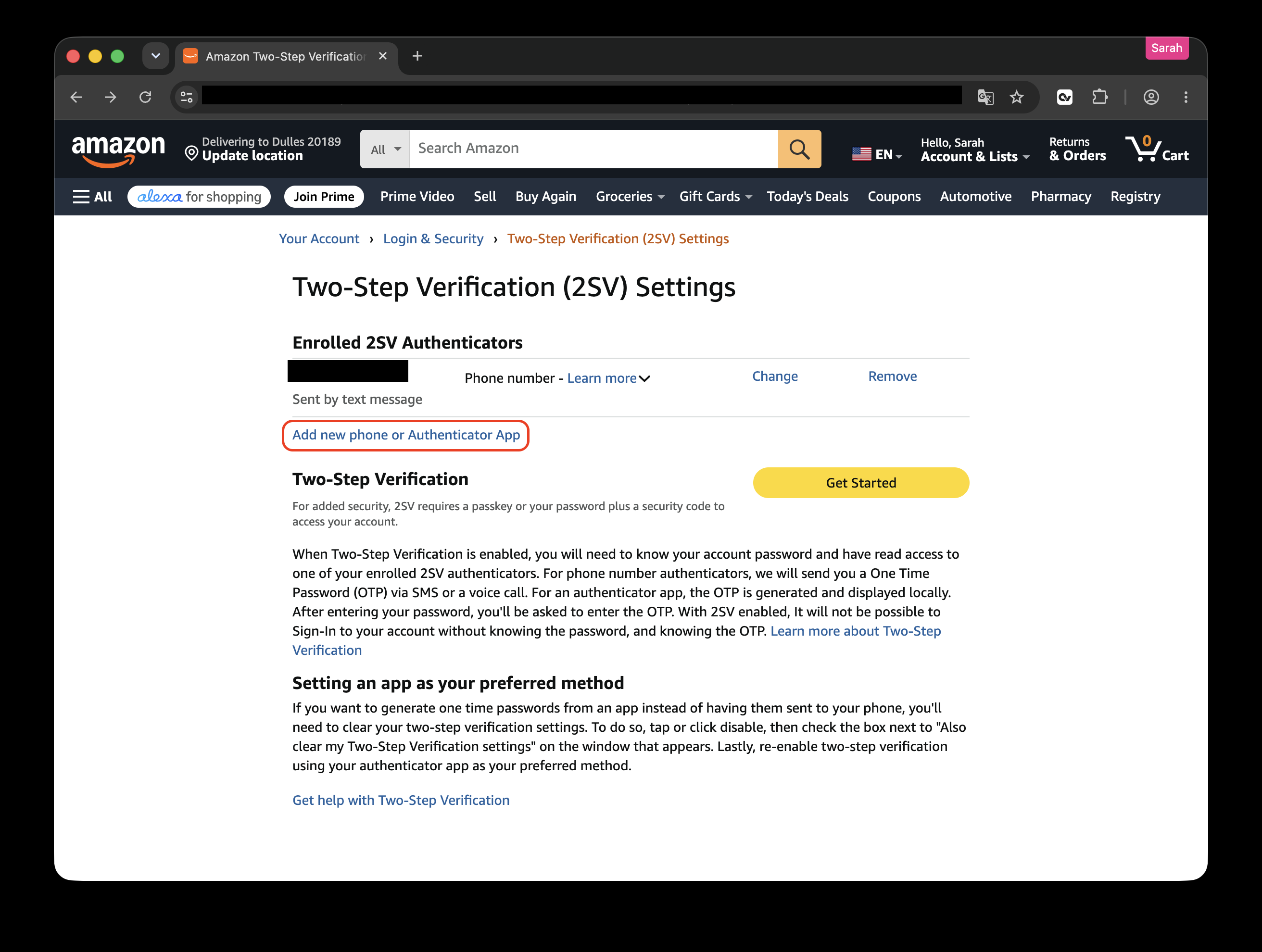
Add an authenticator app
On Two-Step Verification (2SV) Settings, click Add new phone or Authenticator App.
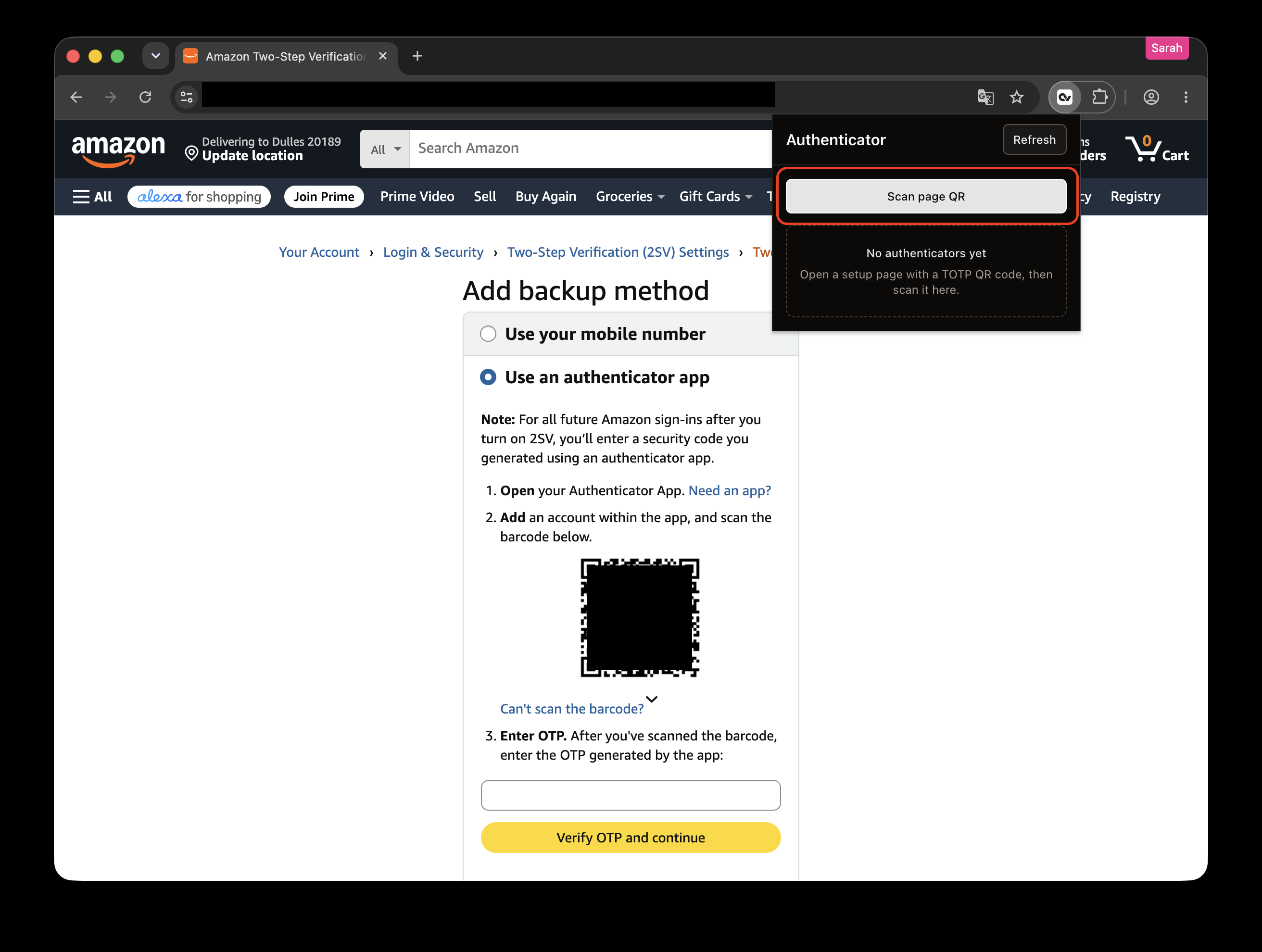
On the next page, choose Use an authenticator app, not Use your mobile number. A QR code appears.
Scan the page QR
Click the extension icon at the top right, open Authenticator, then click Scan QR code.
When the scan succeeds, a 6-digit code appears in the extension.
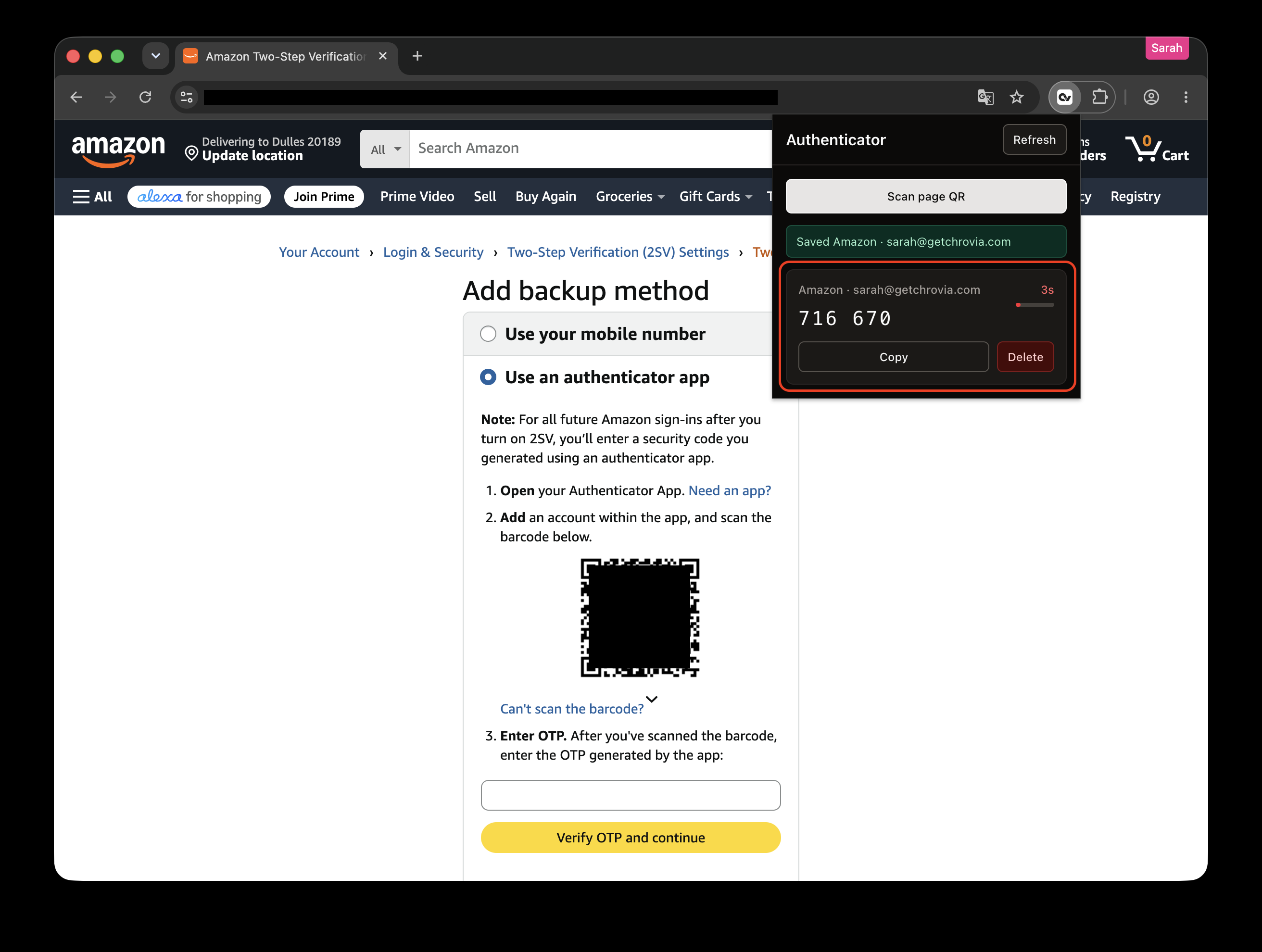
Paste it back into Amazon
Click Copy, paste the code into step 3, then click Verify OTP and continue.
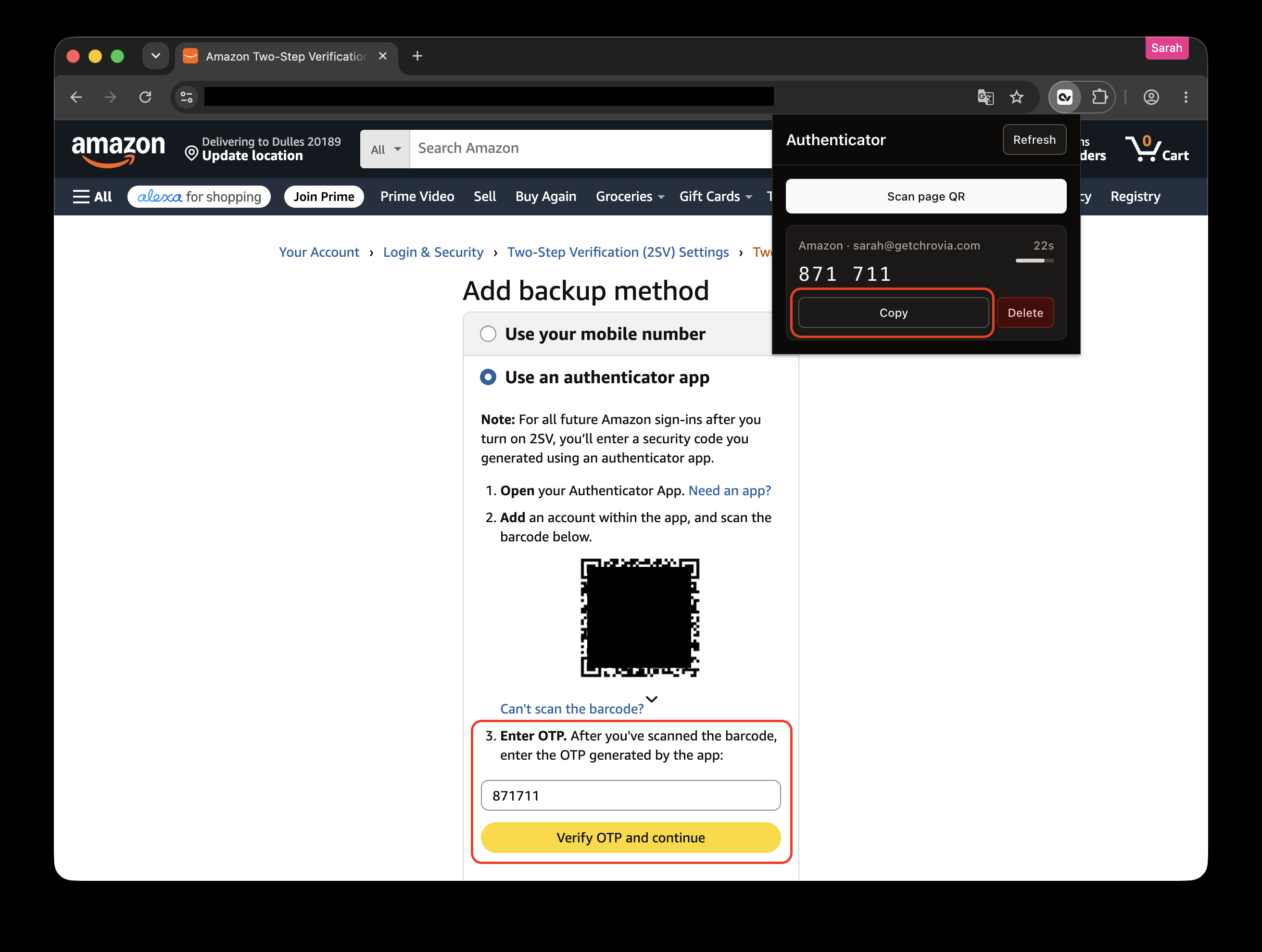
Check the store
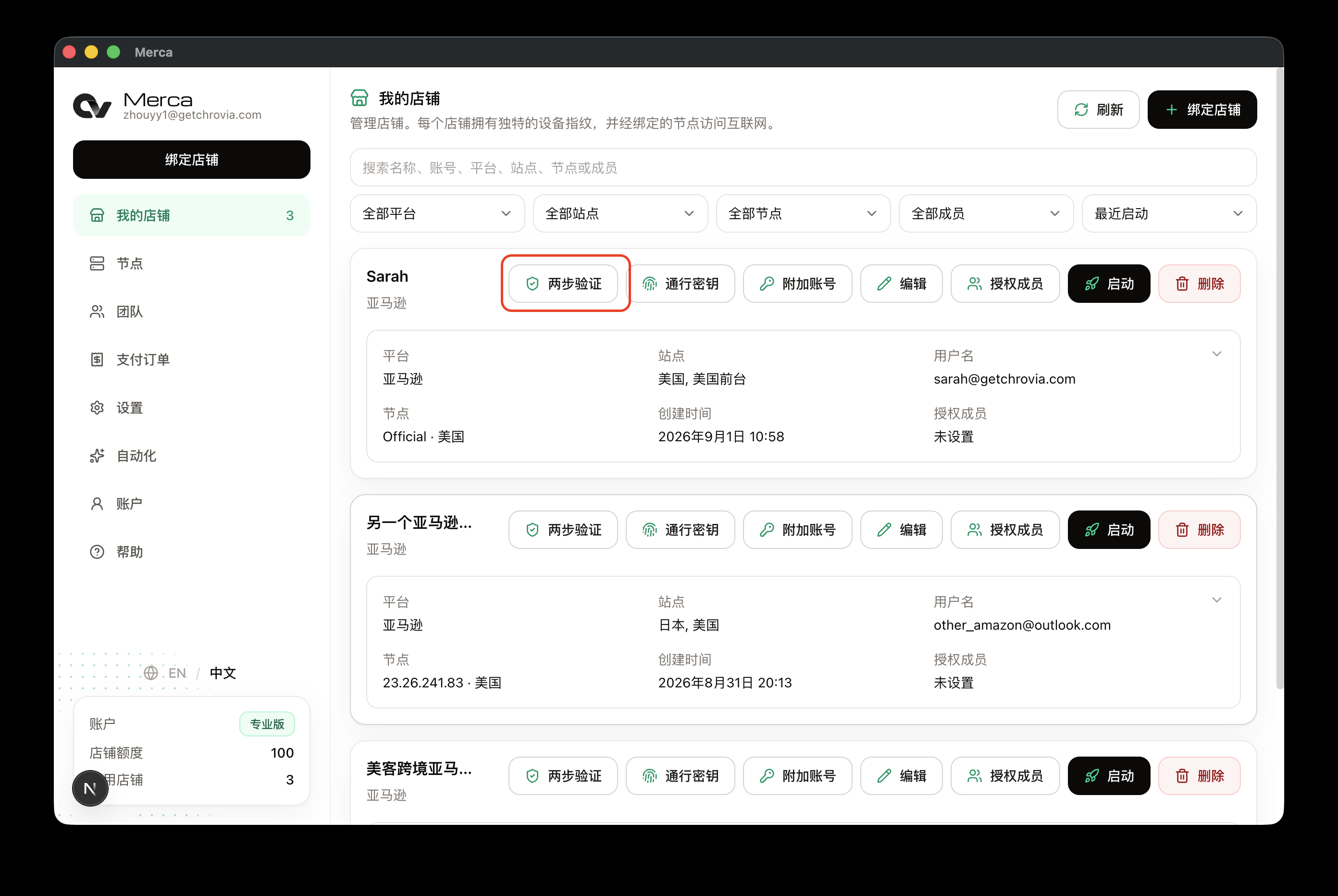
Go back to the desktop app, open My stores, and click Authenticator on that store.
The authenticator appears in the list, with the current 6-digit code. If the list is empty, click Refresh.
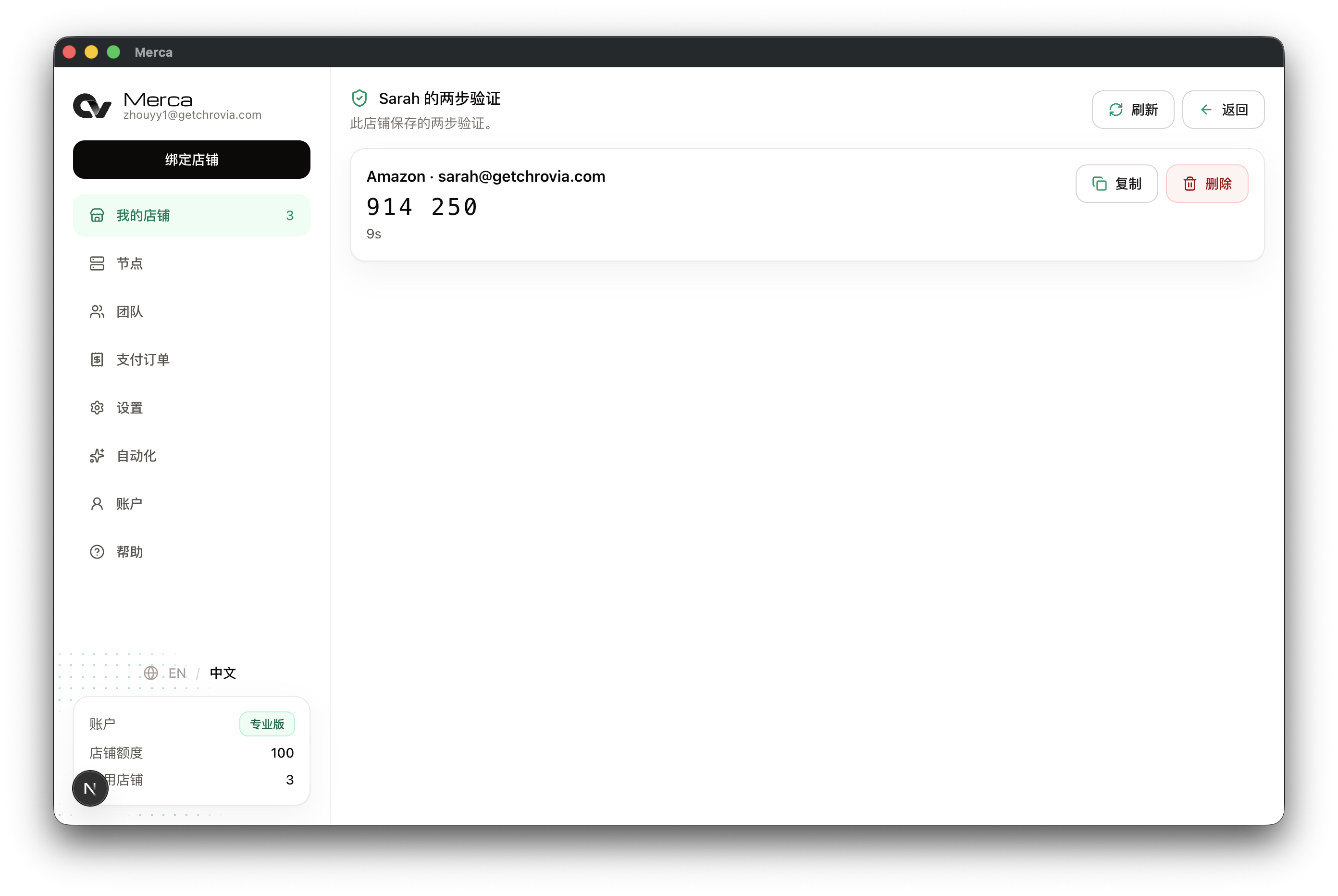
The authenticator stays with this store. Later, when Amazon asks for a code, click Copy on this store's Authenticator page, or Copy in the store window extension. You don't scan the QR again, and you don't need your phone. Another store or another browser will not have this authenticator. See Are two-step verification and passkeys private.