

Thordata proxy integration
Buy a static ISP proxy from Thordata, copy its connection details, then import, check, and save it as a node in Merca with this step-by-step guide.
This guide walks you through buying a Thordata static ISP proxy and adding it to Merca. Merca calls a configured proxy a node and does not sell proxy services.
Before you start, install and sign in to the Merca desktop app. Only the owner or an admin can add nodes. Choose a location that suits your store; see Which country should I buy a node in. Virginia, USA is used here only as an example. Prices, availability, durations, and payment methods depend on Thordata's current offerings. The screenshots show the Chinese interface.
1. Create a Thordata account
Open the Thordata registration page. If you start on the homepage instead, click Start free trial to open registration.
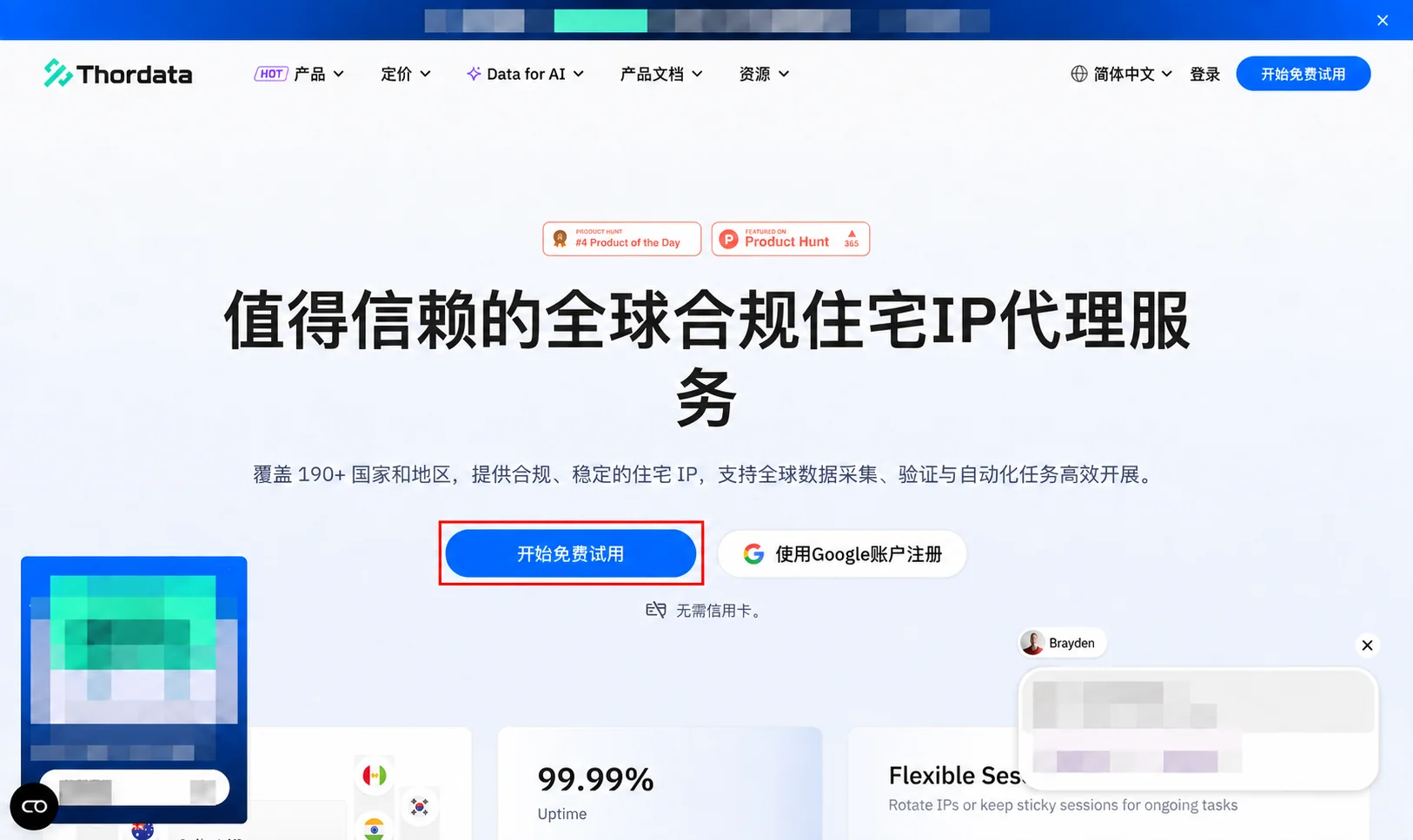
Enter your email address and password, read and accept the terms, then click Register and follow the prompts. If you already have an account, sign in instead.
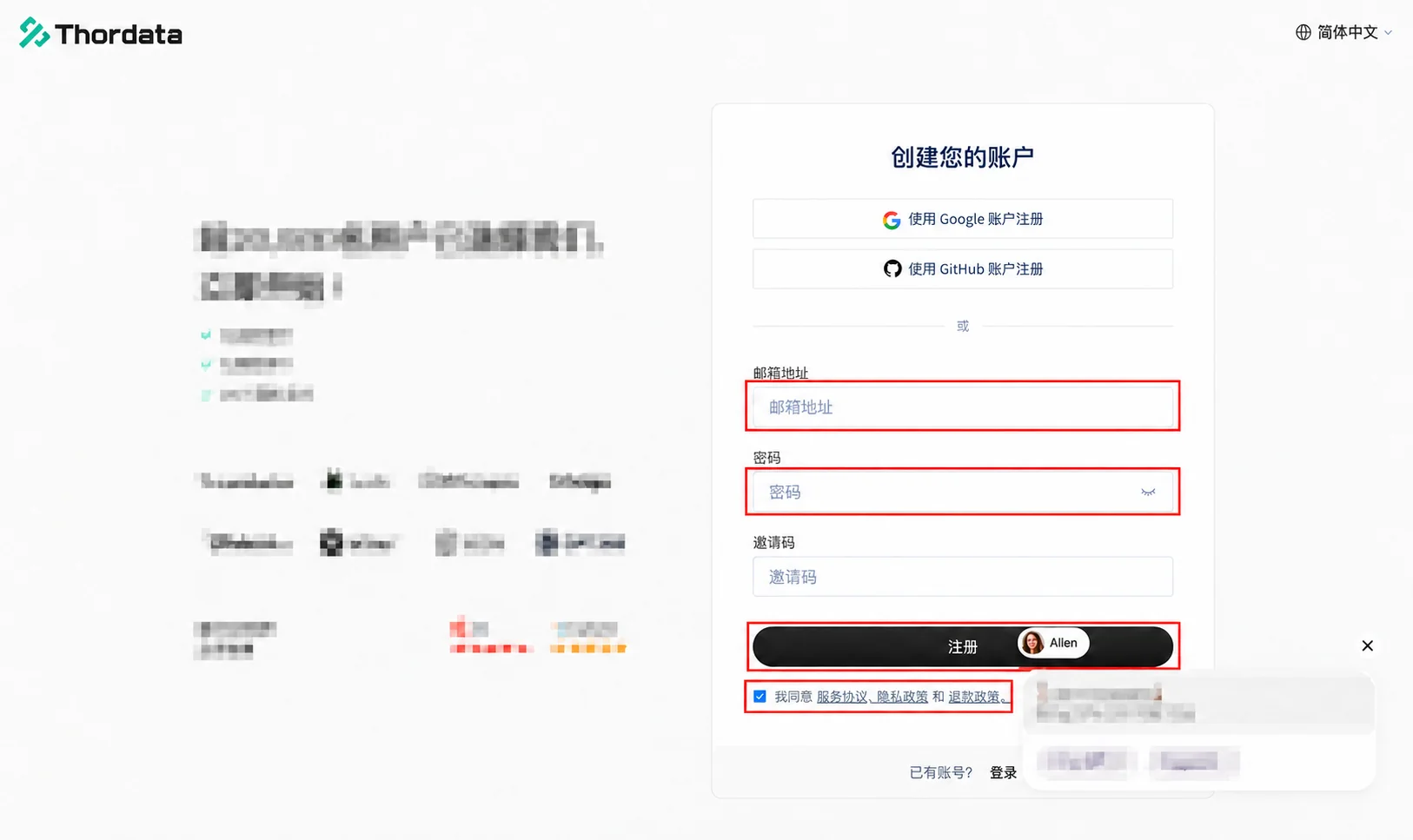
2. Open static ISP proxy pricing
After signing in, select Static ISP Proxies from the sidebar.
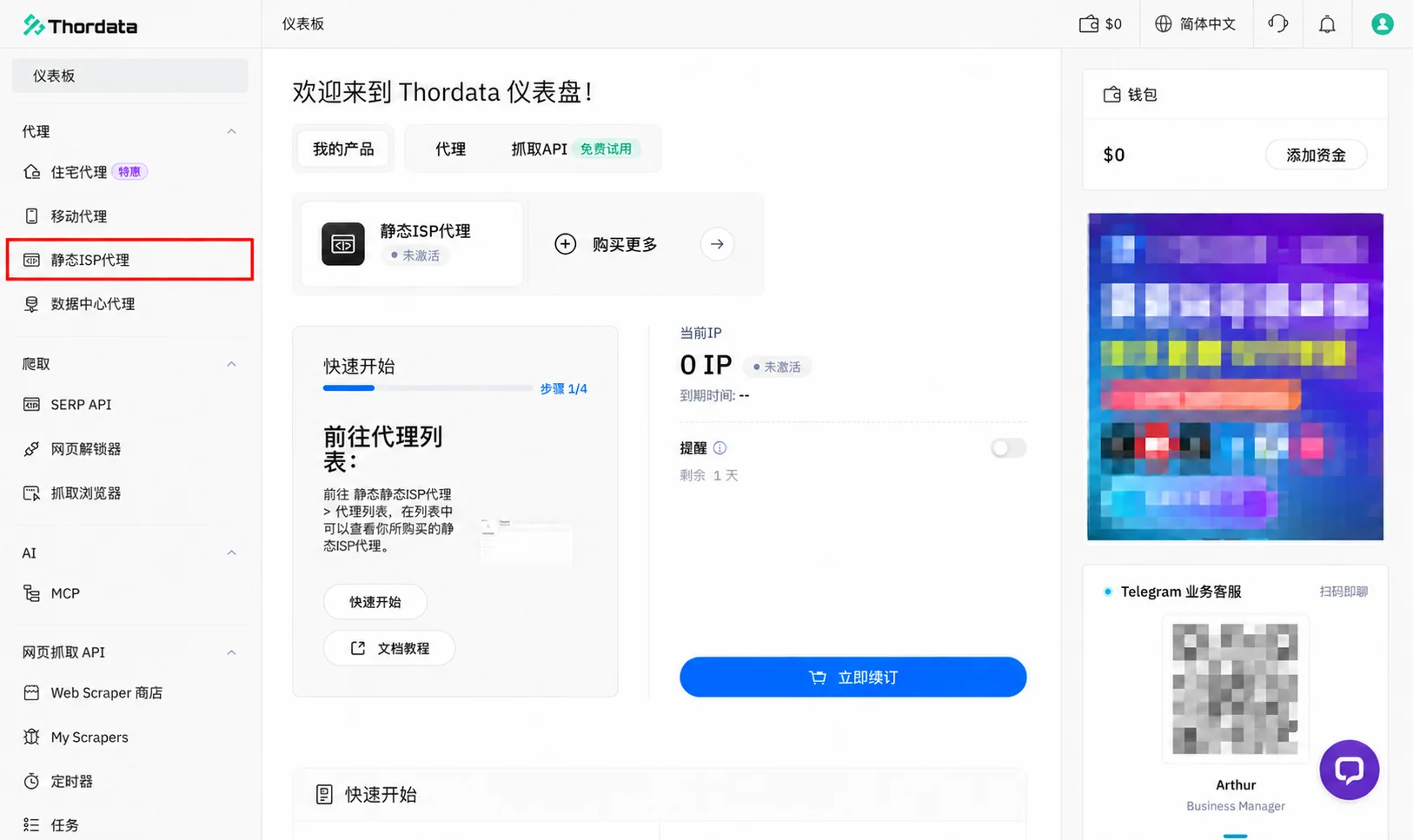
On the proxy list page, open the Pricing tab.
3. Choose a duration, location, and quantity
Choose how long you need the proxy, then browse or search for a country or region. This example uses 30 days.
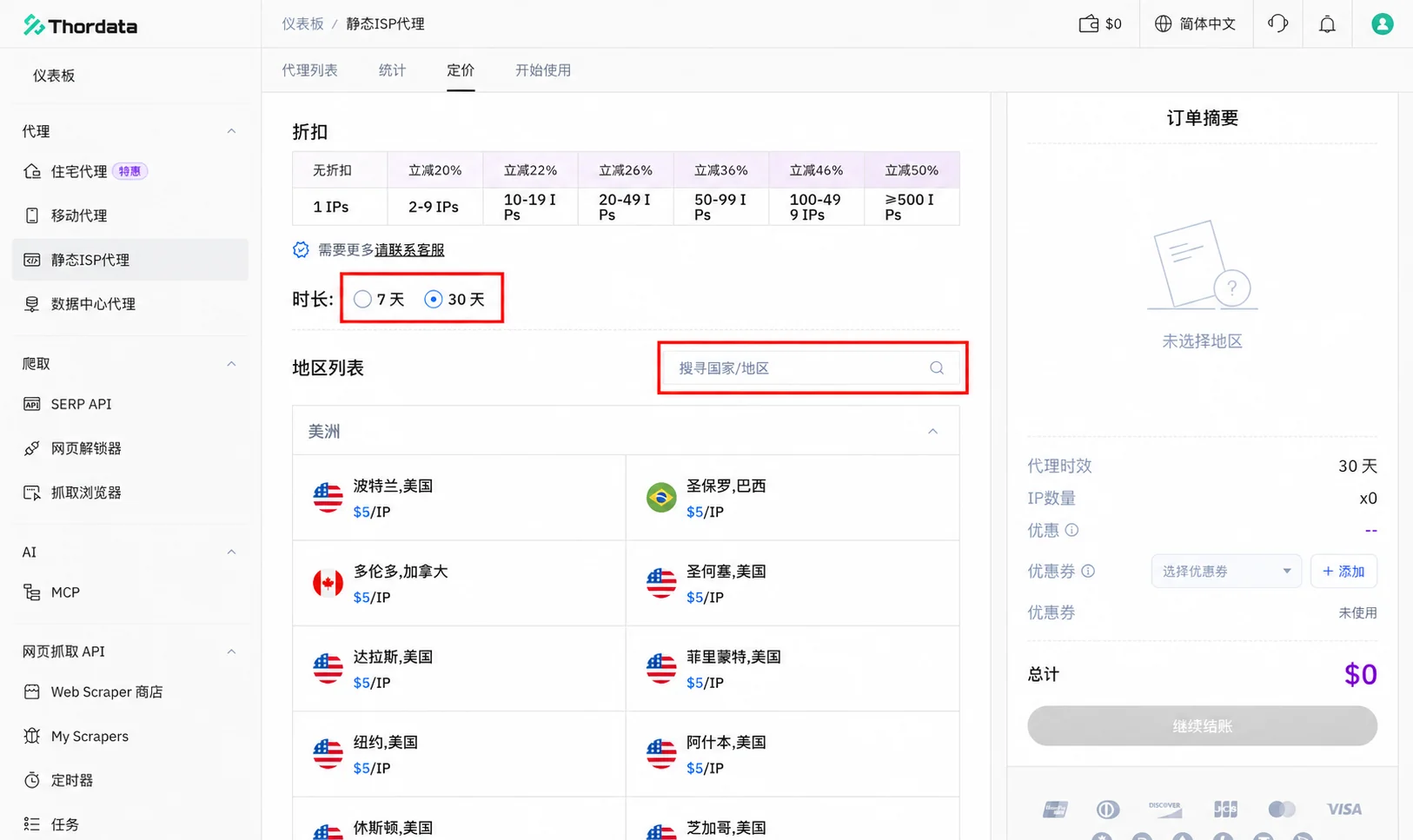
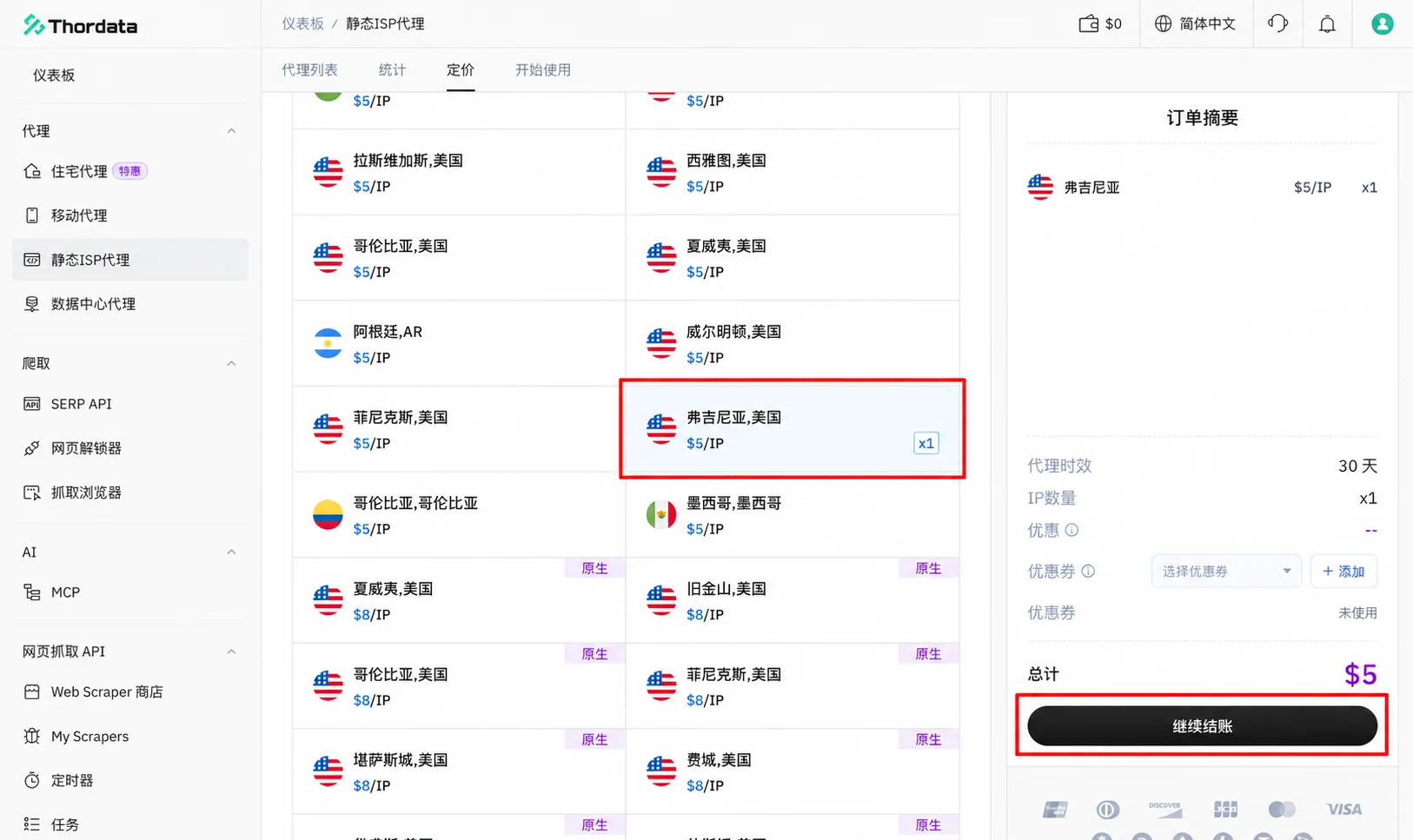
Select a location and the number of IPs. Check the location, duration, quantity, and total in the order summary, then proceed to checkout. This example uses one IP in Virginia, USA.
4. Complete payment
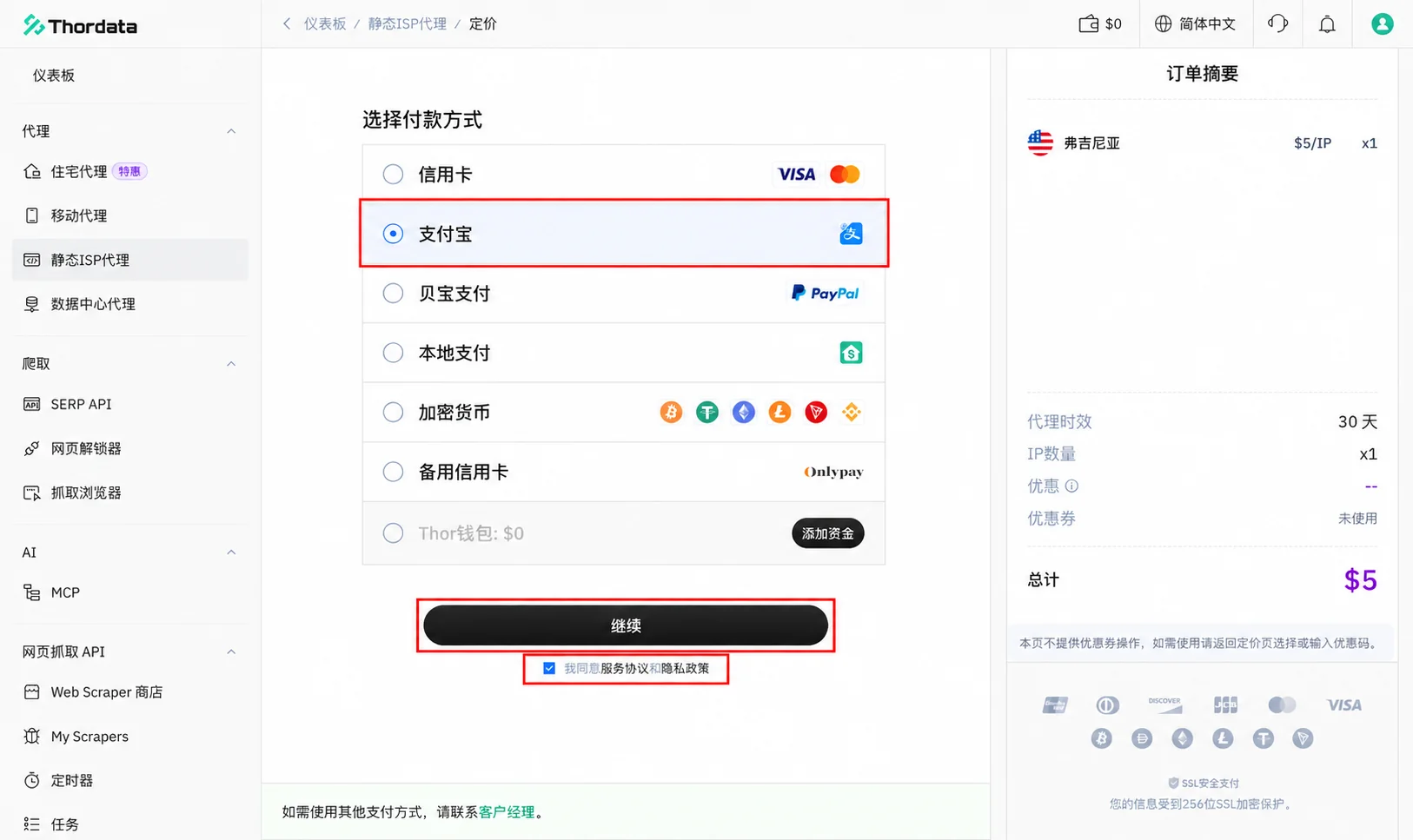
Select an available payment method, read and accept the service agreement and privacy policy, then click Continue and follow the payment instructions. The screenshot uses Alipay.
5. Copy the proxy connection details
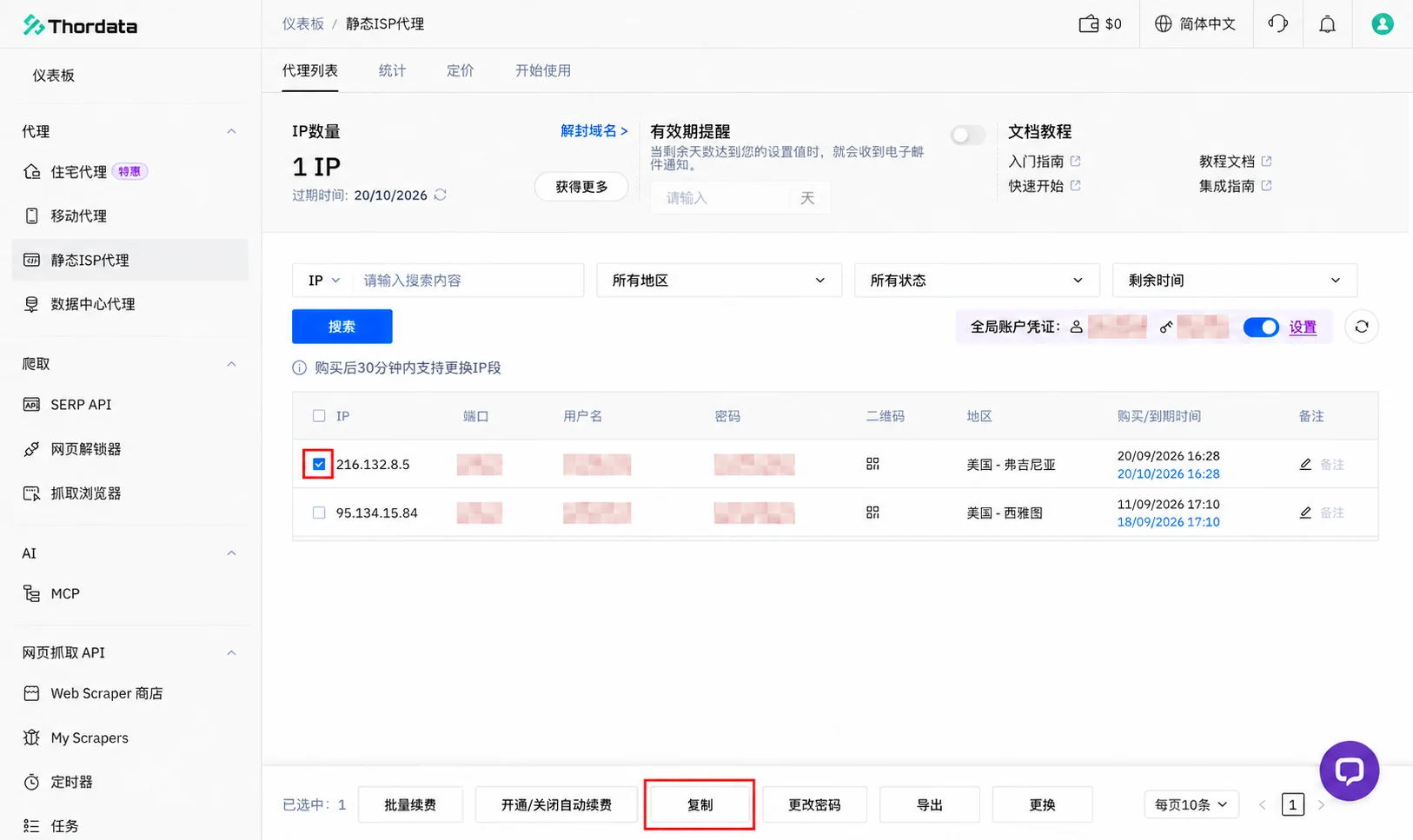
Once payment is complete, return to Static ISP Proxies → Proxy list and find the IP you just purchased. Select its checkbox, then click Copy at the bottom.
In the copy dialog:
- Choose the IP:Port:Username:Password format.
- Choose to copy the selected item, not all proxies.
- Click Confirm.
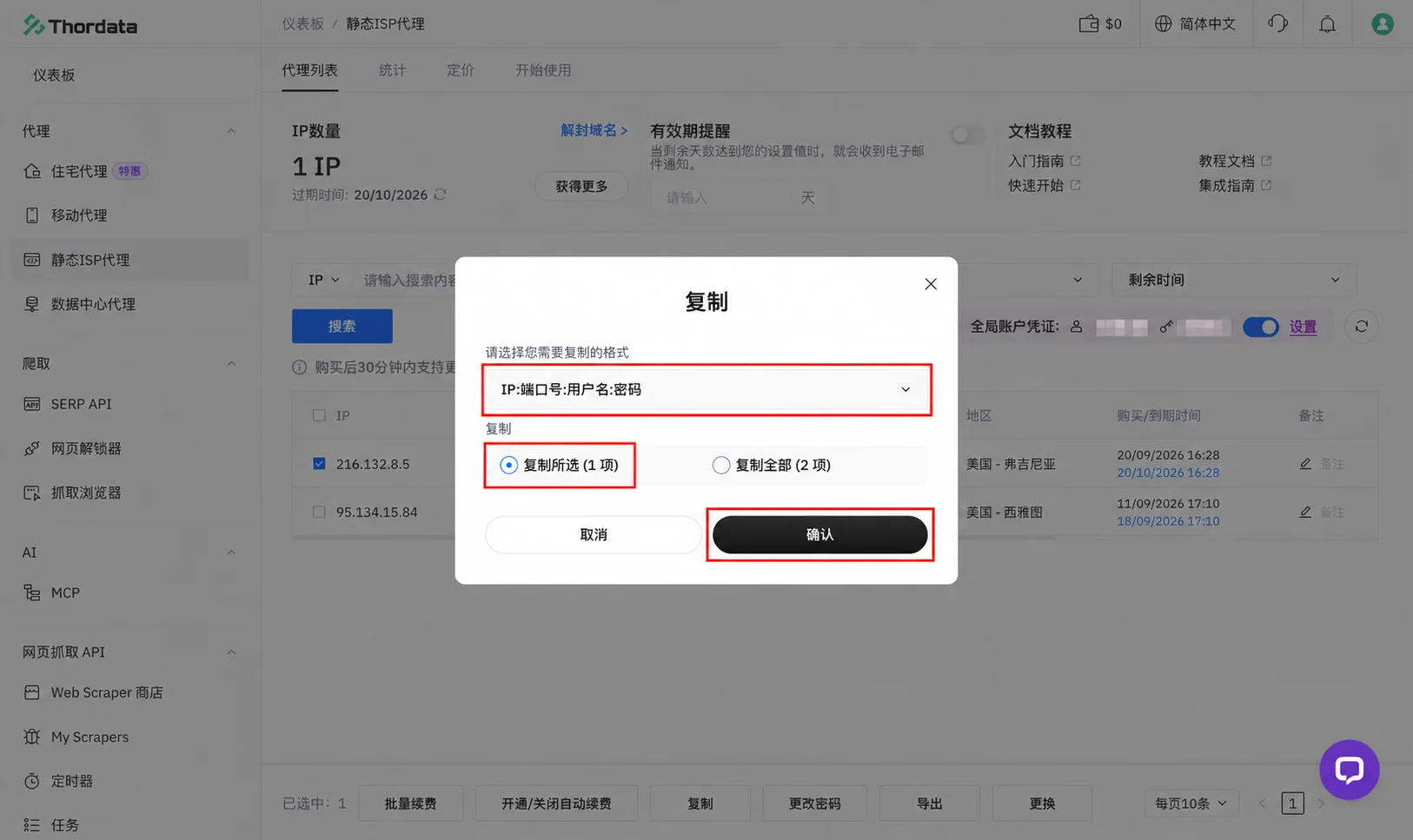
Copy one proxy at a time to add each as a separate node in Merca. These credentials are for the proxy connection, not your Thordata website login.
6. Fill in the details in Merca
Open the Merca desktop app, go to Nodes, and click Add node at the top right.
- Enter an optional Label, such as
Thordata US. - Paste the complete connection details into Paste details.
- Click Fill in.
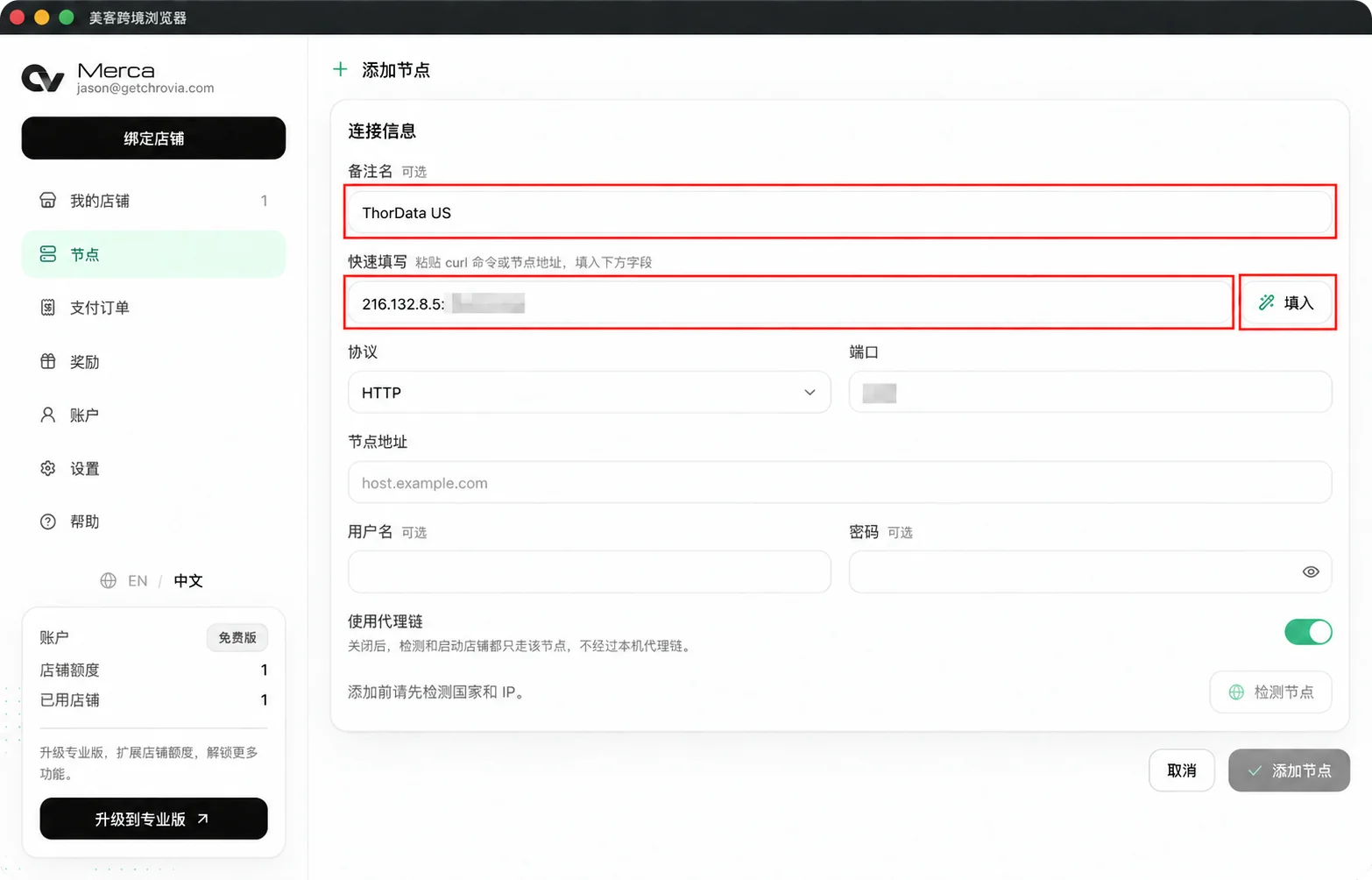
Merca fills in the Address, Port, Username, and Password. This example uses HTTP; make sure the protocol and port match the provider's connection details. If Merca cannot parse the pasted text, enter each field manually.
7. Check the node
Review the connection details and click Check node.
Use proxy chain is on in the screenshots, so both the node check and store connections use the local proxy configured in the desktop app. If you use the default system proxy setting, turn on the system proxy in your third-party software first. If your network can reach the node directly, you can turn off Use proxy chain before checking. See How the proxy chain works.
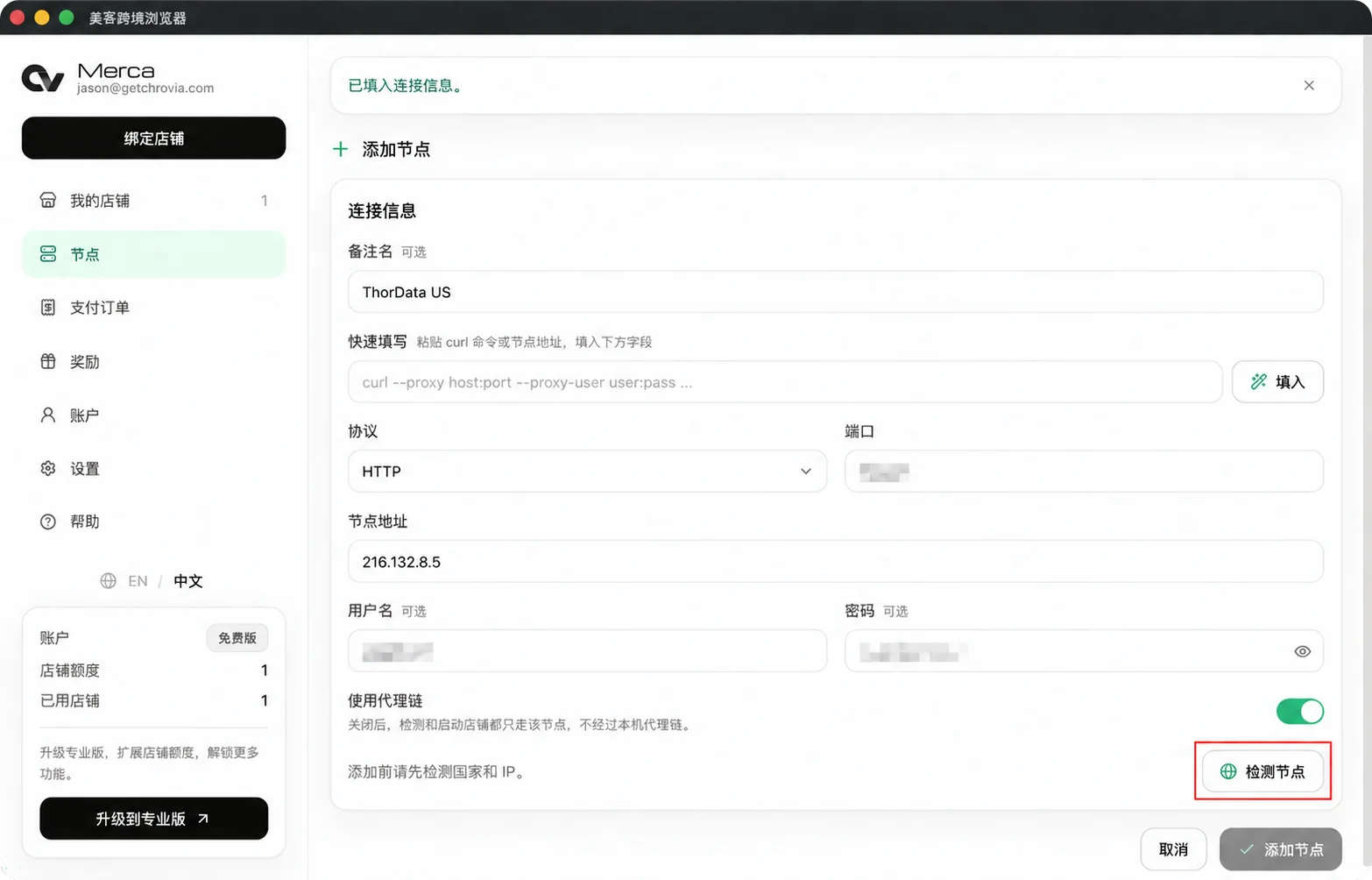
After a successful check, the form shows the country or region and exit IP. Confirm that they match your expectations, then click Add node.
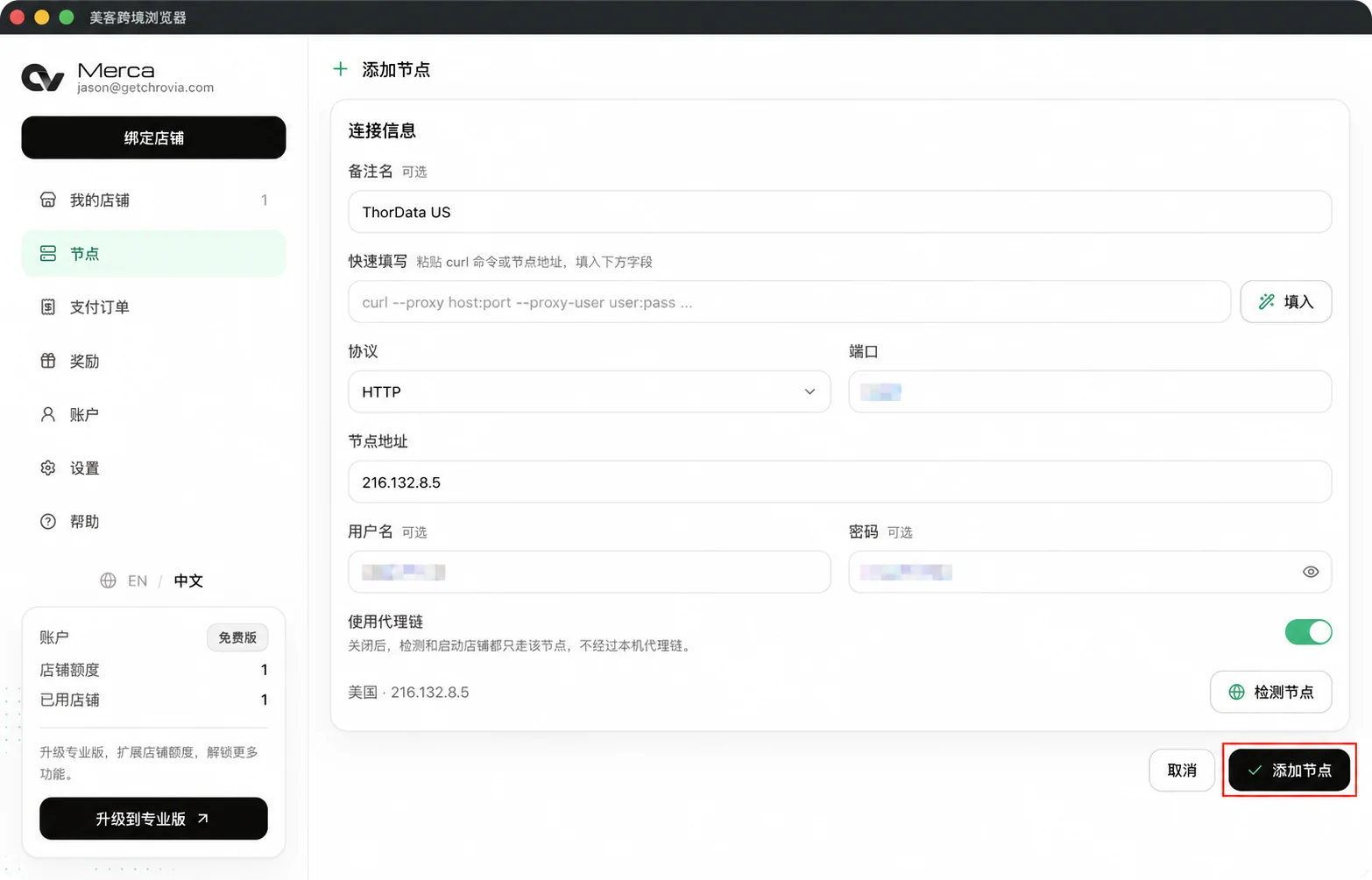
If the check fails, verify the protocol, address, port, and proxy credentials. Also check that the proxy has not expired and that your local proxy chain is working. An exit IP cannot be added more than once, including an IP already added by another Merca account.
8. Confirm the import
Find the new node in the Nodes list. It shows the label, exit IP, country or region, and store assignment status.
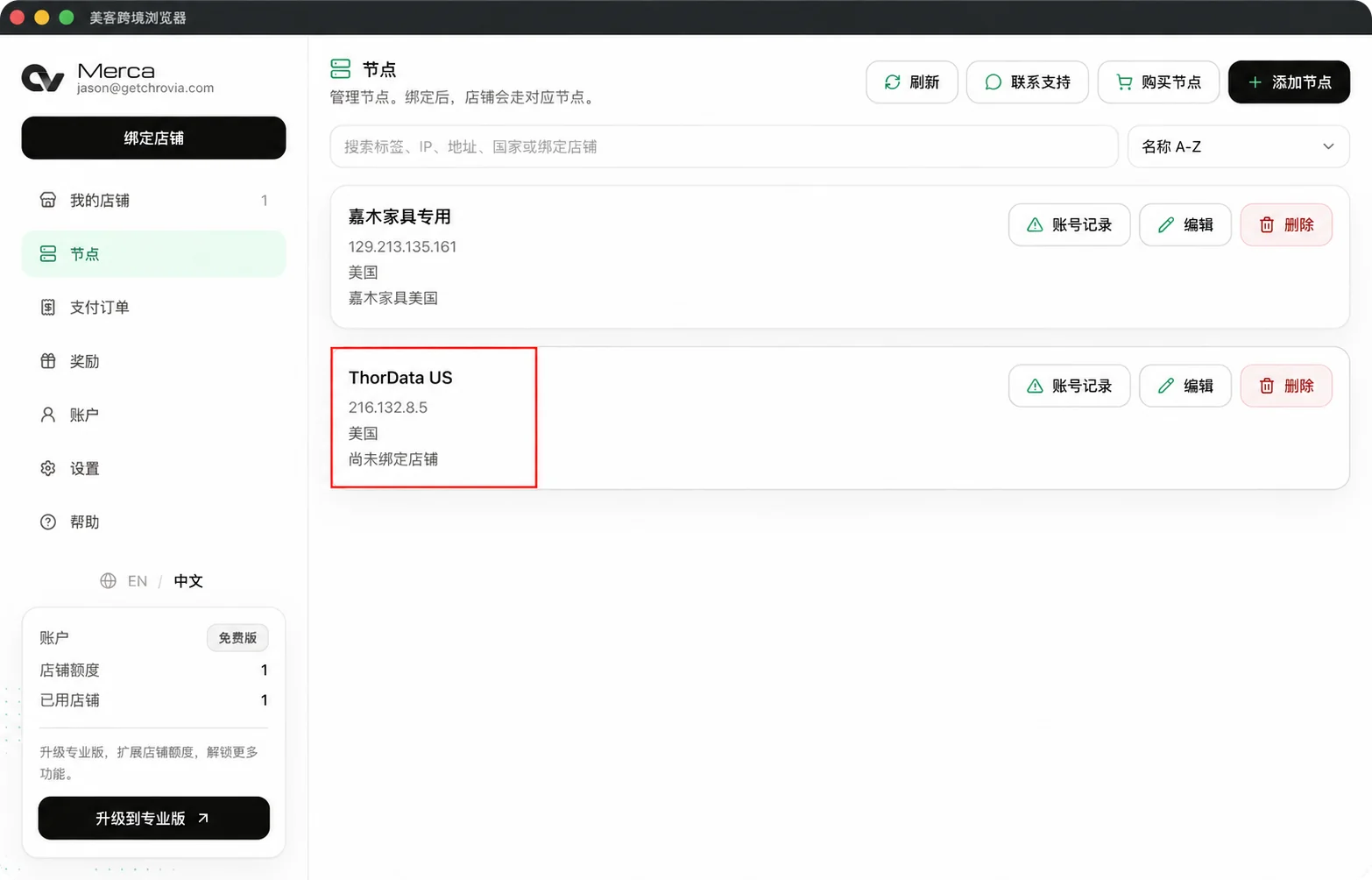
If no store is assigned yet, the node has been saved but is not in use by a store. Follow Add a store to select this node when adding your store.