

IPRoyal proxy integration
Buy a dedicated static ISP proxy from IPRoyal, copy its connection details, then import, check, and save it as a node in Merca with this step-by-step guide.
This guide walks you through buying an IPRoyal dedicated static ISP proxy and adding it to Merca. Merca calls a configured proxy a node and does not sell proxy services.
Before you start, install and sign in to the Merca desktop app. Only the owner or an admin can add nodes. Choose a location that suits your store; see Which country should I buy a node in. The United States is used here only as an example. Prices, availability, plans, and payment methods depend on IPRoyal's current offerings. Most screenshots show the Chinese interface.
1. Create an IPRoyal account
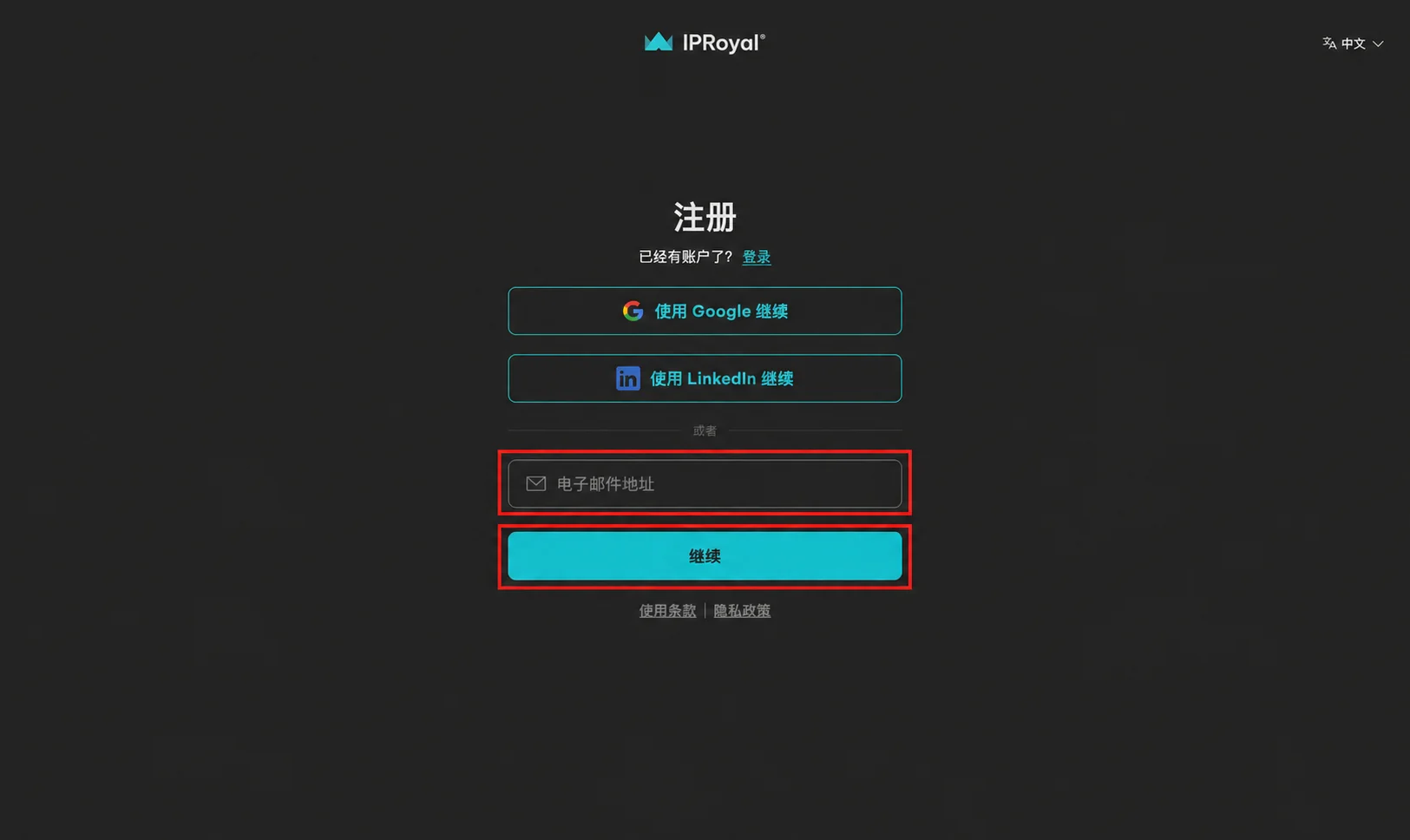
Open the IPRoyal website and click Create Account. Button labels may vary with the website language.

Enter your email address, click Continue, and follow the registration prompts. If you already have an account, sign in instead.
2. Create an ISP proxy order
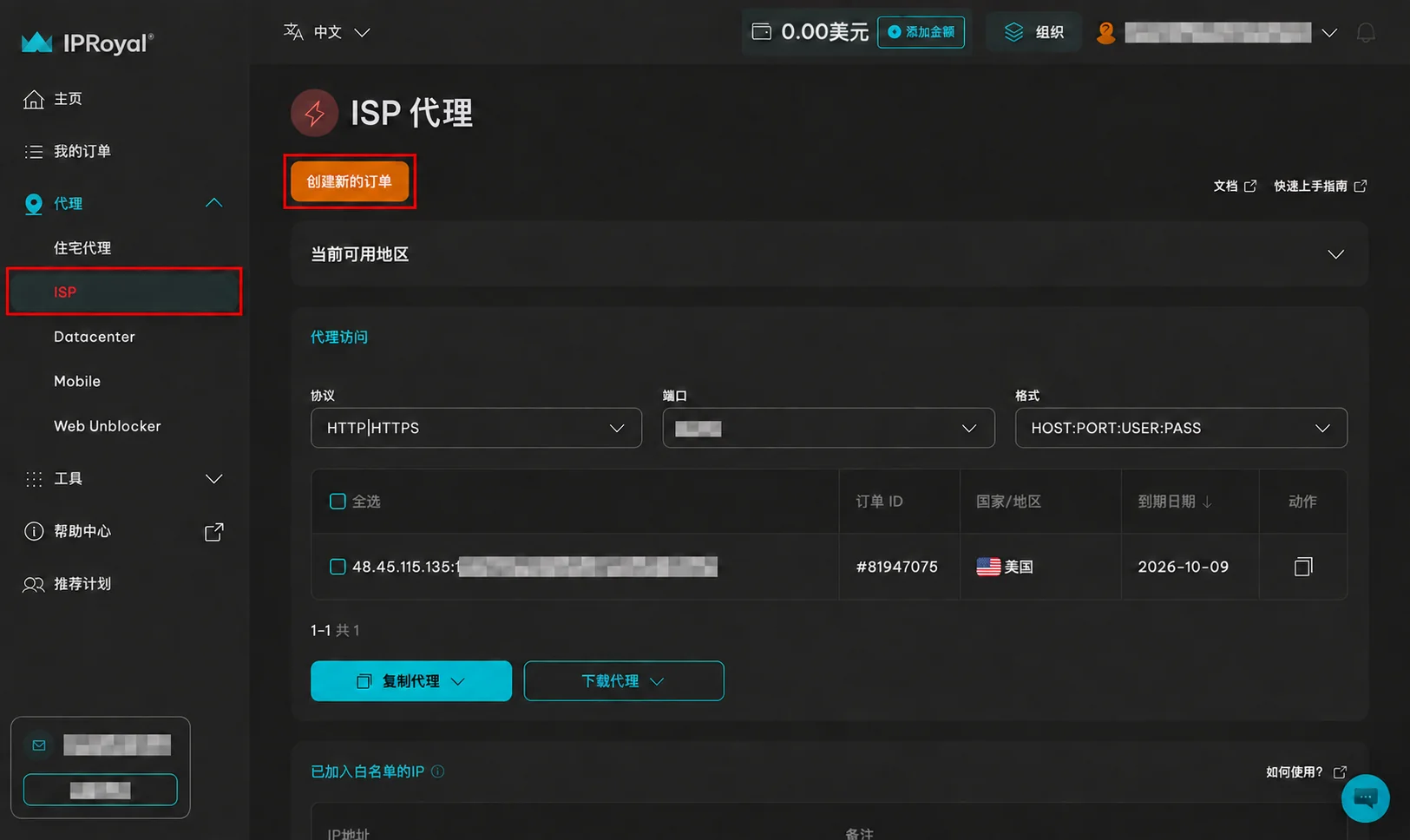
After signing in, open Proxies → ISP in the sidebar and create a new order.
3. Choose a dedicated proxy, duration, and location
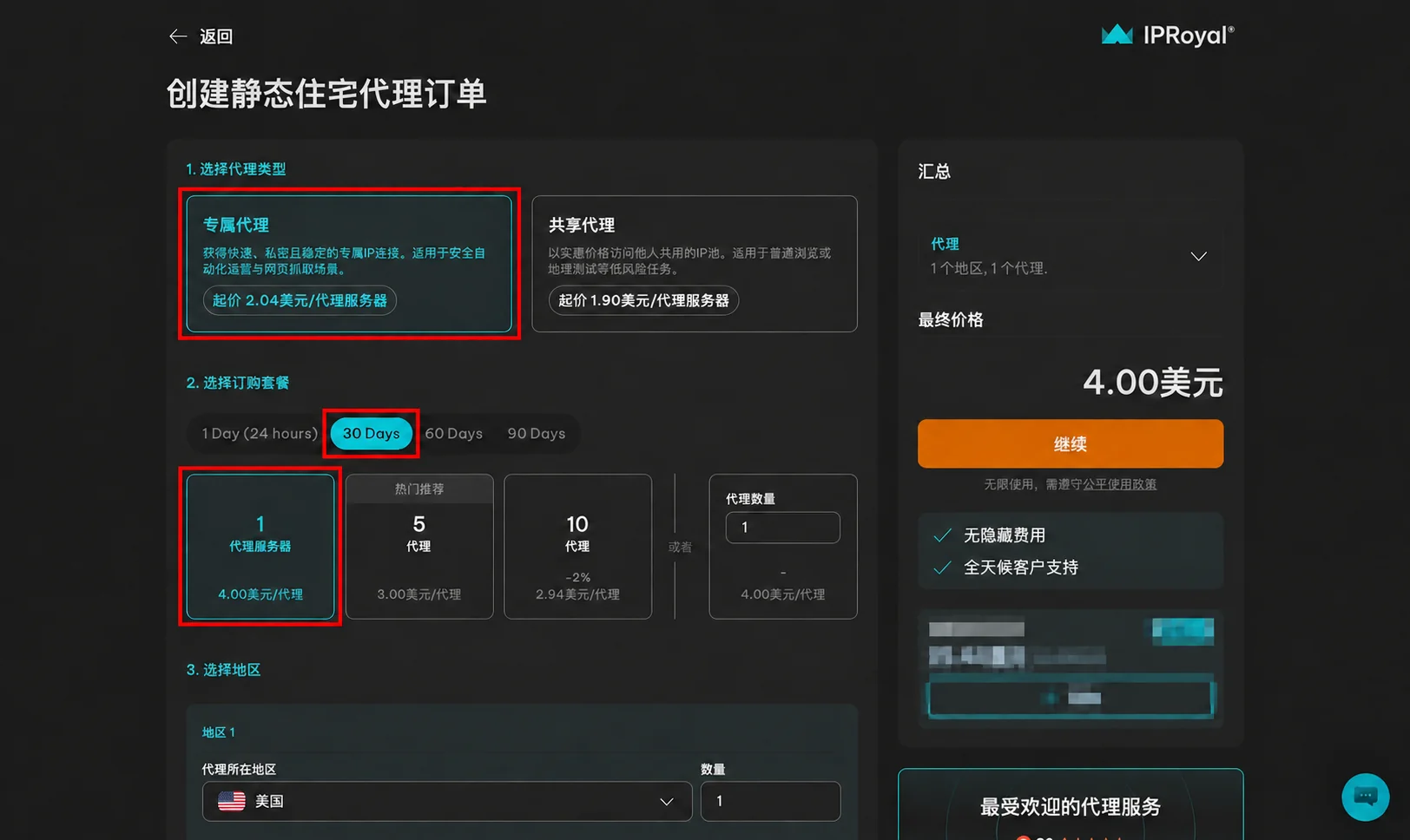
On the static residential proxy order page, choose Dedicated proxies, then select a duration and quantity. This example uses 30 Days and 1 proxy.
Prefer a dedicated static ISP IP: static means the IP stays fixed, while dedicated means it is not shared with other customers. Confirm both properties separately.
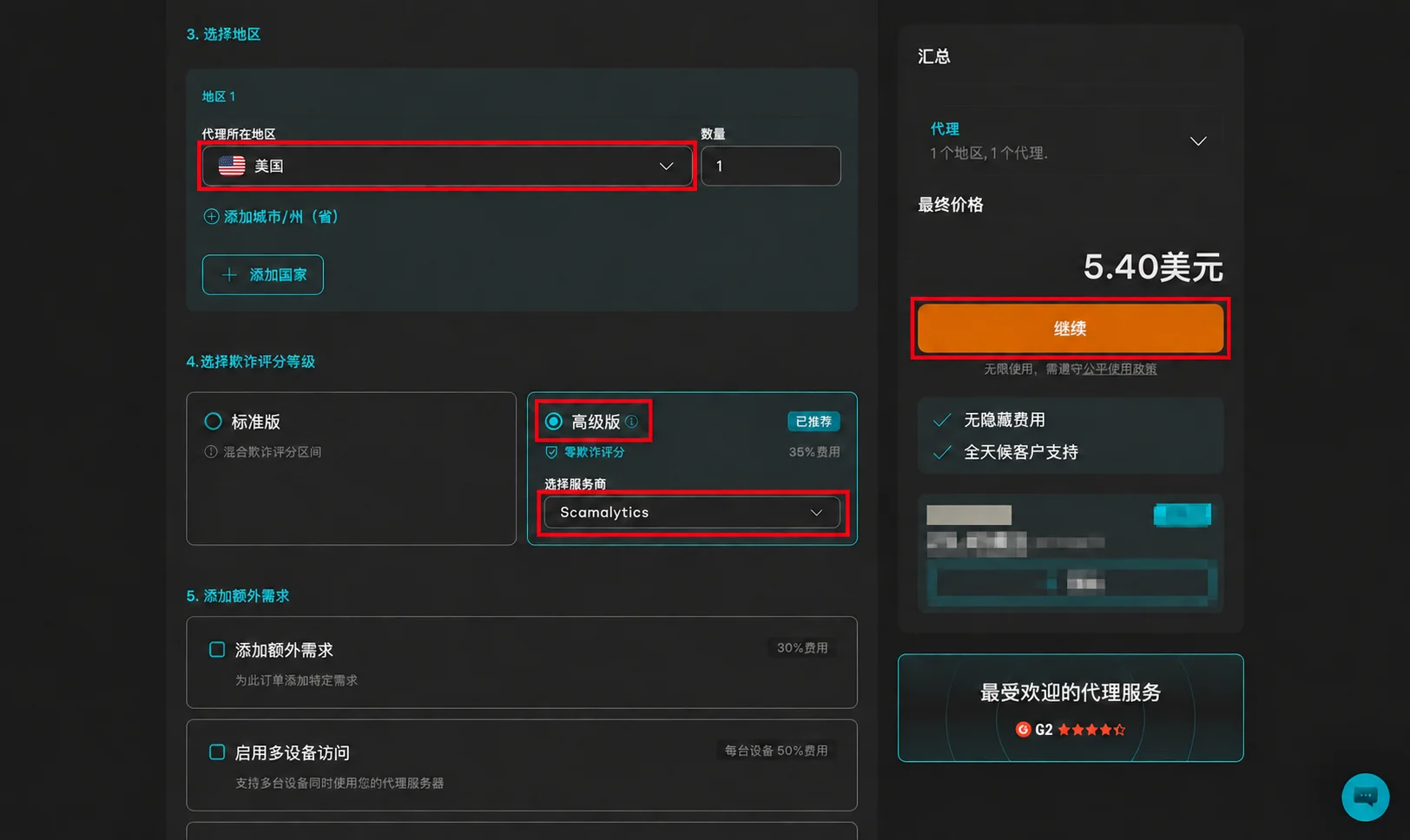
Choose the country or region you need. This example uses the United States, which is not the right choice for every store.
The screenshot also selects the higher fraud-score tier with Scamalytics as the scoring provider. This is an optional paid setting in the example, not a requirement for Merca, and it does not guarantee that a store platform will accept the IP. Choose what you need, review the order summary, then click Continue and follow the checkout instructions to complete payment.
4. Copy the proxy connection details
After payment, return to Proxies → ISP and find the purchased proxy in the proxy access section.
- Select HTTP|HTTPS as the protocol and use the corresponding port provided on the page.
- Select the HOST:PORT:USER:PASS format.
- Select the checkbox for the proxy you want to import.
- Open the copy menu and choose to copy the selected proxy, not all proxies.
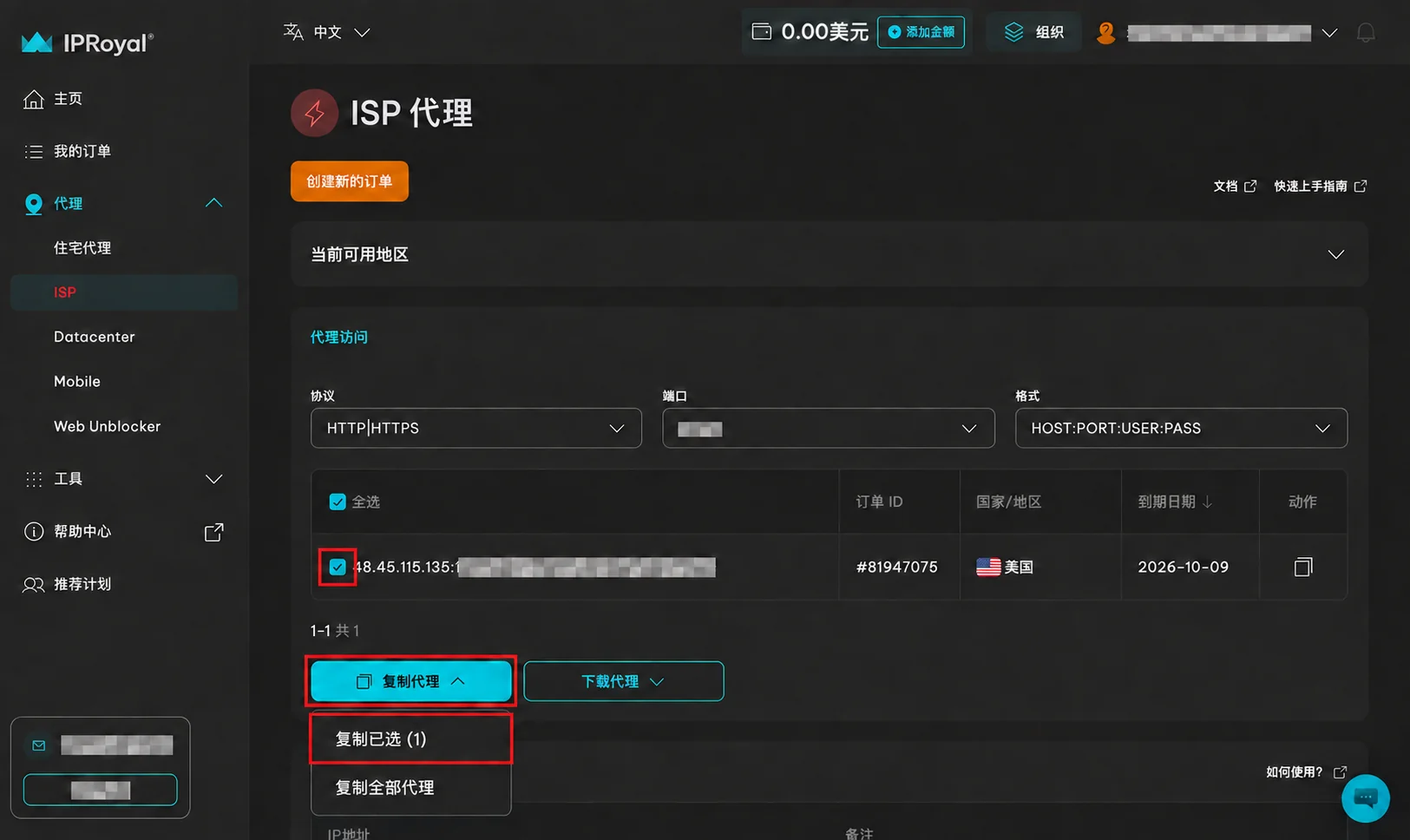
Copy one proxy at a time to add each as a separate node in Merca. These credentials are for the proxy connection, not your IPRoyal website login.
5. Fill in the details in Merca
Open the Merca desktop app, go to Nodes, and click Add node.
- Enter an optional Label, such as
IPRoyal US. - Paste the complete connection details into Paste details.
- Click Fill in.
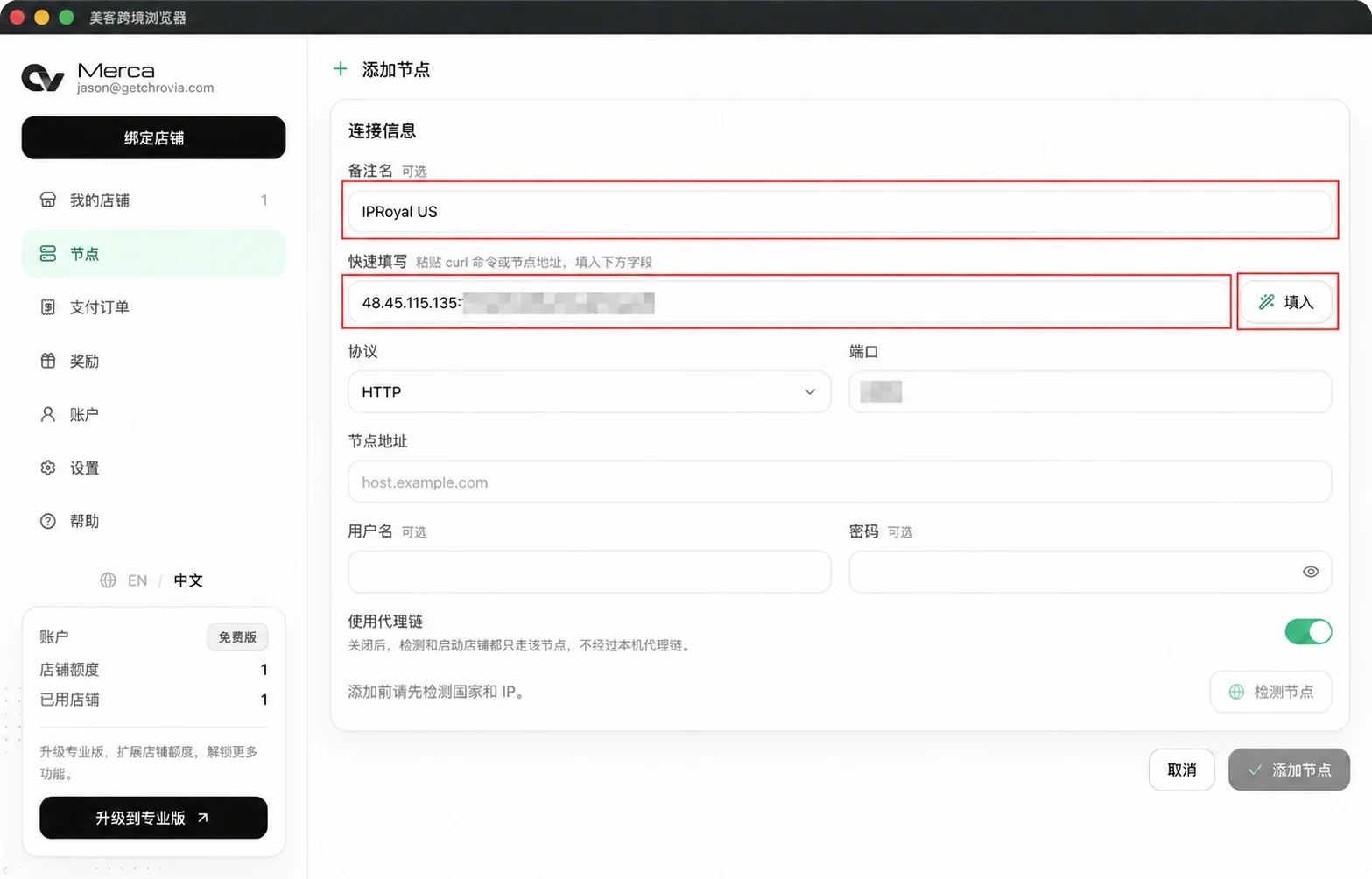
Merca fills in the Address, Port, Username, and Password. Select HTTP in Merca for the HTTP|HTTPS connection option used in this example. Check the protocol and port; if Merca cannot parse the pasted text, enter each field manually.
6. Check and save the node
Review the connection details and click Check node.
Use proxy chain is on in the screenshots, so both the node check and store connections use the local proxy configured in the desktop app. If you use the default system proxy setting, turn on the system proxy in your third-party software first. If your network can reach the node directly, you can turn off Use proxy chain before checking. See How the proxy chain works.
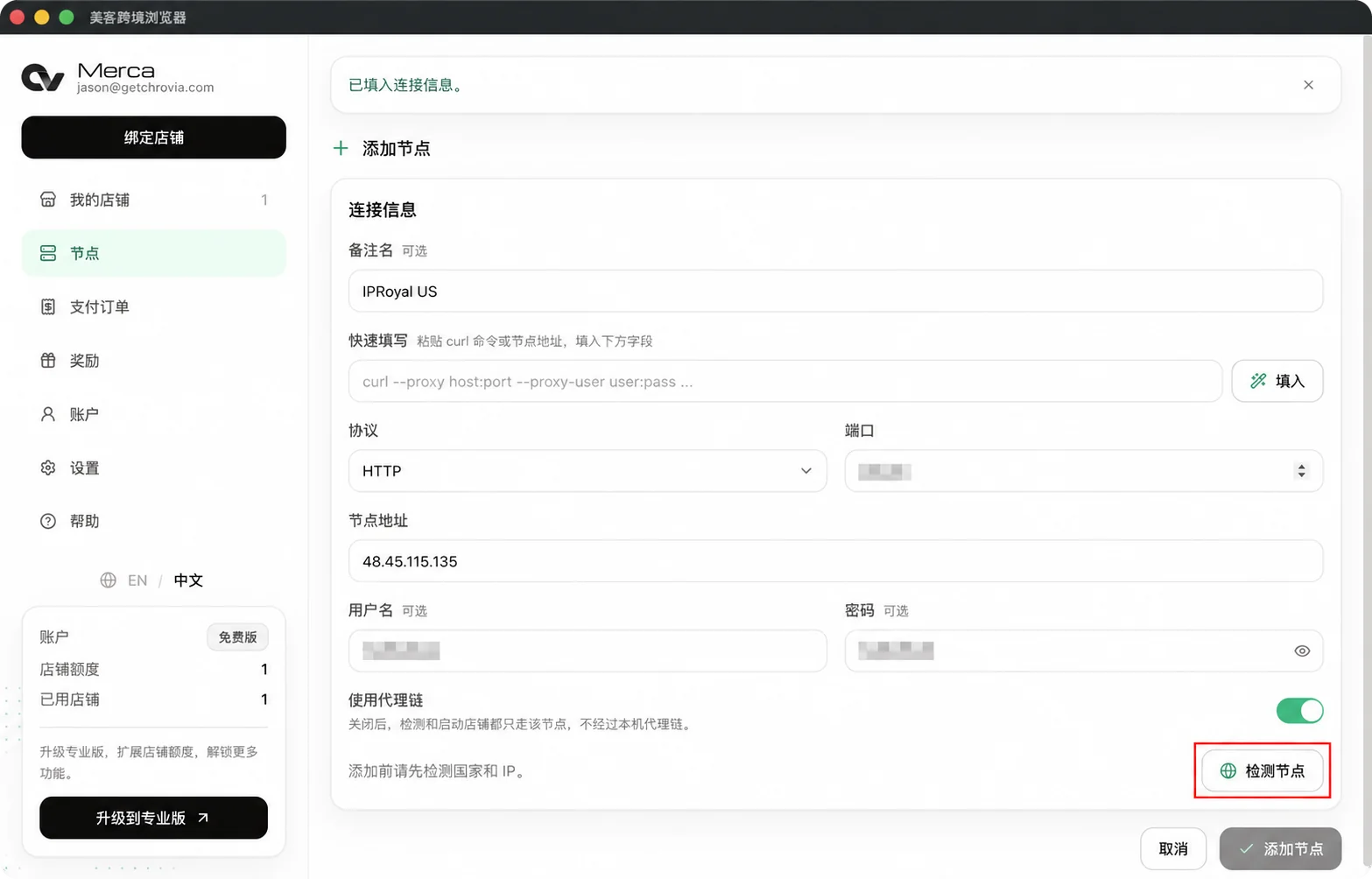
After a successful check, the form shows the country or region and exit IP. Confirm that they match your expectations, then click Add node.
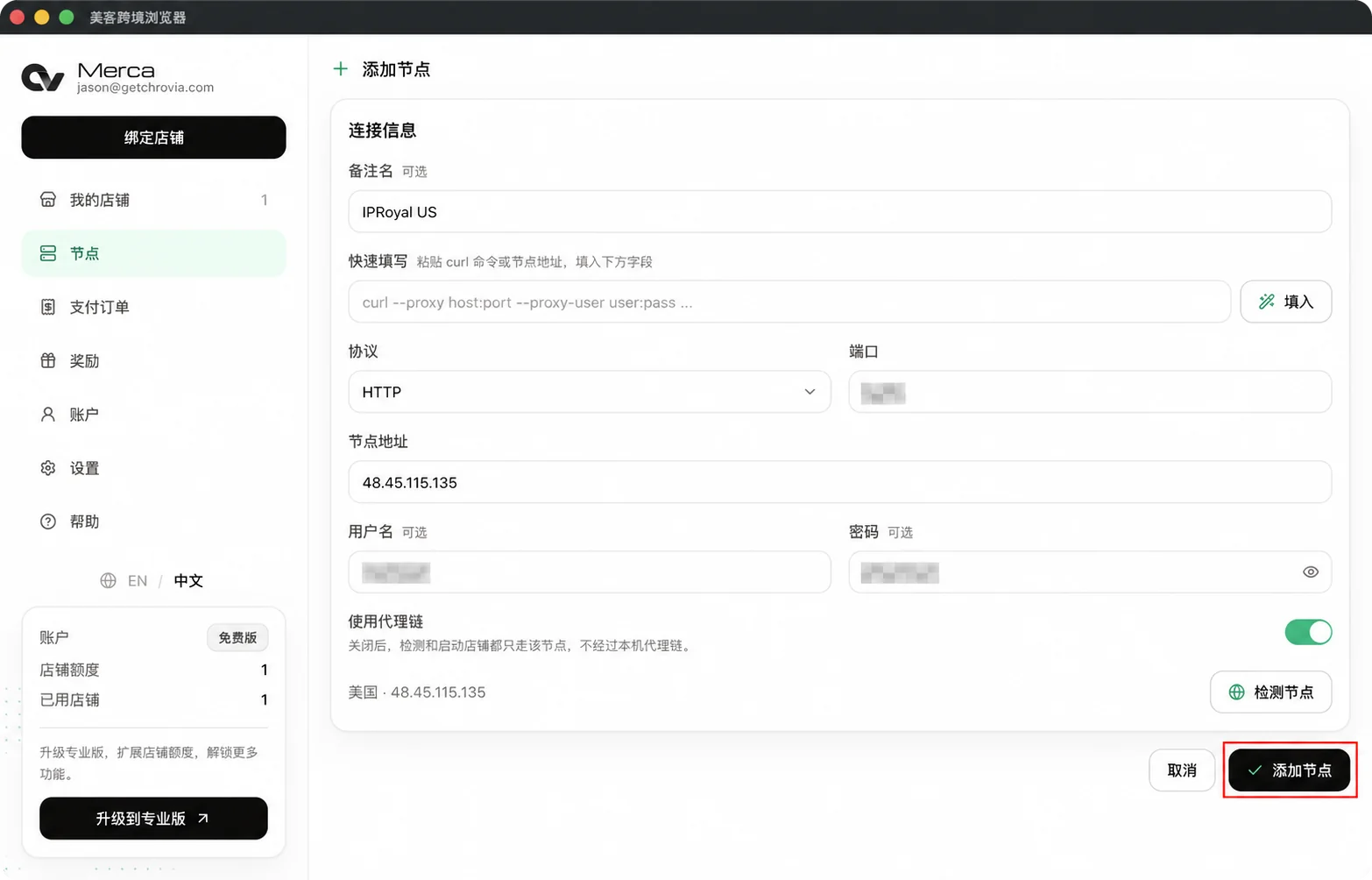
If the check fails, verify the protocol, address, port, and proxy credentials. Also check that the proxy has not expired and that your local proxy chain is working. An exit IP cannot be added more than once, including an IP already added by another Merca account.
7. Assign the node to a store
After saving, confirm that the new node appears in the Nodes list. Follow Add a store to select this node when adding your store.