

October 26, 2026
How to Prevent Operational Mistakes in Multi-Store Management: A Deep Dive into Merca Browser Safeguards
In multi-store cross-border e-commerce, unintentional human errors are a common cause of account linking and compromised assets. This guide explains how Merca Browser uses visual cues, pre-launch IP verification, in-browser account mismatch blocking, credential locking, and role-based permissions to build resilient operational guardrails.
When managing multiple seller stores across global marketplaces, anti-association is always a top priority for e-commerce sellers.
To maintain account safety, teams dedicate substantial effort to infrastructure: securing dedicated static residential IPs, configuring isolated browser environments, and tuning browser fingerprints.
In day-to-day operations, however, unexpected account issues often arise from simple, unintentional handling errors. When team members juggle multiple stores, switch between tasks, and process heavy workloads, small oversights can easily happen:
- Opening the wrong window: Working in Store A's browser profile while intending to manage Store B.
- Account mix-ups: Typing or pasting Store B's credentials into Store A's browser window.
- Cross-platform browsing: Navigating to and logging into unbound platforms inside an environment dedicated to Amazon.
- Proxy node misconfigurations: Assigning a proxy IP to a new store that is already in use by another store on the same marketplace.
- Credential handling gaps: Passing plain-text passwords across internal spreadsheets, or unintentionally modifying auxiliary email credentials.
In fast-paced daily workflows, relying solely on diligence and checklists cannot guarantee zero mistakes.
Merca Browser addresses this challenge by embedding automated verification and mistake-proofing into critical touchpoints of the software, stopping operational errors before they impact the business.
1. Visual Identification: Distinguishing Store Environments at a Glance
When running multiple stores simultaneously, the system taskbar can quickly fill up with identical browser icons, making it easy to open the wrong window.
Merca Browser provides clear visual distinction throughout the user interface:
- Custom Store Names and Color Labels: When adding a store, you can assign a unique name and a distinct color label (such as navy blue for US marketplaces and orange for European stores).
- Window and Taskbar Synchronization: Once launched, the store's window header and system taskbar icon display the matching color label and store title.
- Independent Storage Directories: Each store maintains a completely separate local browser data directory, isolating cookies, cache files, and local storage on disk.
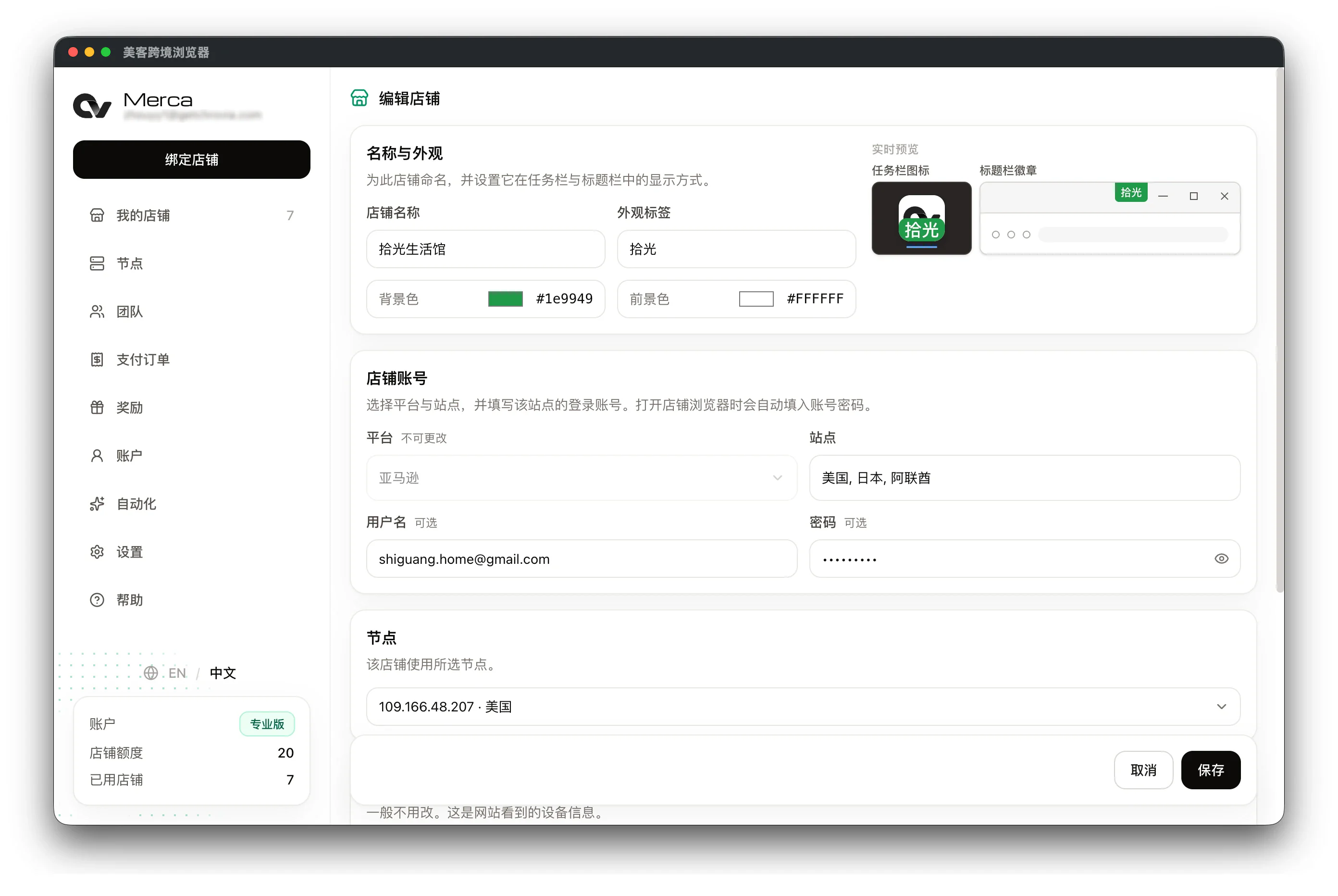
These visual indicators help operators instantly confirm their current active context whenever they switch between tasks.
2. Pre-Launch Verification: One IP and One Account Per Platform
Assigning proxies properly is essential for store separation. If an operator mistakenly selects an active proxy when launching another store, two separate accounts on the same platform could share a single public IP.
Merca Browser enforces strict pre-launch verification rules in the desktop client:
- The "One IP, One Store" Rule: After a node successfully launches a store for the first time, its public IP, platform, and store username are saved in the node's account records with an "Allowed" status.
- Active Launch Blocking: If an operator attempts to launch another store on the same platform with a different username using that same node IP, the client blocks the launch immediately upon clicking "Launch". A prompt warns: "This node already has another account on this platform", and the browser window does not open.
- Protection Against Recycled IPs: The system retains platform usage history on proxy IPs. If a purchased IP was previously recorded on that marketplace, the launch is flagged, helping teams avoid unvetted IP assignments.
- Administrator-Only Approval: In legitimate business situations where multiple sub-accounts share an IP, only the Owner or an Administrator can review and approve the record. Normal users cannot bypass this check.
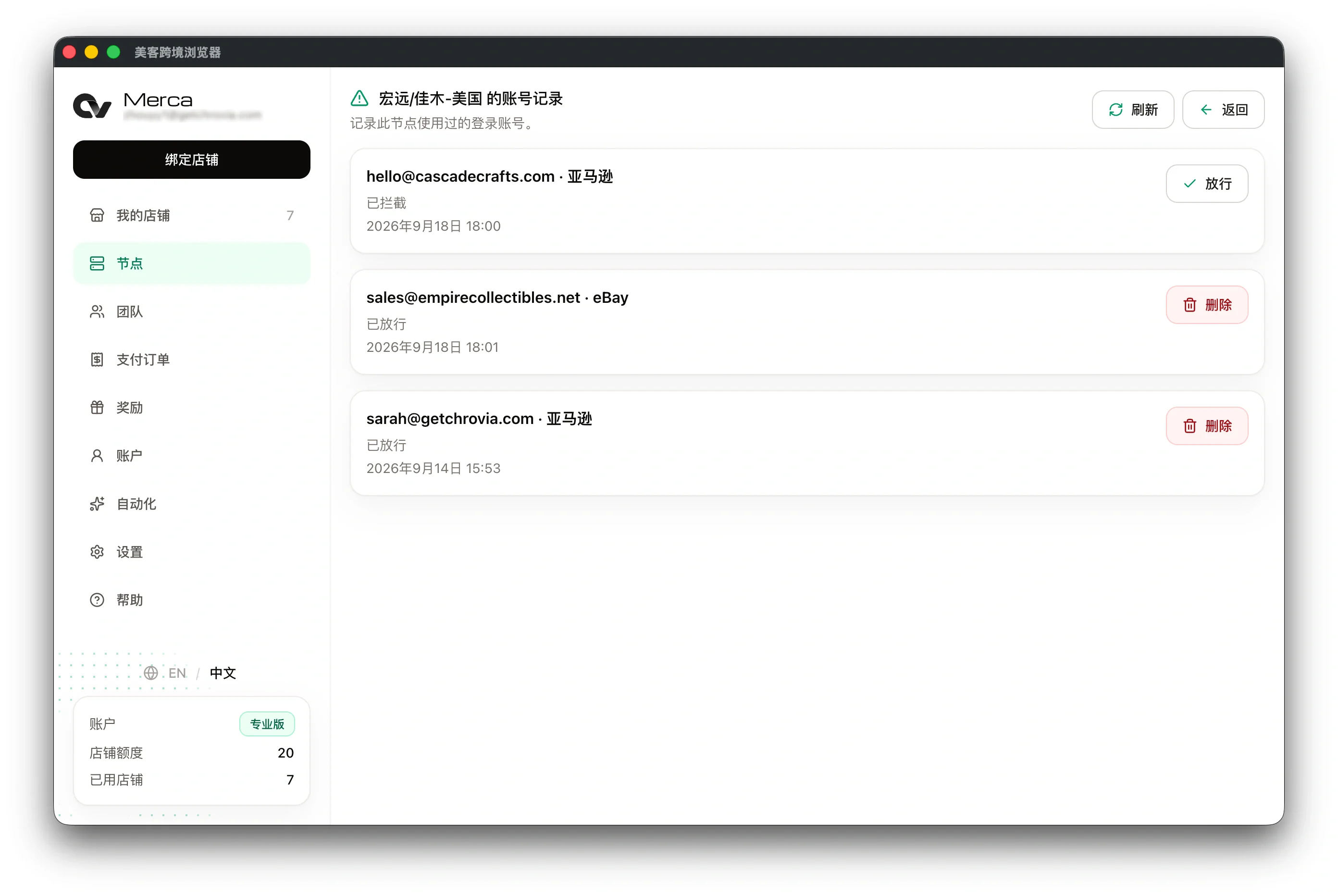
For further details on these mechanics, see How login protection works and Understanding node contamination.
3. In-Browser Real-Time Safeguards: Account and Platform Validation
Even inside the correct store profile, operators might still paste the wrong username because of copied data or muscle memory.
Merca Browser includes built-in safeguards directly inside the browser environment:
- Immediate Account Mismatch Interception: When an operator navigates to the marketplace login page, if the entered username does not match the store's bound configuration, the security module intercepts the submission and displays: "Login account mismatch". The invalid request is blocked locally and never sent to the marketplace, preventing abnormal login attempts from being recorded.
- Store and Platform Matching: If an operator attempts to sign into an unrelated marketplace within a dedicated store profile, the browser blocks the action with a "Store and platform mismatch" notification, preventing accidental cross-platform activity.
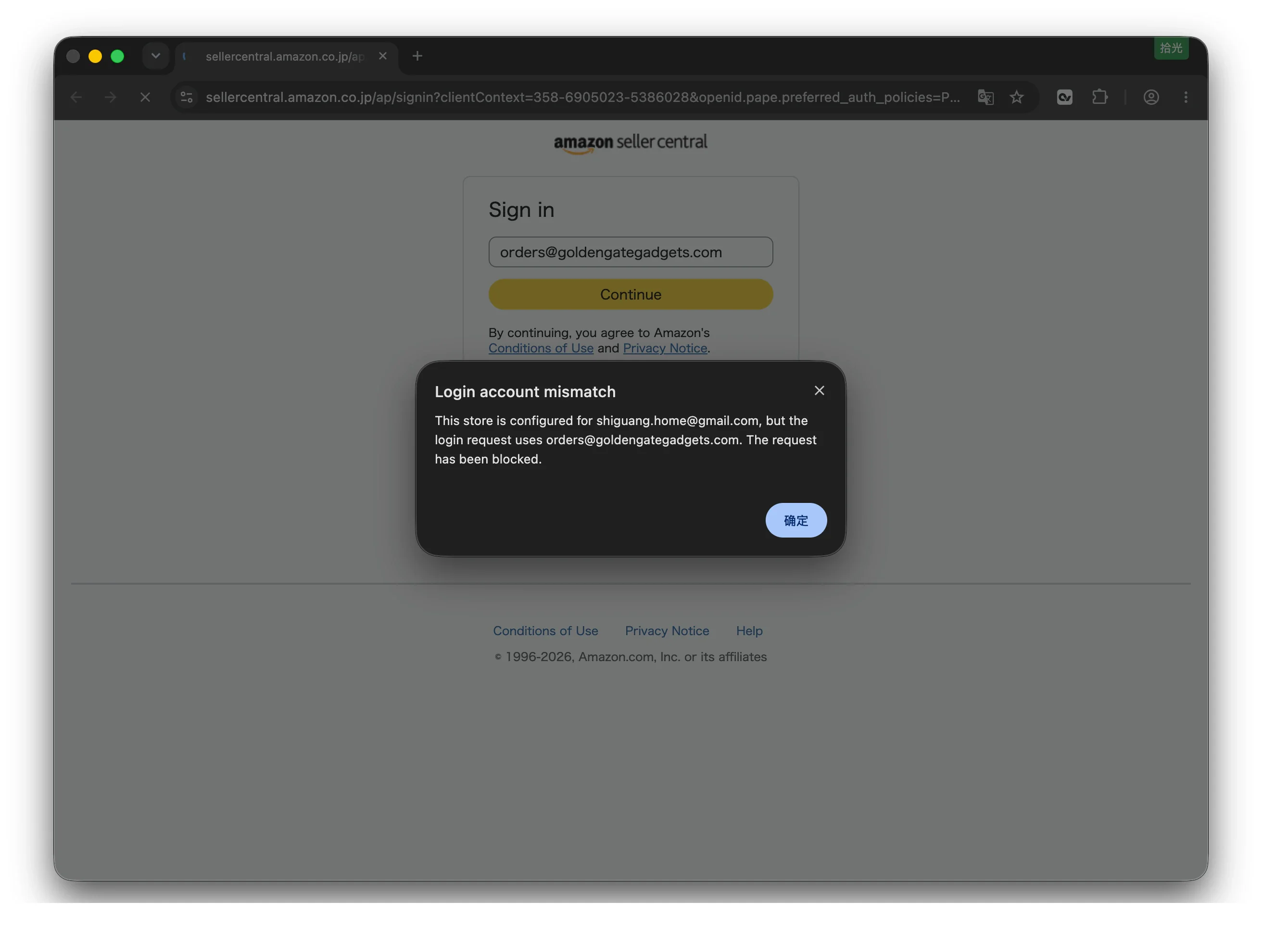
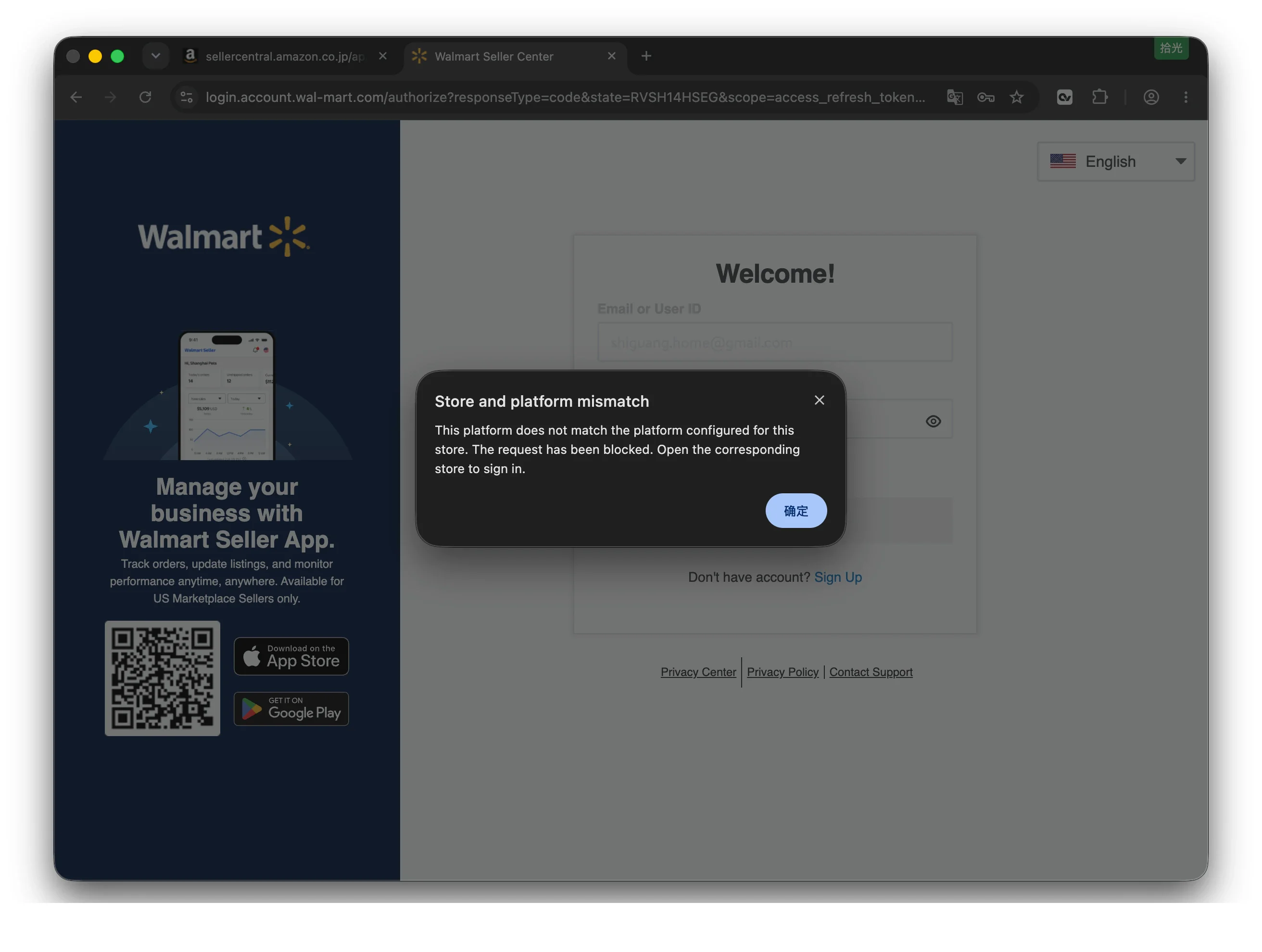
These two safeguards ensure that every store profile remains strictly confined within its intended operational scope.
4. Credential Management and Locking: Keeping Passwords Secure
Handling account credentials securely is critical for team collaboration. Sharing plain-text passwords carries leakage risks and increases the chance of unintended password modifications.
Merca Browser provides integrated credential management and protection controls:
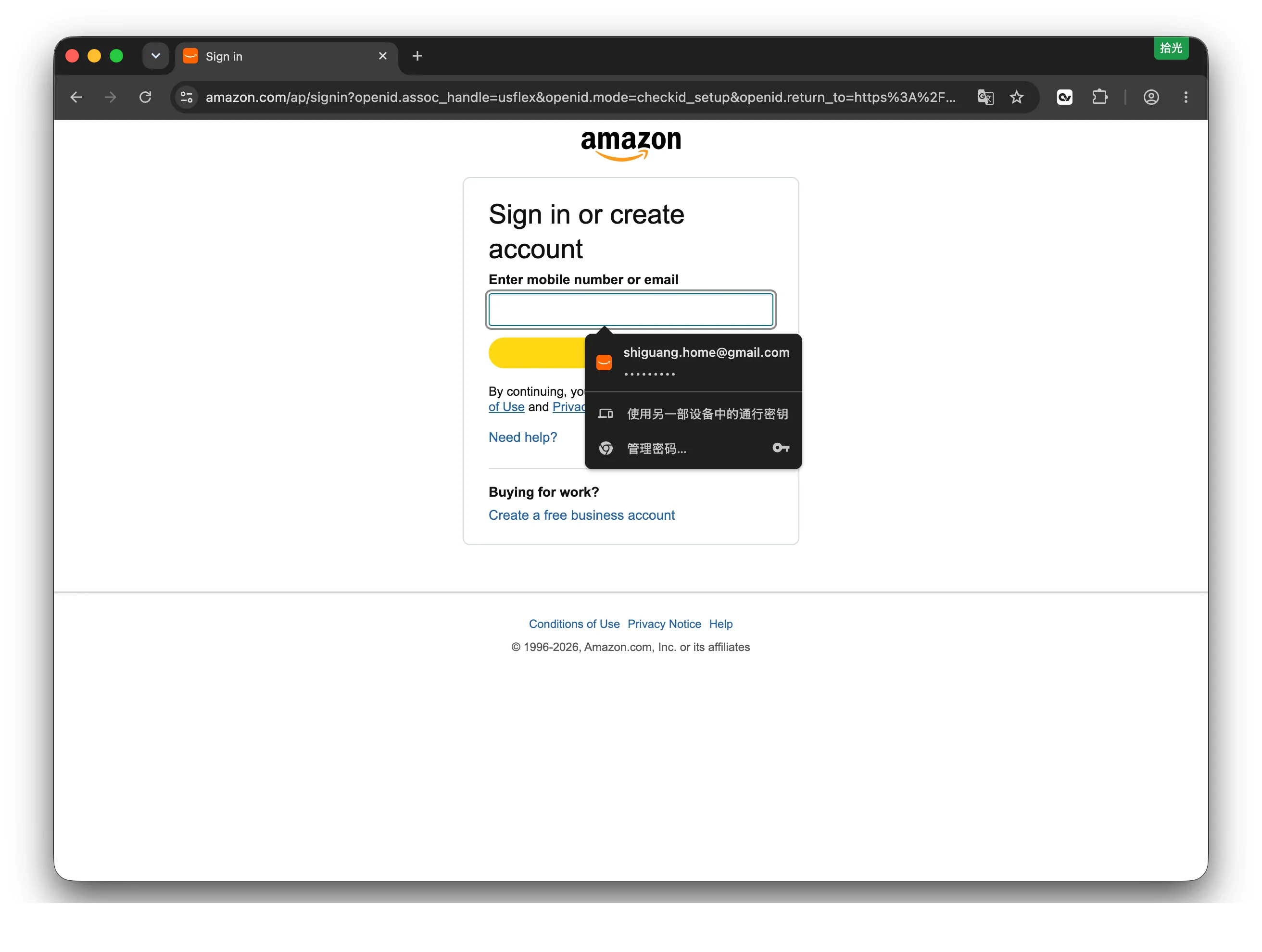
- Password Autofill Without Raw Exposure: Administrators store login credentials in the central console. When an operator launches a store and opens the login page, credentials autofill automatically or through a secure selection menu, eliminating the need to distribute plain-text passwords.
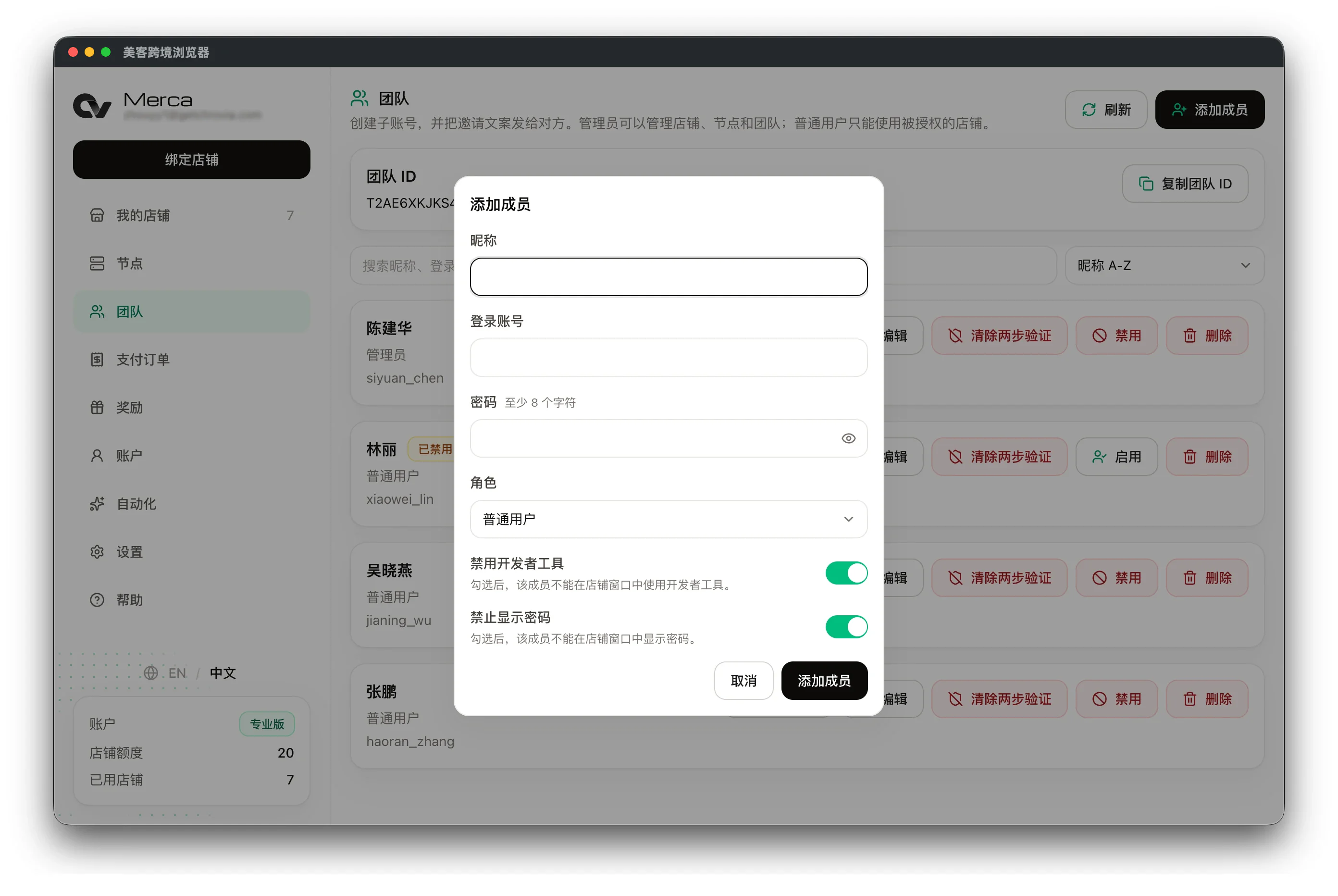
- Masked Passwords: When creating team members, the "Hide passwords" setting is enabled by default. Staff members cannot reveal masked password fields in the desktop client or the browser window.
- Disabled DevTools: Developer tools (F12) are disabled by default for normal users, closing technical routes to inspect password inputs or extract session cookies.
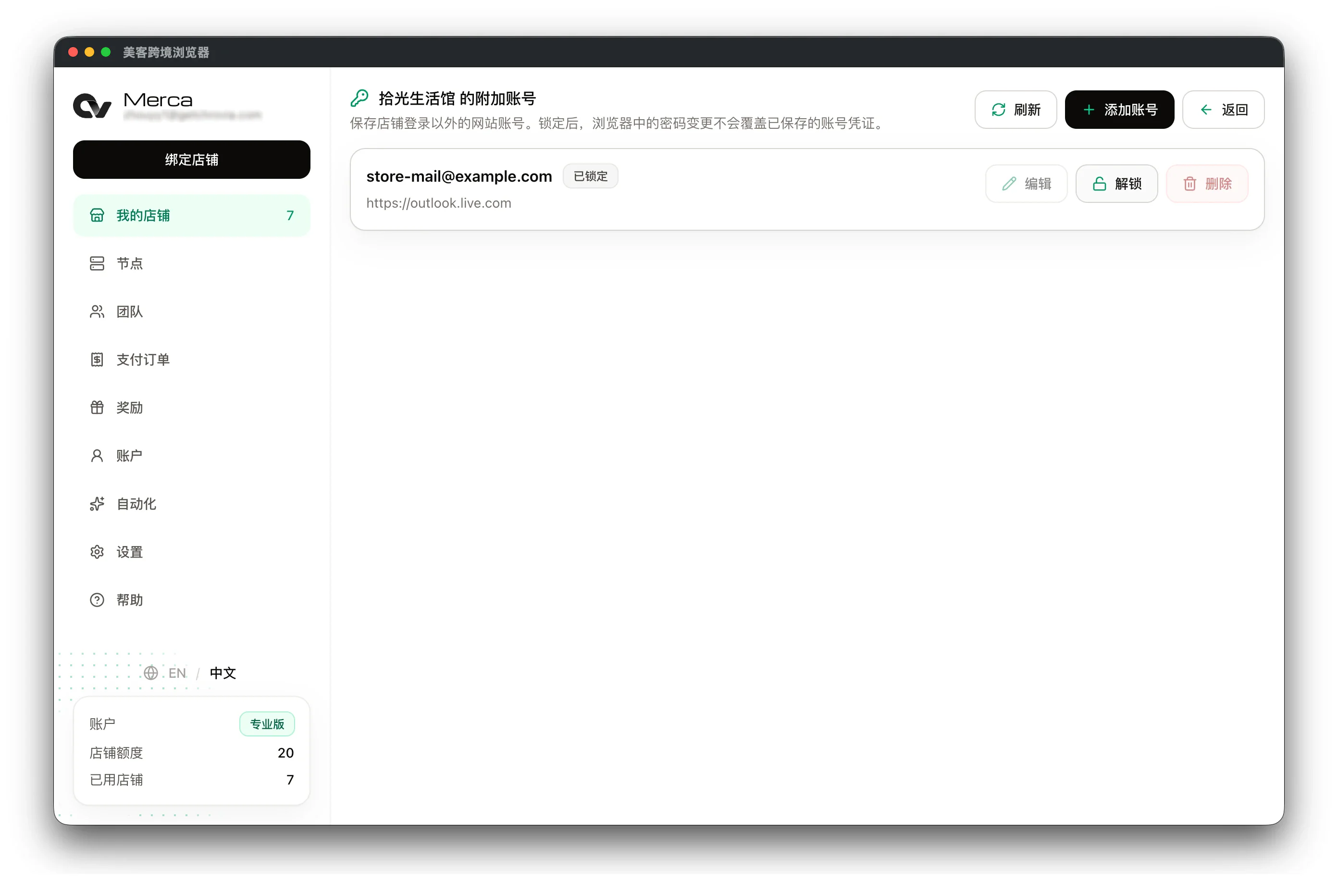
- Credential Locking for Auxiliary Accounts: Stores often use auxiliary accounts such as dedicated Outlook or Gmail mailboxes. After signing in and saving credentials inside the store window, the account syncs to the store's additional account list. Once set to "Locked" by an administrator, browser password updates will not overwrite the saved master credentials, and members cannot delete the entry.
- Integrated TOTP and Passkeys: Two-factor authentication (2FA) verification codes and Passkeys (WebAuthn) are managed directly within the store profile. Normal users with Read-only access can view and use dynamic 6-digit verification codes directly, eliminating the need to expose underlying secret seeds or manually forward codes.
For step-by-step guidance, see How password autofill works and How to add auxiliary accounts.
5. Role-Based Permissions: Principle of Least Privilege and Audit Logs
As teams grow, structured access boundaries help reduce human mistakes from an organizational level:
- Three Clear Roles:
- Owner: Controls all stores, proxy nodes, billing, and global settings.
- Admin: Manages day-to-day store assignments and member onboarding without access to billing details.
- Normal User: Operational role only. Normal users do not see unassigned stores, node settings, billing invoices, or automation APIs.
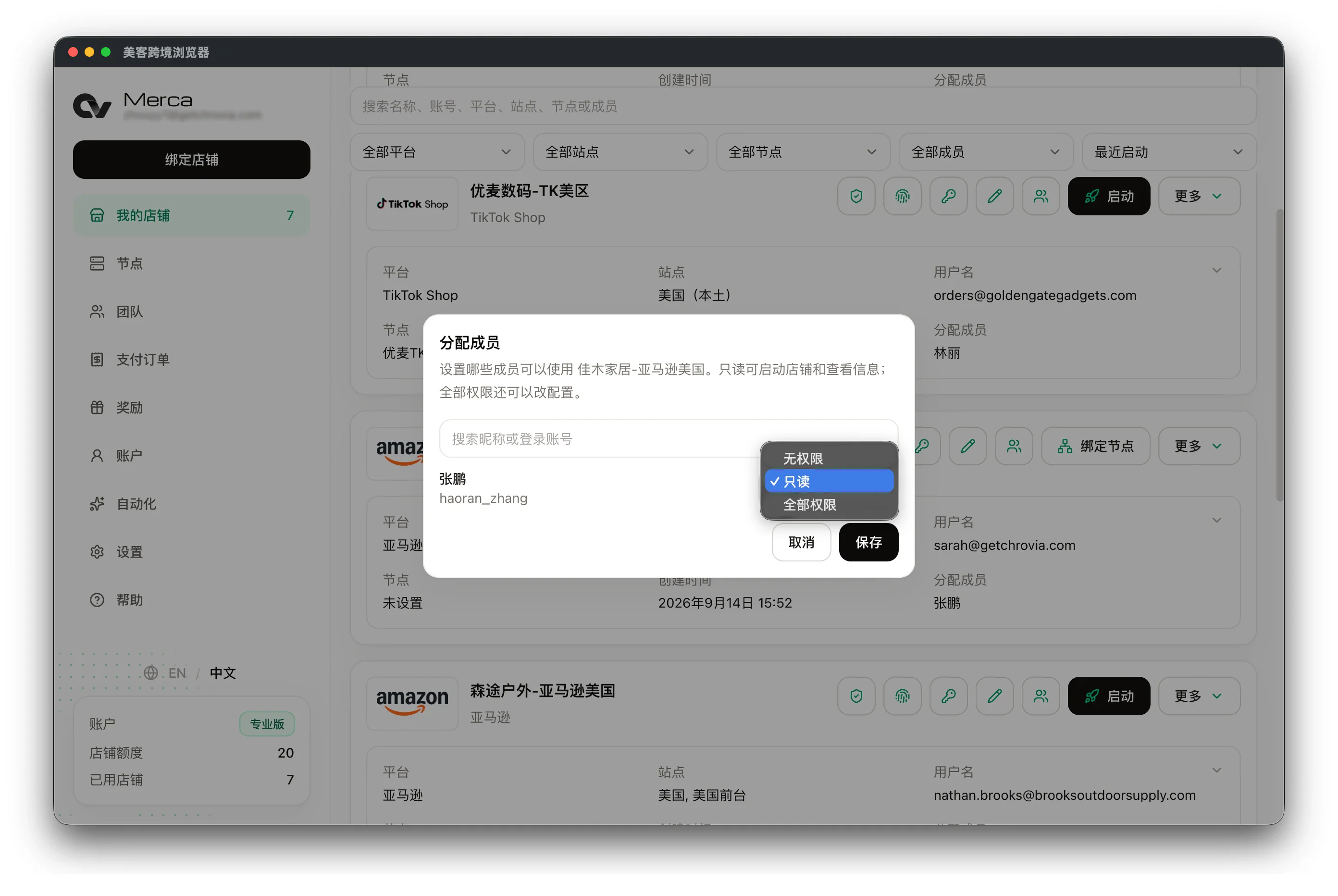
- Granular Store Access: Stores can be assigned with "Read" or "Full" permissions. Read-only access allows staff to launch the browser, use saved credentials, and view authenticators and auxiliary accounts, while preventing changes to store configurations, proxy nodes, or credentials.
- Comprehensive Activity Logs: The system records sign-ins, store launches, blocked events, and credential updates, keeping an accurate record of operational events.
- Quick Access Revocation: When an employee departs or an external agency engagement concludes, administrators can click "Disable" to revoke access. The member is signed out immediately, and any active store browser windows close automatically within approximately one minute, avoiding the need to reset credentials across marketplaces.
To learn more about member setup, see How to add members and How to assign stores to members.
Conclusion: Safeguarding Operations with Built-In Guardrails
Developing sound operational habits is always valuable, but software tools should be designed with strong built-in tolerance for human error.
Through visual identifiers, pre-launch proxy validation, in-browser account mismatch blocking, credential locking, and role-based permissions, Merca Browser provides comprehensive safeguards at every step. By catching and correcting mistakes at the source, teams can focus on growth and day-to-day operations with confidence.